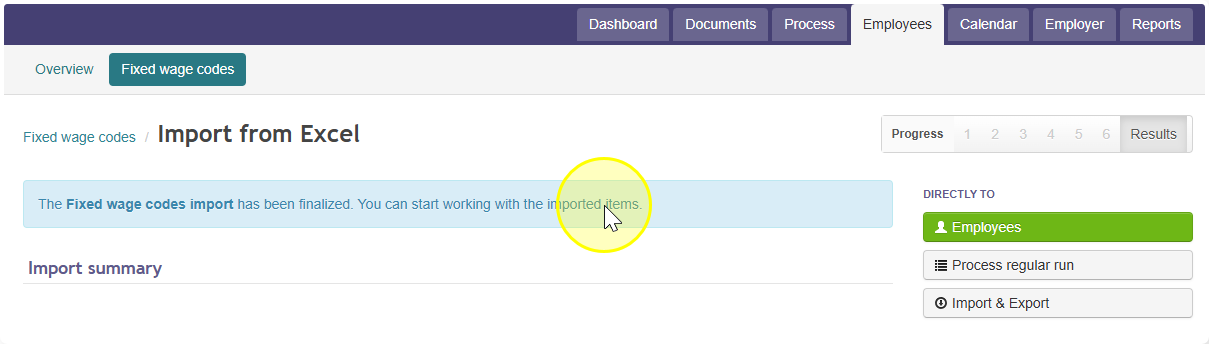
Editing Fixed Wage Codes in Bulk
Getting started
- Click the "Employee" tab.
- Click "Fixed wage codes".
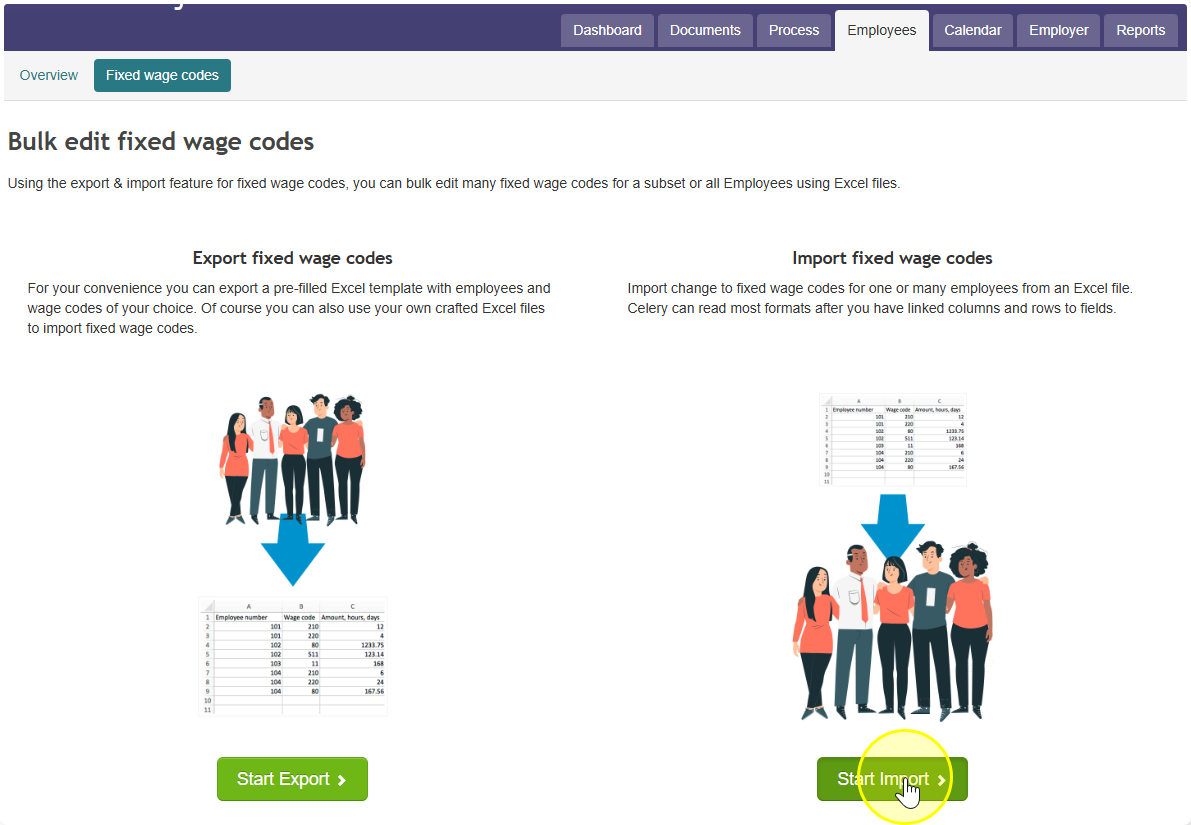
- Choose whether you want to export (download the current wage codes) or import (upload new wage codes).
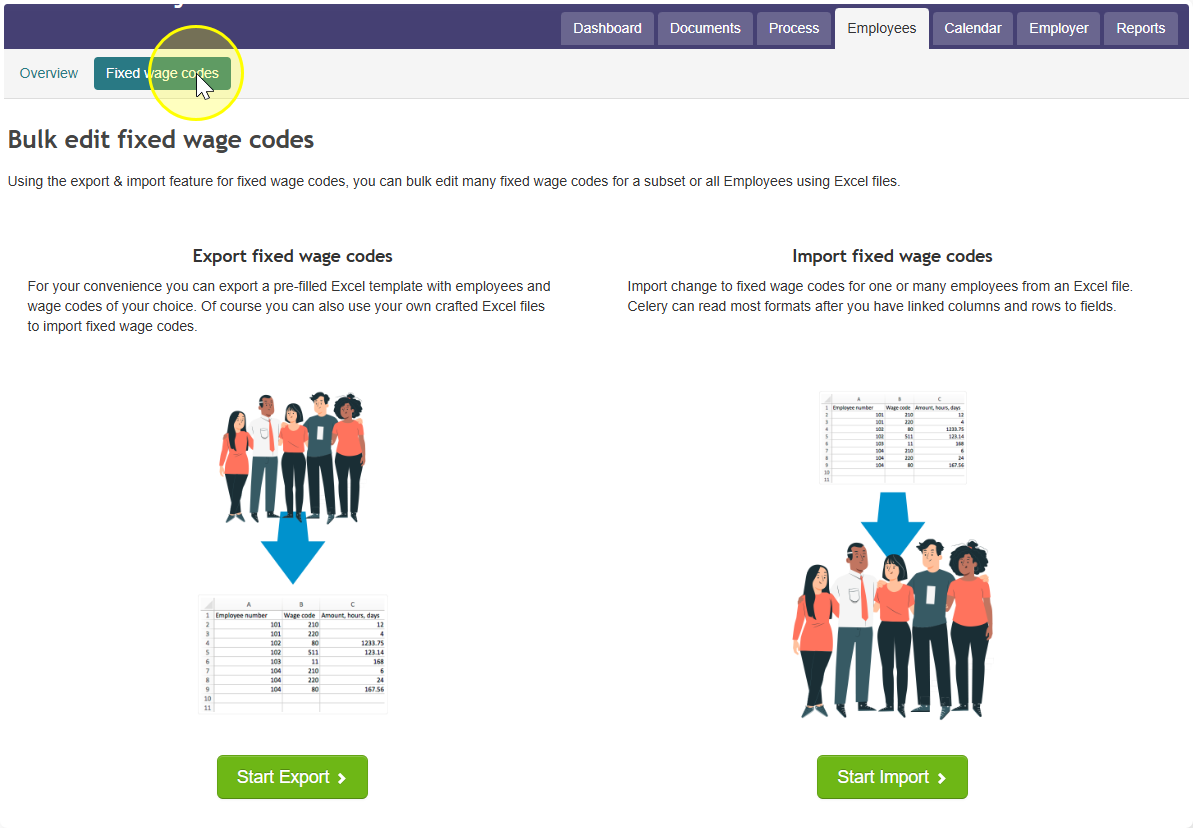
Exporting fixed wage codes
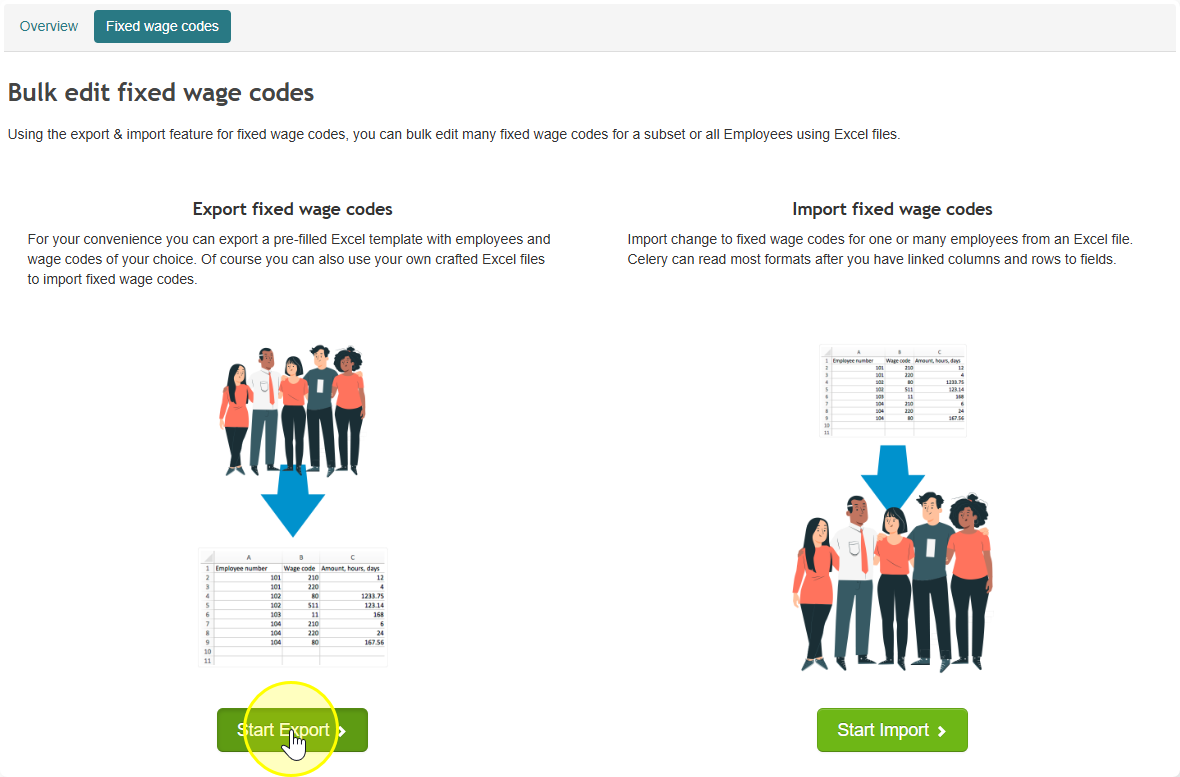
Use this if you want to download the current wage codes to an Excel file — for example, to check them or use them as a starting point for changes.
- Click Start export.
- Step 1 – Choose employees: Click the green arrow next to each employee you want to include.
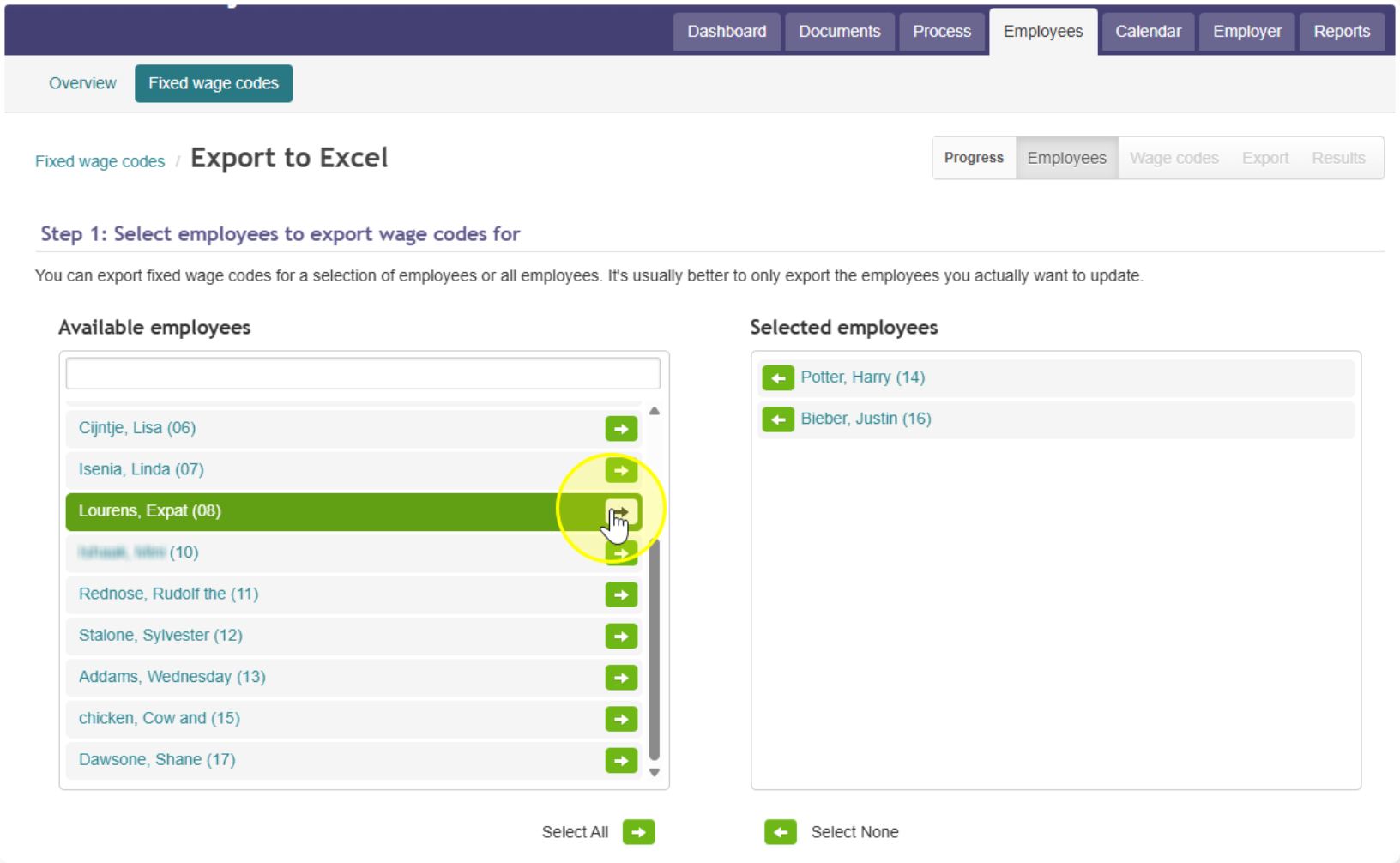
- Note: If you want to include everyone, click Select all instead of picking one by one.
- Step 2 – Choose wage codes: Click the green arrow next to each wage code you want to export.
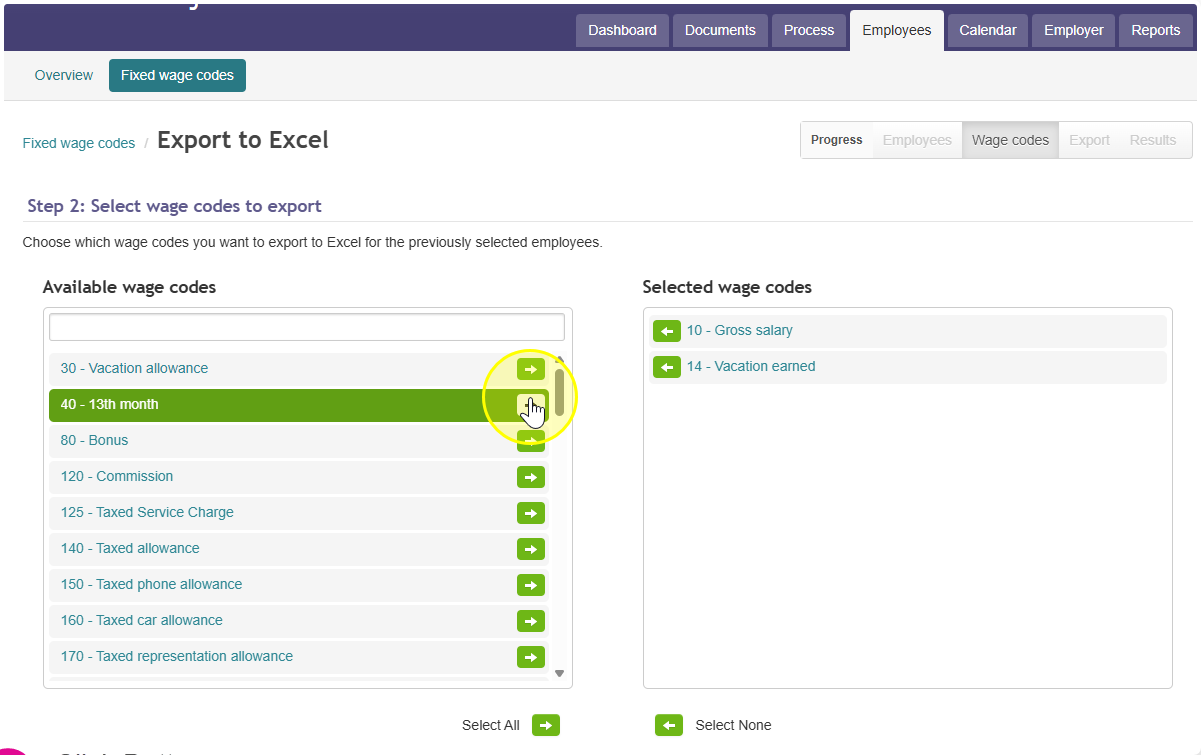
- Note: To export all wage codes at once, click the arrow next to Select all.
- Step 3 – Create the file: Click Next. Celery will now build your export file.
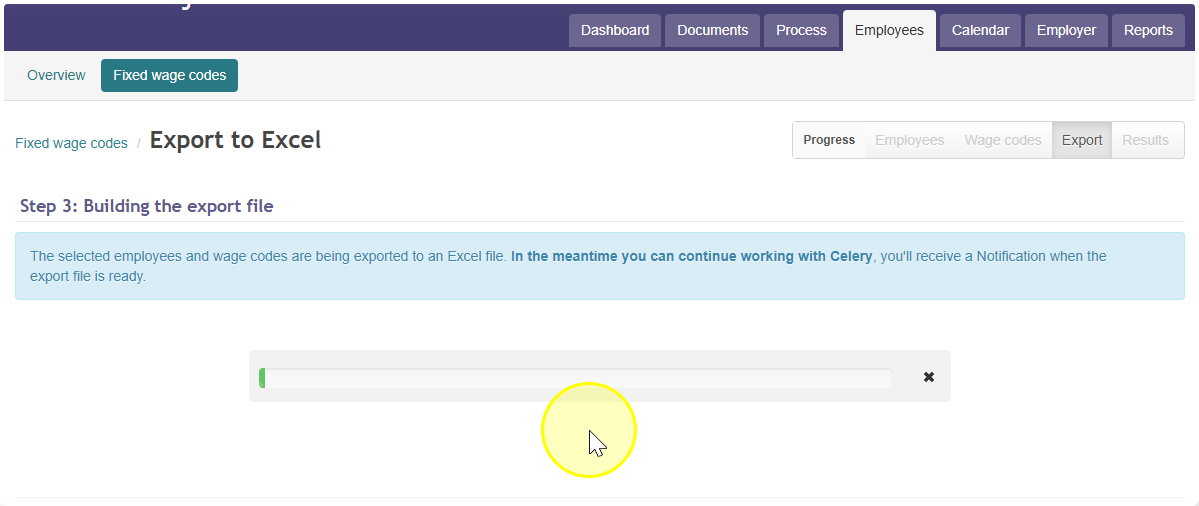
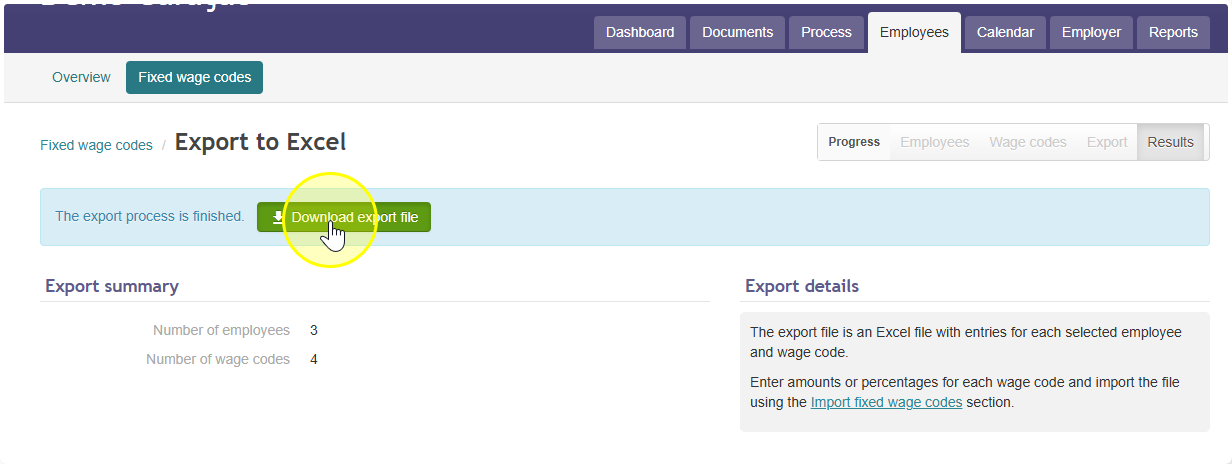
- Wait for the message that says the export is finished.
- Click the on Download export file button to download your file.
Importing fixed wage codes
Use this if you want to update wage codes for one or more employees by uploading an Excel file.
- Click on Start Import.
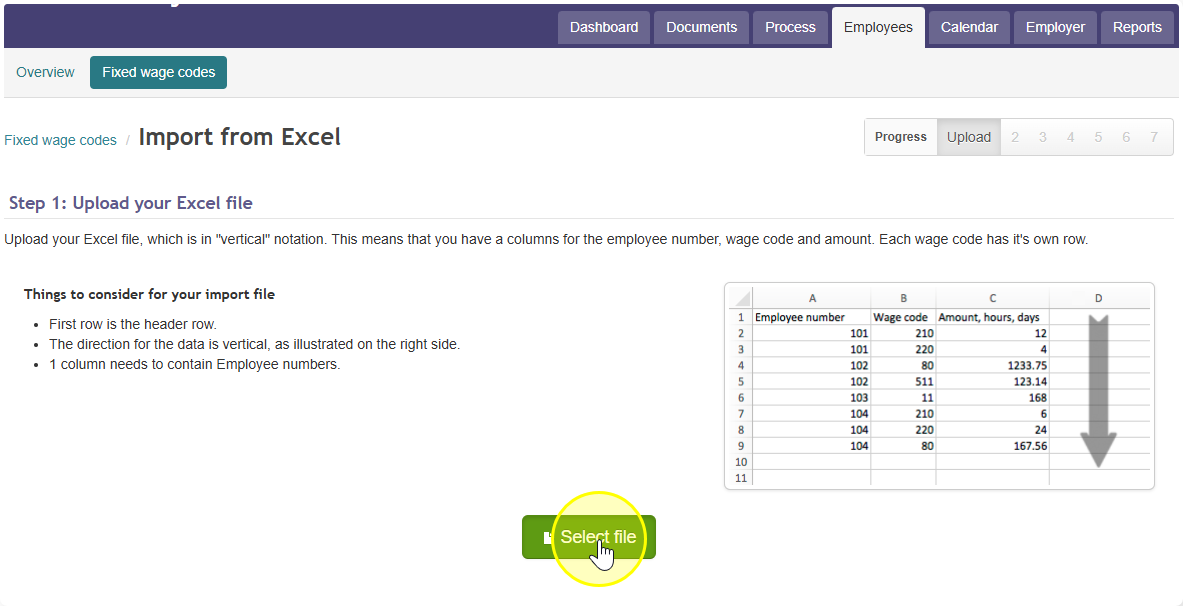
- Click Select file and choose the Excel file from your computer.
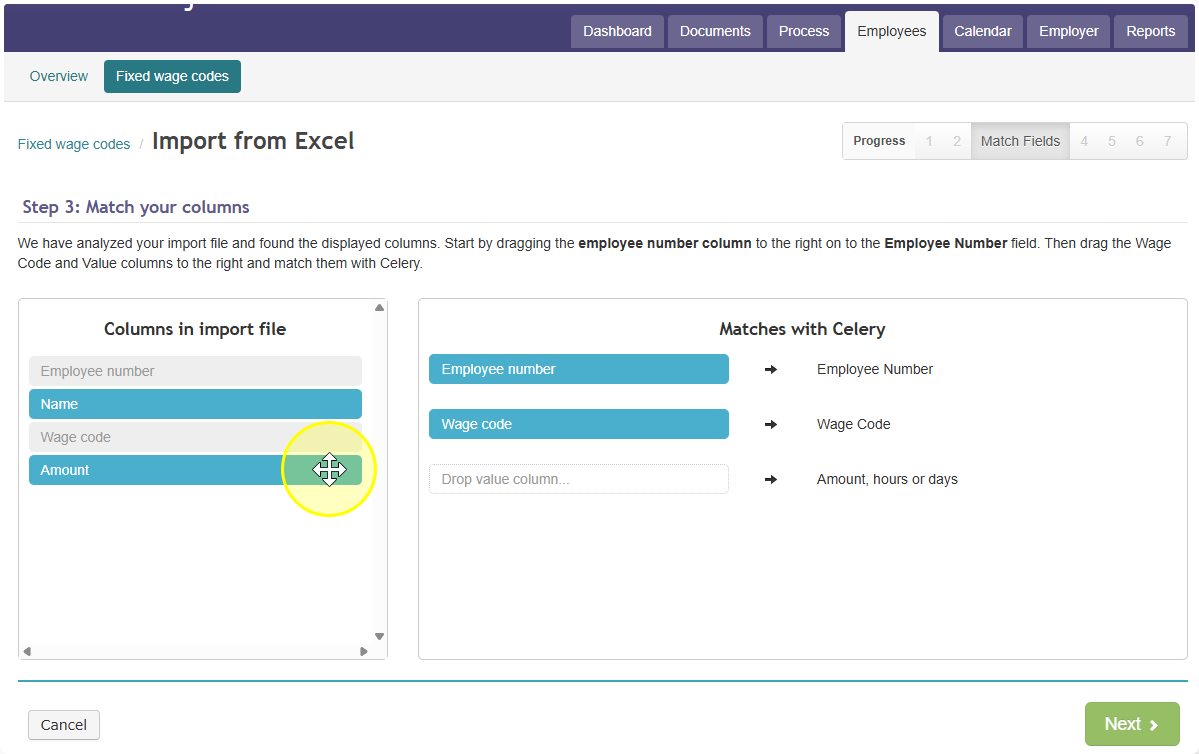
- Match each column in your file to the correct field in Celery. Follow the instructions on your screen.
- Click Next.
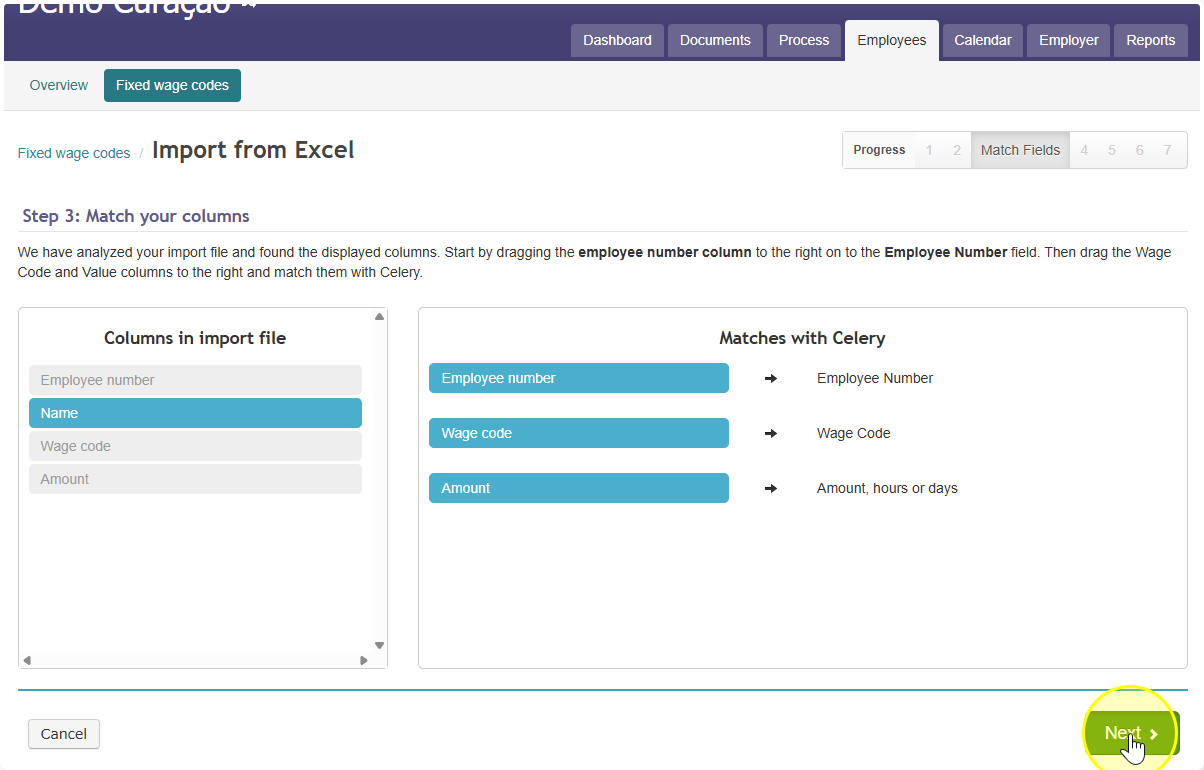
- Wait while Celery checks your file.
- Review the employees and wage codes shown on the screen. Make sure they are correct before continuing.
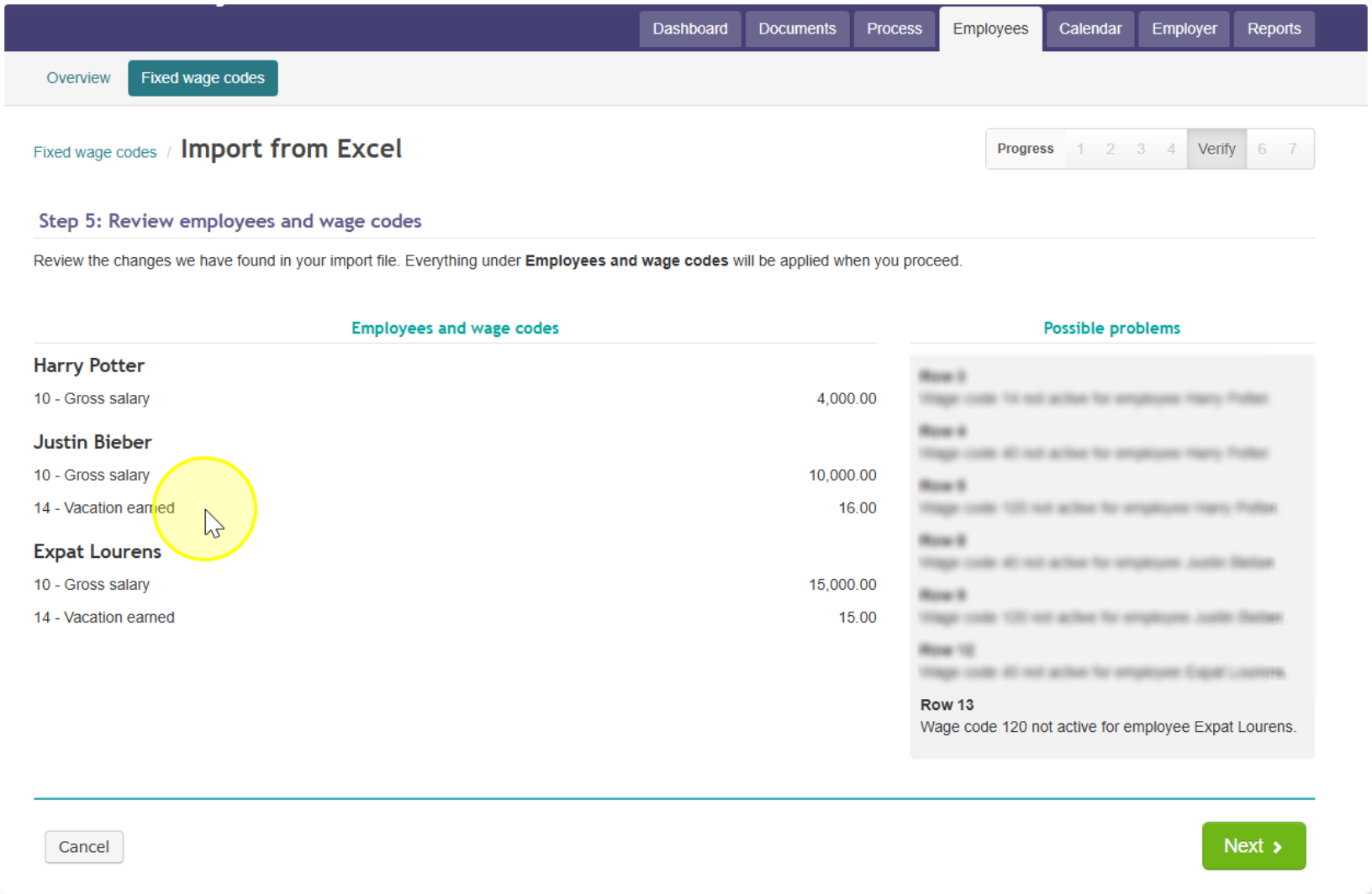
- Confirm the import. Celery will now update the wage codes with the new values.
- Wait for the message that says the import is finished. It will also tell you how many employees were updated (for example, "3 employees").