How to Register Vacation Days/Hours
Before you start
The payroll module only counts vacation days or hours. It does not handle leave requests or approvals.
Need full leave tracking? Use the HRM module instead. Free demo: https://www.celerypayroll.com/en/payroll-and-hrm-demo-registration/
Part 1: Set up vacation accrual
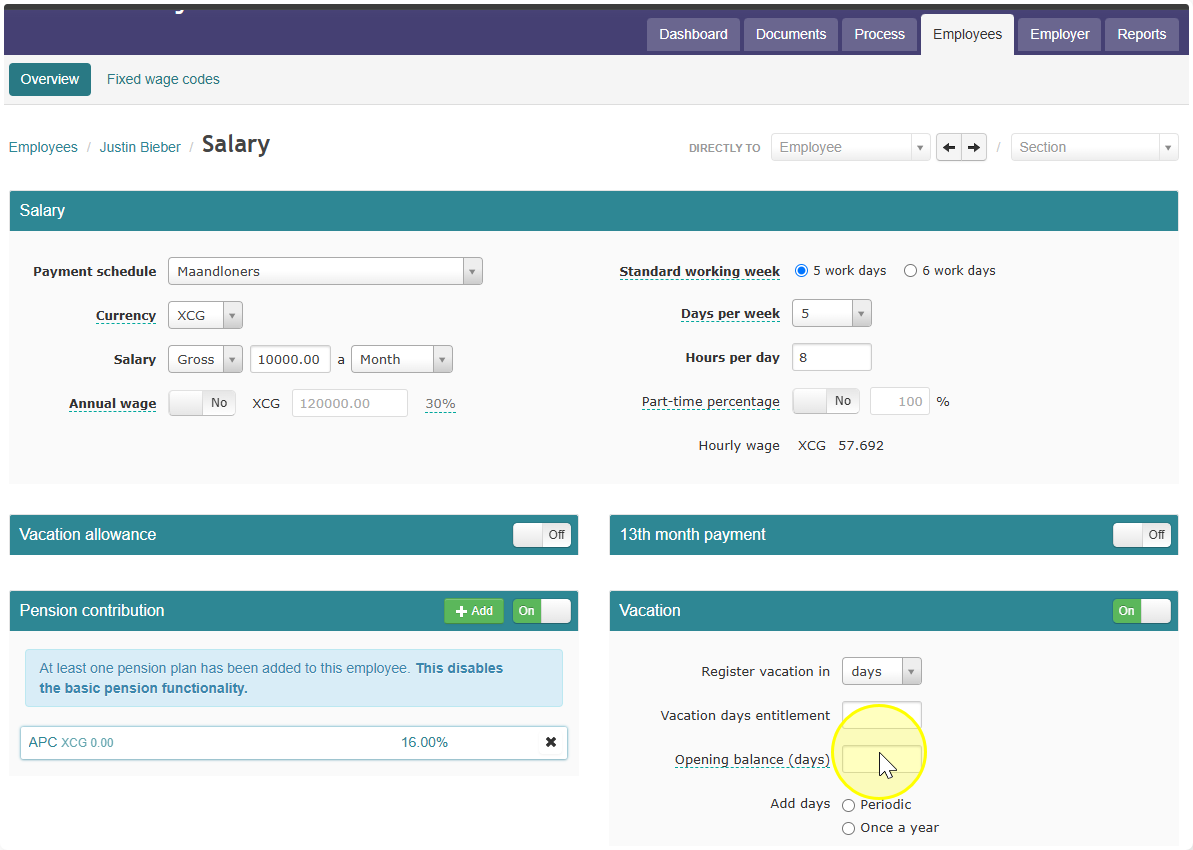
- Go to the employee's tab.
- Click salary / edit.
- Find vacation.
- Enter how many vacation days or hours this employee earns per year.
- Part-time employee? Enter the part-time number.
- Paid by the hour? You can't set up accrual here. Use the HRM module instead.
- New employee this year? Fill in opening balance with their leftover vacation from last year.
- Only do this in the first year. It will show on the payslip.
- Pick how vacation is added to the balance:
- Periodically — a little each pay period. Recommended.
- Once a year — all at once, in a period you choose.
Part 2: Change the entitlement mid-year
- Go back to "entitlement" and enter the new number.
- This only affects future periods, not what's already been added.
- Reopening an old period? It will use the new number instead of the old one.
Part 3: Log vacation time taken
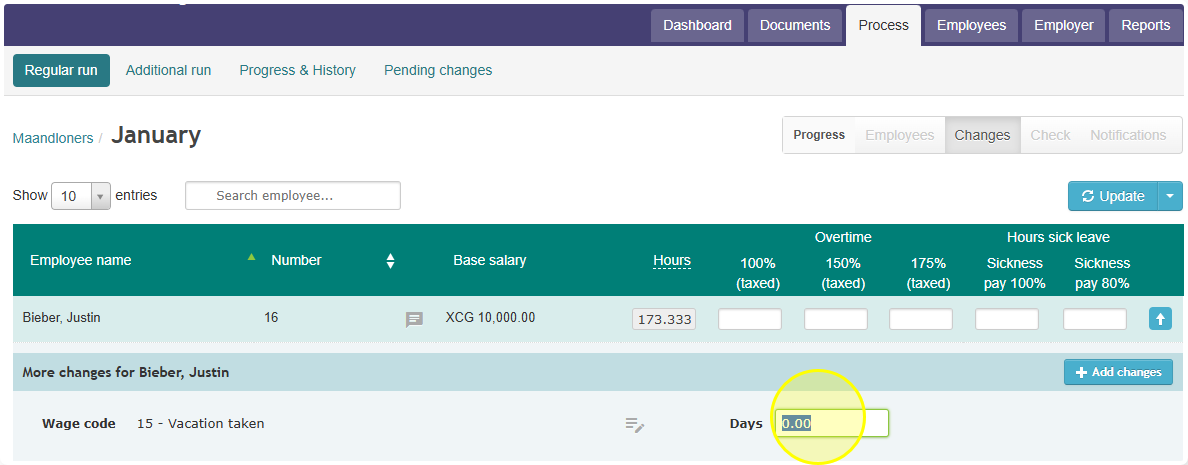
- Go to periodic processing for the right pay period.
- Add a variable mutation with wage code 15.
- Enter how many days or hours were taken.