HRM - Documents - How It Works
This feature lets you store and share company documents with the right people.
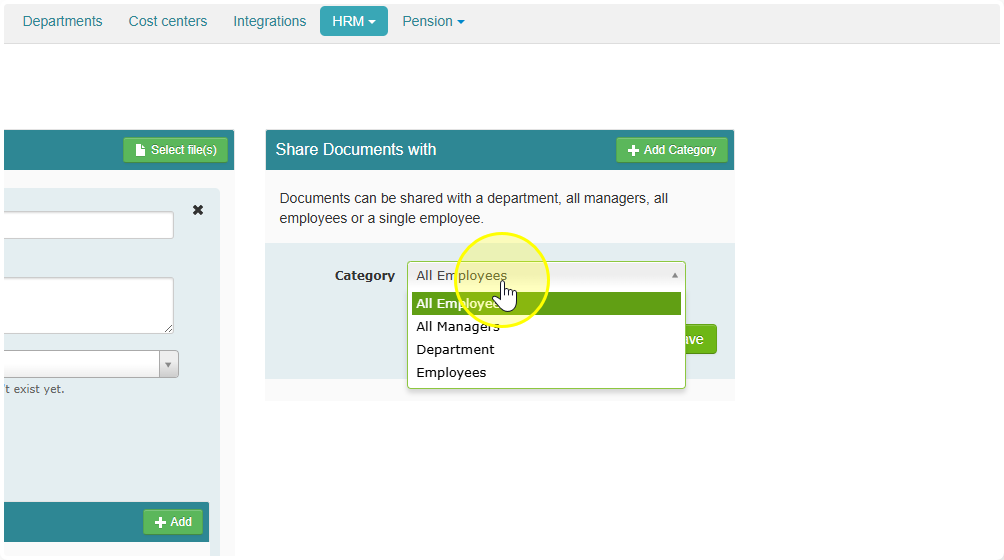
You can share a document with:
- Everyone — like your rules of conduct or sick leave policy
- Managers only
- A specific department — like a team schedule
- One employee — like their employment contract
How to Upload a Document
- Go to Employer → HRM → Documents
- Click Add
- Click Select file(s) and pick the file from your computer
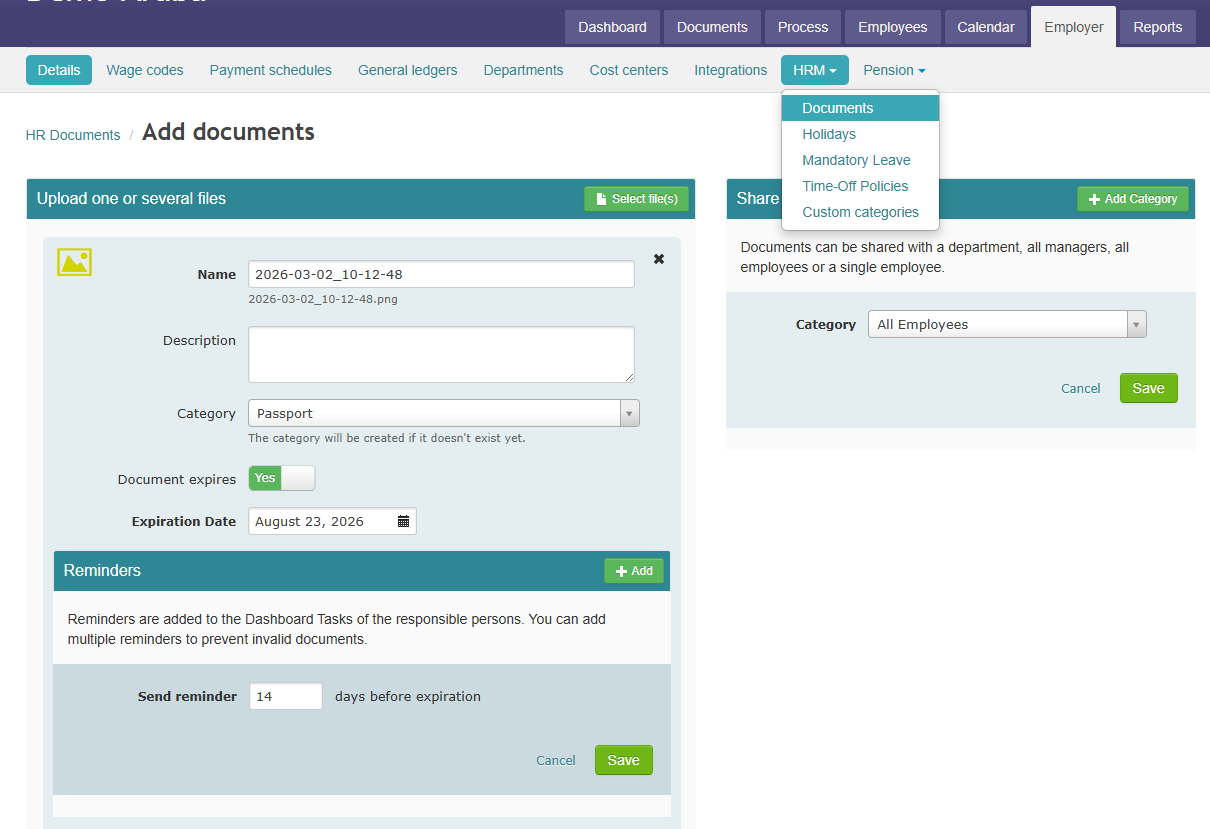
While Uploading, You Can Also:
- Create or pick a category — helps you stay organized. Type a new name and it saves for next time.
- Set an end date — useful for contracts or schedules that expire.
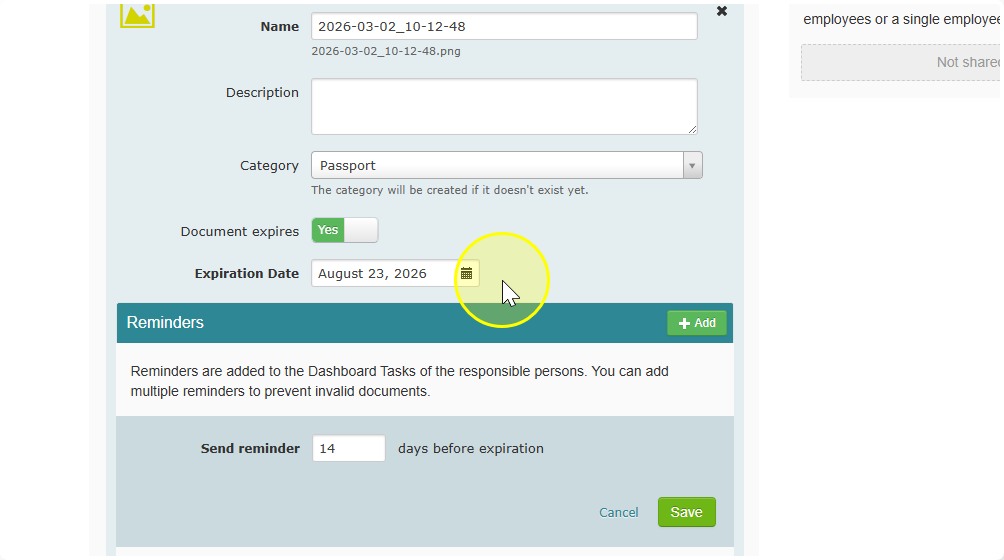
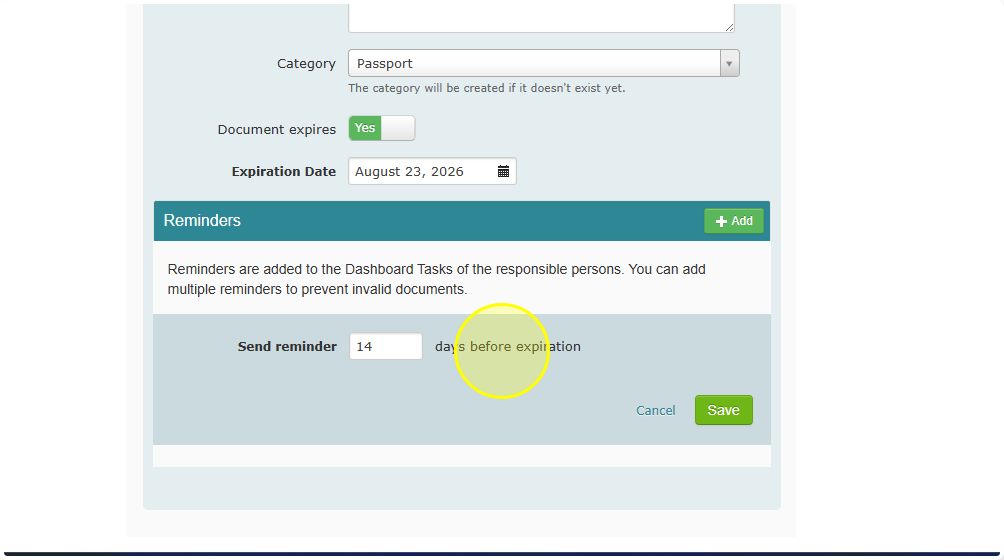
- Set a reminder — choose how many days before the end date you want a heads-up on your dashboard. You can add more than one reminder.
- Choose who sees it — everyone, a department, or a specific person.
- Send an email notification — by default, people see it on their dashboard. Want to email them too? Turn that on here. You can also add a short message.
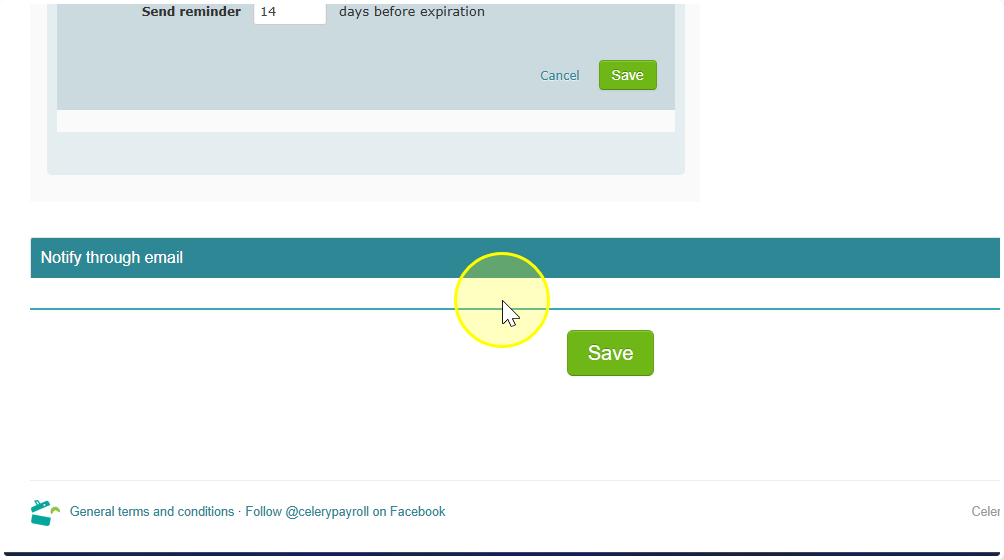
When you're done, click Save.
Managing Documents
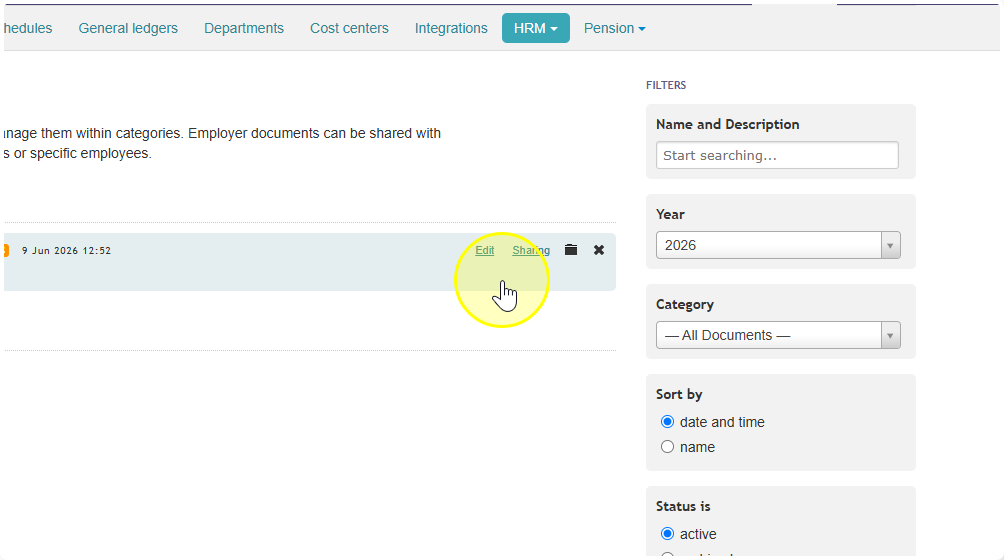
Hover over a document to see these options on the right:
Option | What it does |
|---|---|
Edit | Change the details |
Sharing | Change who can see it |
Archive | Hides it but keeps it safe |
Delete | Permanently removes it |
Tip: When a document expires, archive it — don't delete it. That way you can still find it later if you need it. Deleted documents are gone for good and cannot be recovered.
