HRM - Setting up employee contracts in Celery
Here's how to do it:
- Go to the Employees tab.
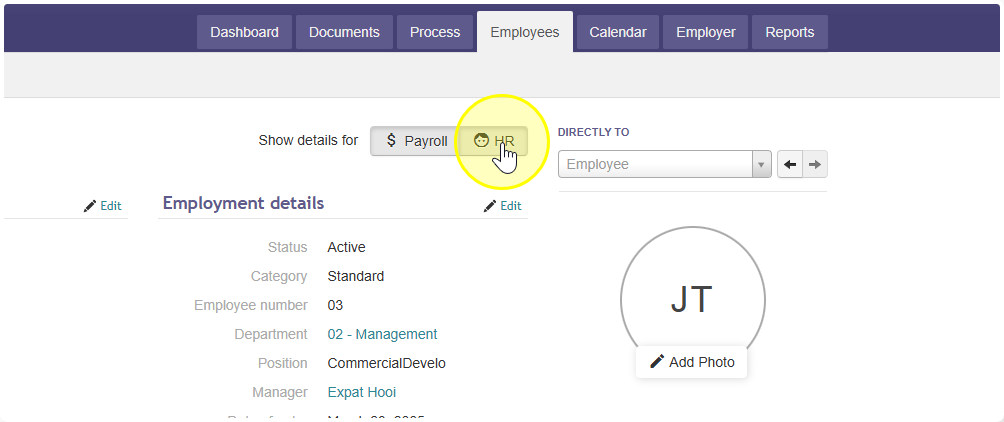
- Open an employee's profile and go to the HR section.
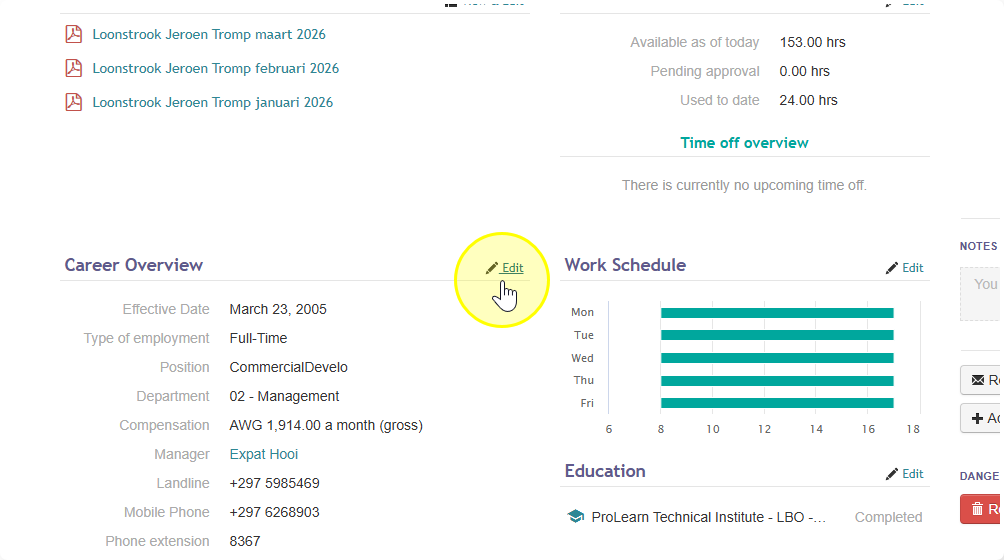
- Click on Career Overview, then press Edit.
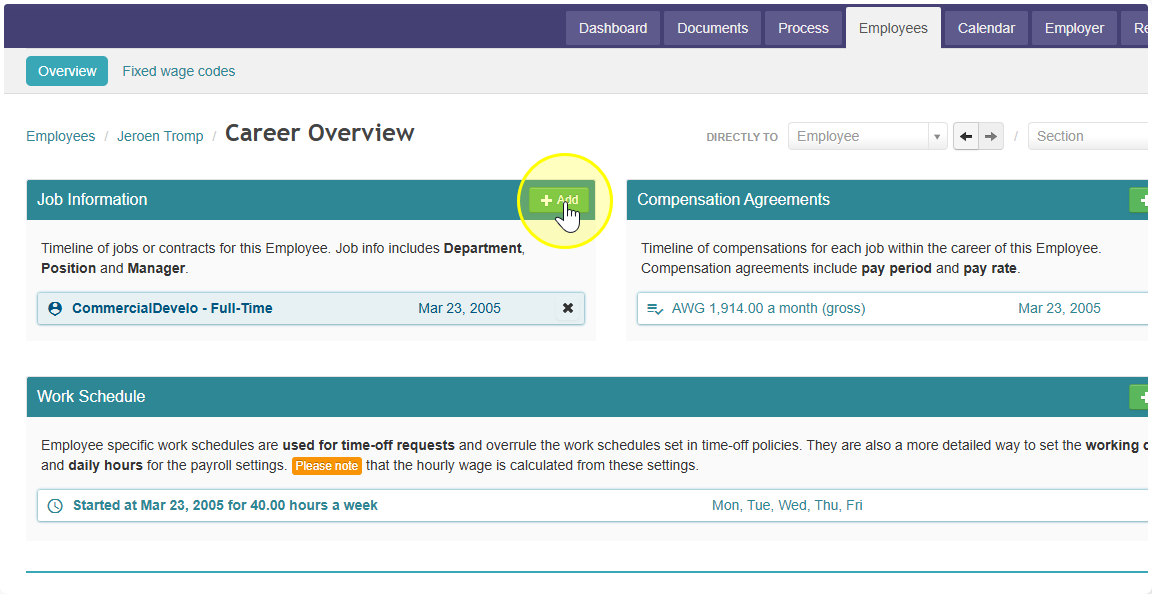
- Under Job Information, press Add to enter the contract.
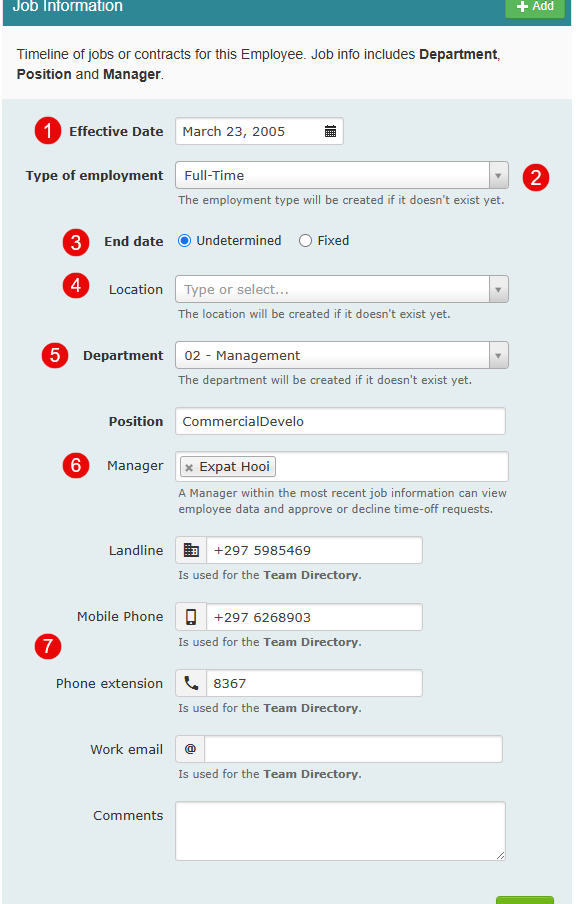
Fill in these fields:
- Start date of contract — Enter when this contract started. It doesn't have to match the employee's start date at the company. These are two separate things in Celery.
- Type of contract — For example: full time, part time, permanent, temporary, on-call, zero hours. Celery saves what you type, so you won't have to type it again next time.
- End date — Only fill this in if the contract has a set end date. If the contract has no end date (permanent), leave this blank. To get a reminder before the contract ends, upload the contract file too.
- Location — If you have more than one office or location, pick the right one here. If you only have one location, you can leave this blank or fill it in. Celery will remember it for next time.
- Department and position — Enter where the employee works and what their role is. Every time something changes (new role, new department), add it as a new contract. This builds up a history over time.
- Manager — Enter who this employee reports to. The manager doesn't have to be on your payroll. You don't need to create a Celery account for them either. The manager will be able to see leave requests and sick notifications through their own employee account.
- Contact information — Enter the employee's phone number and email address here. This makes it easy to reach them when needed.