Using Foreign Currencies in Celery
Celery lets you add extra currencies on top of your main currency. You can add as many as you need. Once set up, you can run many reports in the currency you choose.
This is useful if:
- You need to report in a currency other than your main one.
- Your accounting team uses a different currency than your payroll — for example, after your company gets listed on a stock exchange.
- Any other situation where a different currency makes more sense for you.
Setting Up a Foreign Currency
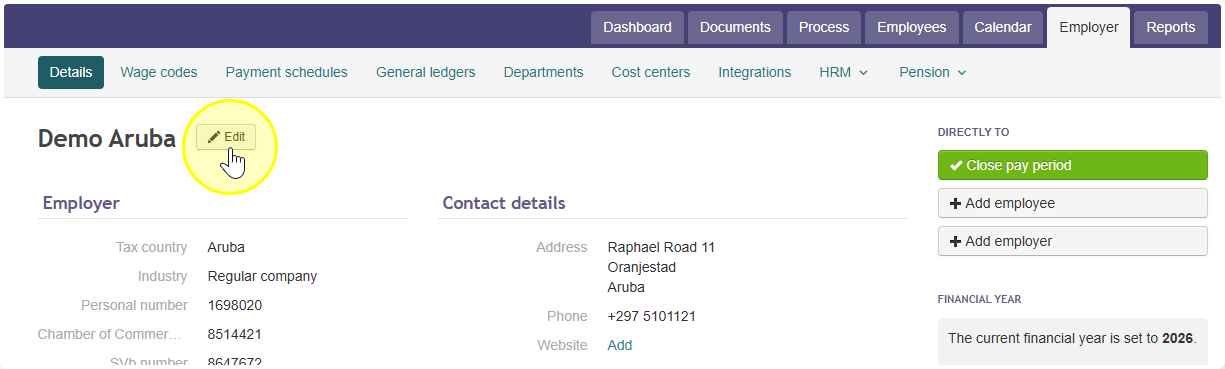
- Go to Employer.
- Stay on the Details tab.
- Click Edit next to the employer's name.
- Under Currencies, enter the currency code and its exchange rate.
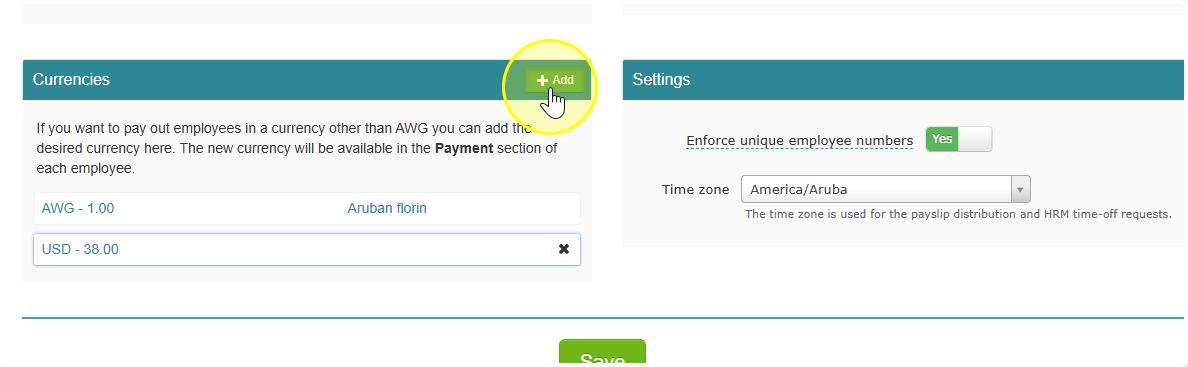
Good to know: If you update the exchange rate later, the old rate won't be shown anymore. But don't worry — Celery still remembers which rate was used for each past payroll run.
Using Foreign Currencies for an Employee
For each employee, you can:
- Enter their gross salary in a different currency, or
- Have their net salary (take-home pay) converted and shown in a different currency.
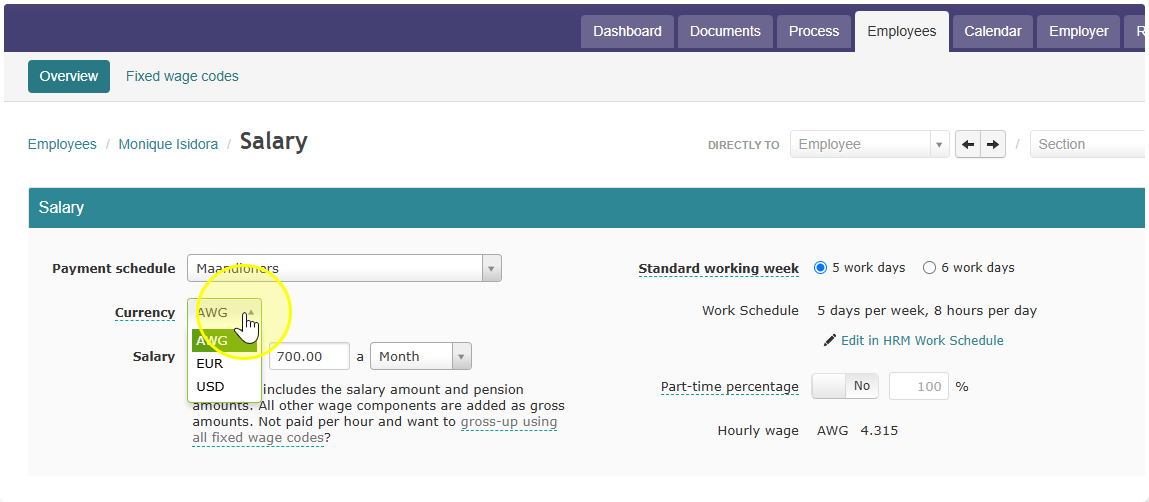
If you want the gross salary converted, choose the currency when you enter the gross salary.
If you want the net salary converted, choose the currency when you enter the employee's bank account. You can even set up different currencies for different bank payments — and use more than one currency for the same employee. Only the payout amount will be shown in both currencies.
To set this up: Go to Employees → Edit Salary → then choose the payment where a different currency applies.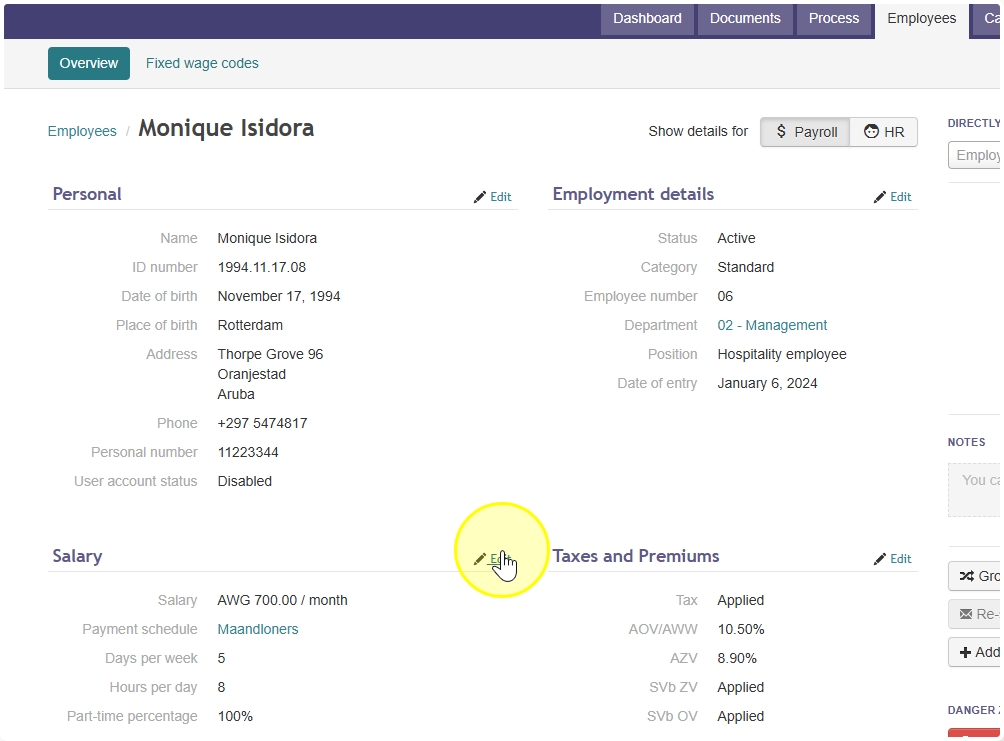
How It Looks on the Payslip
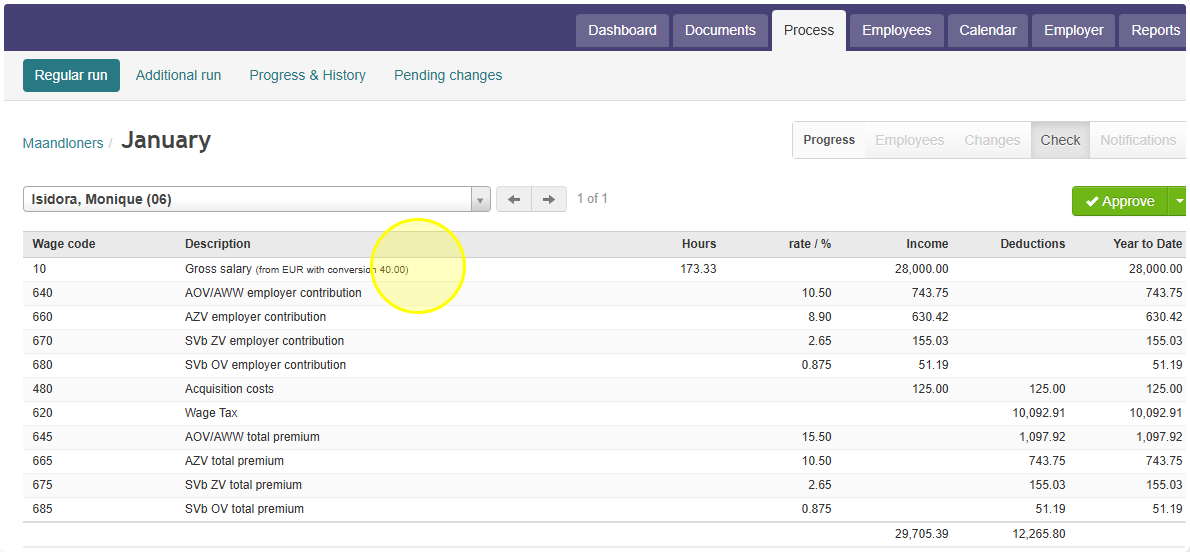
- If the gross salary was entered in a different currency, the exchange rate used will show up next to wage code 10 on the payslip.
- If the payment (net salary) was made in a different currency, the payslip will show both amounts: the regular currency and the foreign currency.
Running Reports in a Foreign Currency
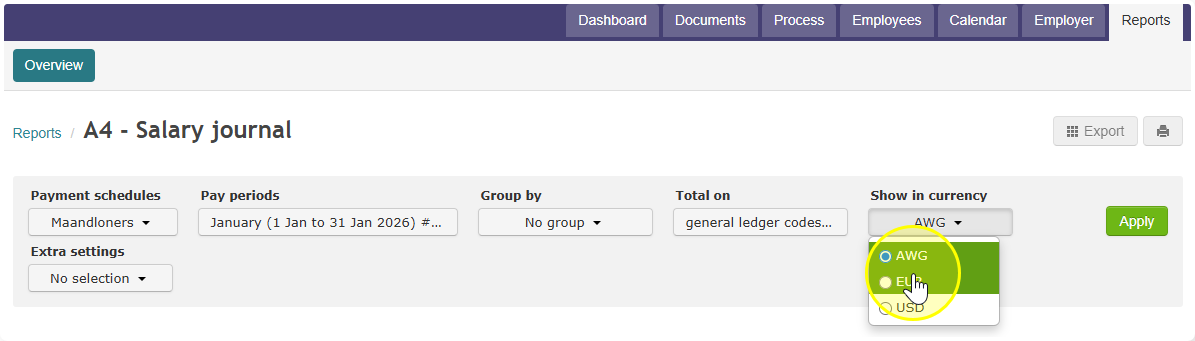
- Go to Reports and pick the report you want.
- Choose the currency you want, along with your other settings.
- Click Apply.
Good to know: not every report supports foreign currencies.