Giving an Employee Access to Celery
What is an employee account?
An employee account lets a staff member log into Celery to see their own information only — like their payslips and documents. They cannot see anyone else's data.
Note: Only users who can add employees in Celery can create, update, or remove employee accounts.
Not what you're looking for?
There are two other types of access:
- Account user – can see all employers on your invoice. → How to manage an account user
- Company user – can see one specific employer only. → How to manage a company user
Did someone else handle your payroll?
If you use a Payroll Service Provider (PSP), ask them to set up the employee account for you.
How to add one employee
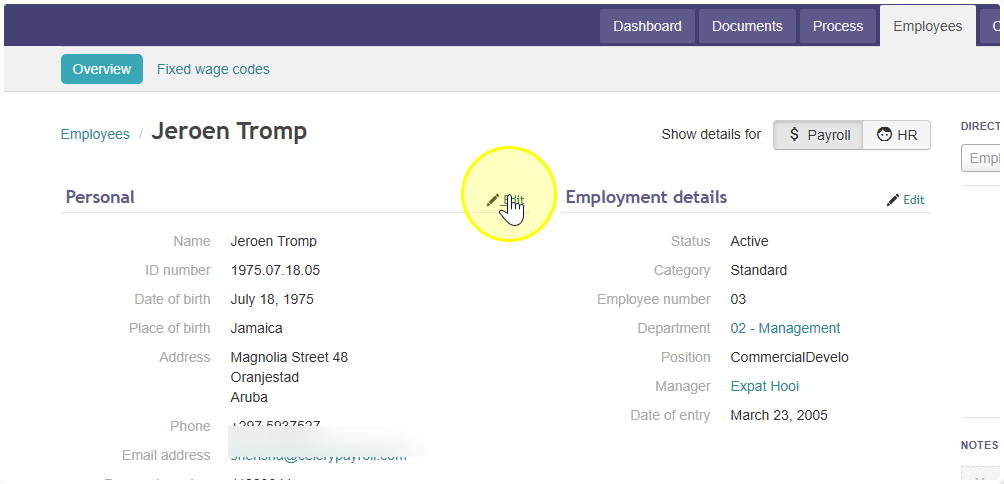
- Go to Employees.
- Select the employee you want to set up.
- Click Edit to open their details.
- Under Employee user account, enter their preferred language and email address.
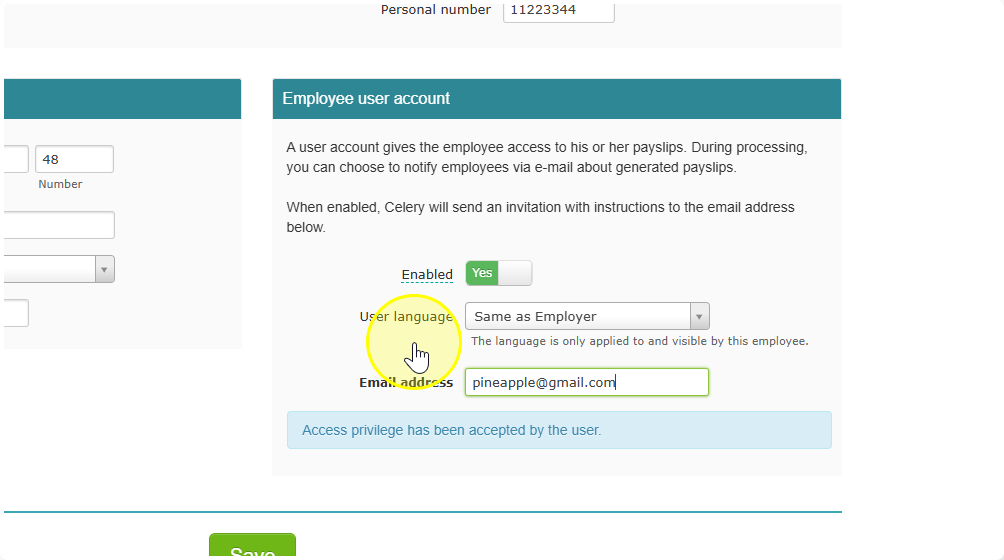
Tip: Use the employee's personal email address. This way, they can still see their documents after they leave the company. A personal email also lets them view multiple employers in Celery and keep a record of their work history.
How to add multiple employees at once
- First, enter and save an email address for each employee.
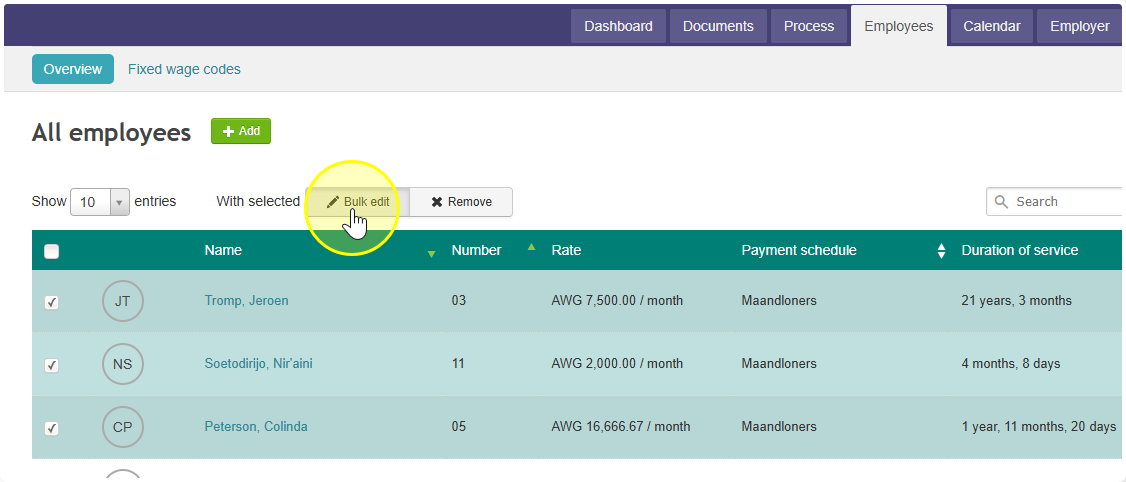
- Go to the Employees tab.
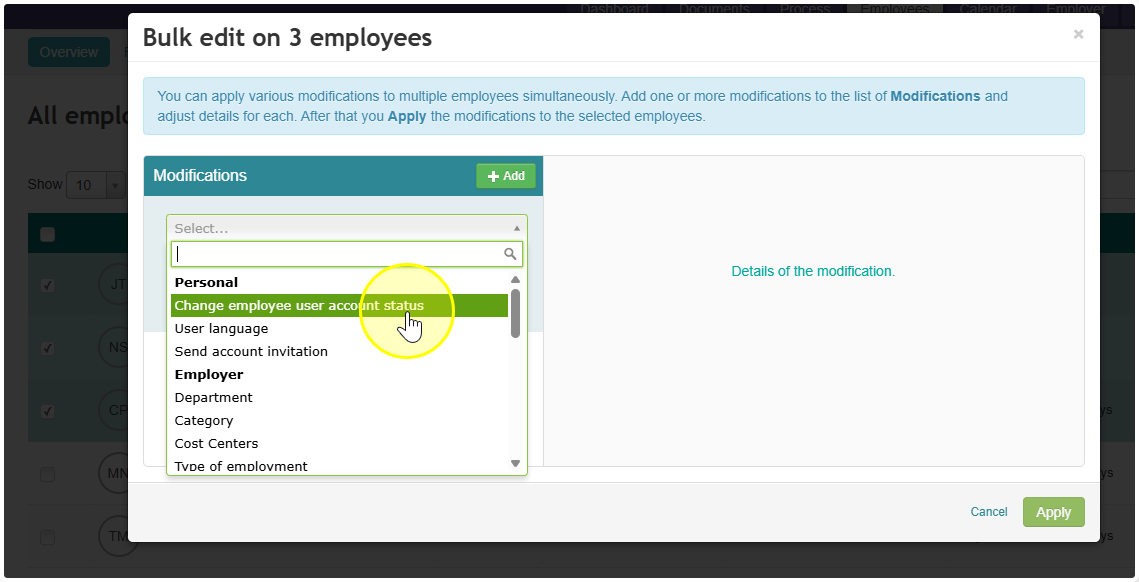
- Select all employees.
- Use bulk update to activate all accounts at once.
Changing an employee's email or language
- Language: The employee can change this themselves. → How to change language settings
- Email address: Update it in their personal details. They can log in with the new address straight away.
How to remove access
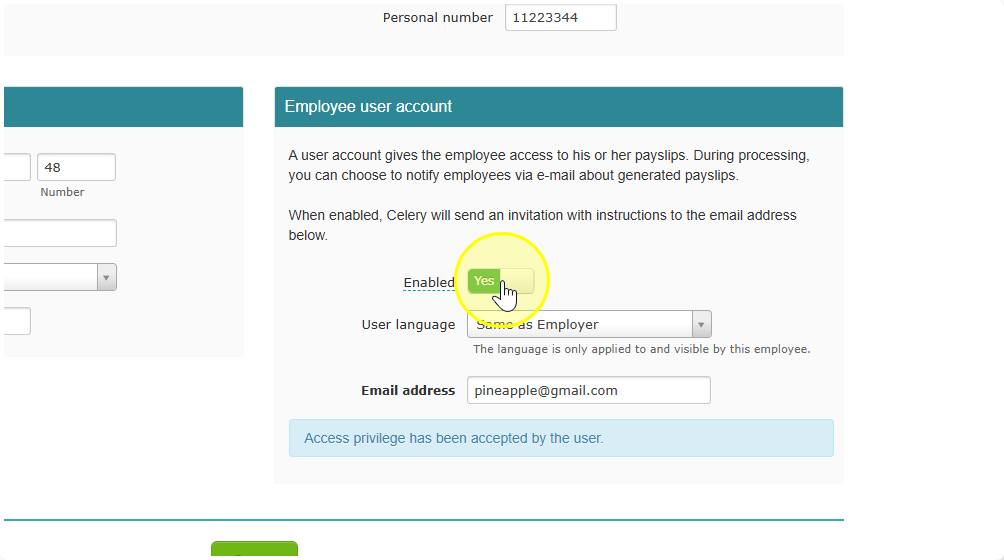
Find the toggle under Action and switch it from Yes to No. The employee will no longer be able to log in.