Importing a mutation sheet
Before you start
Before you can import the standard mutation sheet, you need to link this template in Celery first.
Not sure how to do that? Here's a step-by-step guide: How to link a mutation sheet
A quick heads-up: If you use your own template (instead of the standard one), make sure to turn off the standard template in the links. Here's why: if the standard template is still switched on, Celery will always use that one for imports — even if you meant to use your own. That gives you the wrong result.
How to import
- Go to the Process tab and open (or reopen) the pay run.
- Click Import. Look for the import sheet called Mutations.
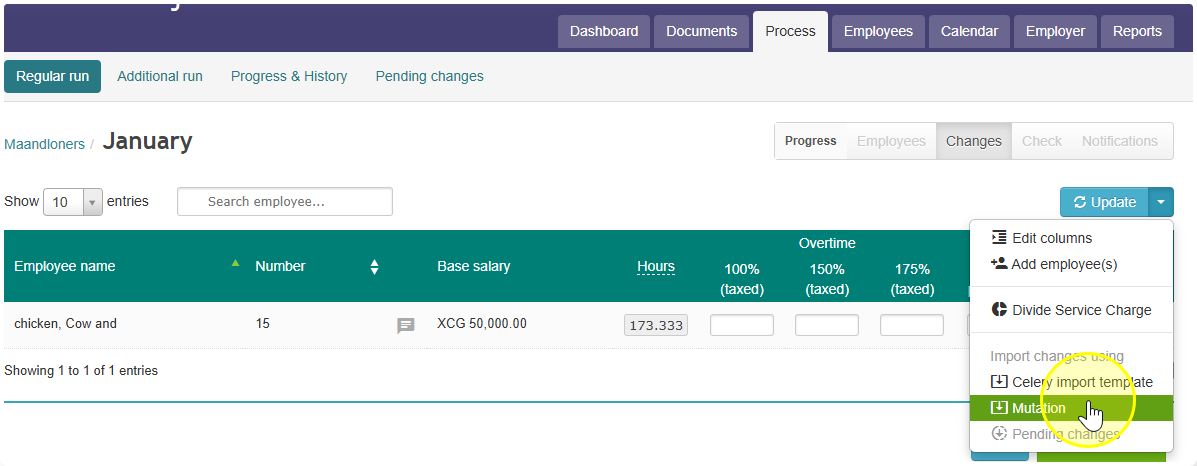
- Choose the file from your computer and open it.
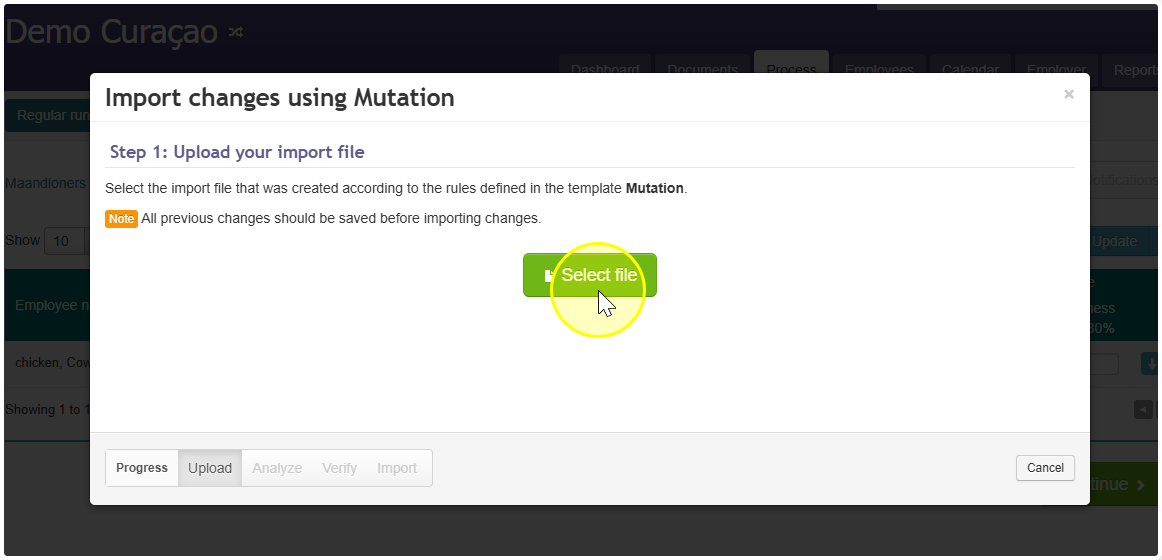
- Celery will now check your file. This takes a moment.
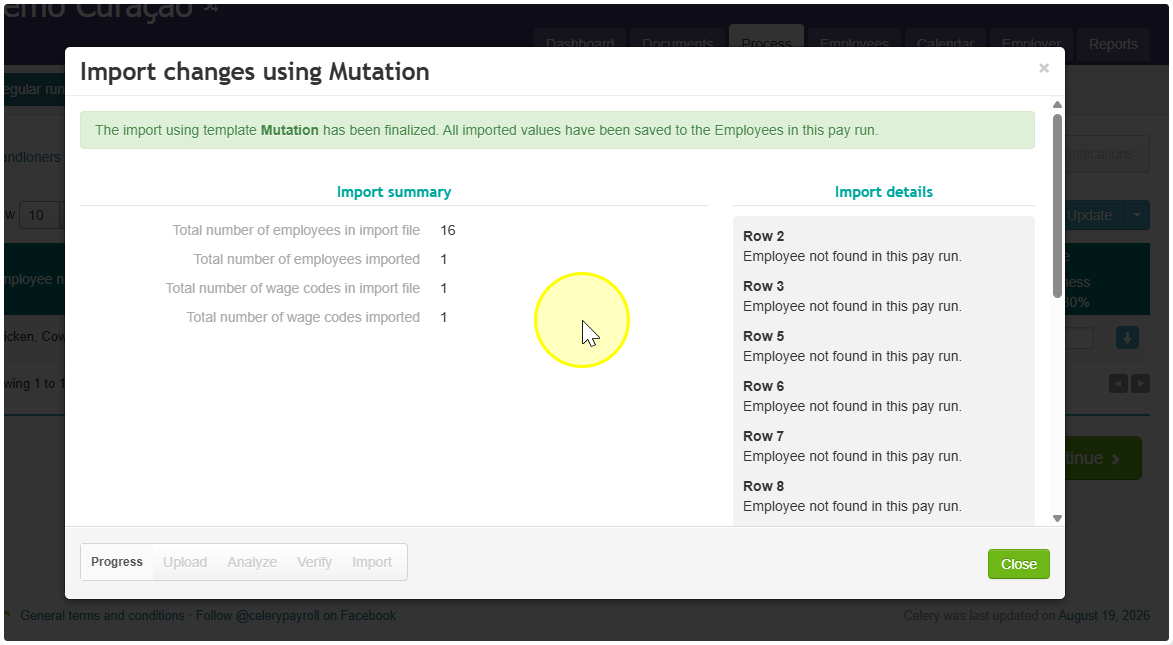
What happens next depends on the check:
- No issues found? Great — you can import right away.
- Some issues found? Stop the import for now. Fix the errors in your sheet, then start the import again.
- Common cause: an employee is no longer employed, or hasn't been registered as employed yet.
- Fixed the errors and no more issues? Click Close — all your mutations are now saved.
- Still seeing errors after fixing them? You probably forgot to save your corrections in step 3. Go back and save them first.
Want to undo an import?
Picked the wrong month or an old file by mistake? No problem:
You can remove all the imported mutations at once, right from the current pay run. Then just import the correct file again.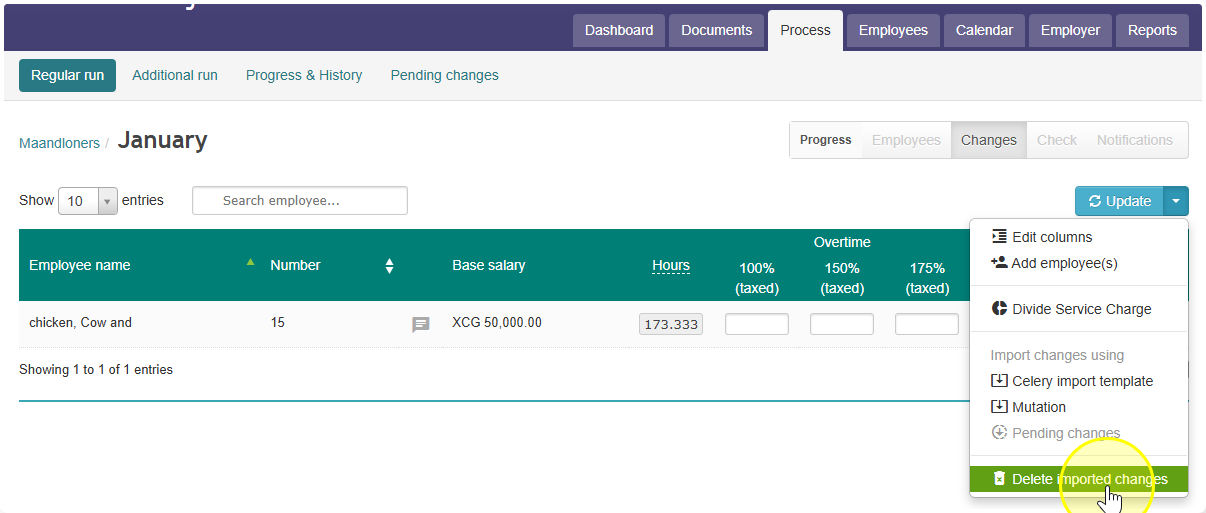
Good to know: anything you entered manually stays safe — it won't be removed.