Adding and Removing Account Users
What is an account user?
An account user can see and manage all the companies on your Celery account.
A few good things to know:
- You can add as many account users as you need — it's free.
- Each person should have their own login. Never share usernames.
- Always use a work email address, not a personal one.
- Only an account admin can add or remove users.
- If there's only one user on the account, that person automatically becomes the account admin.
Other types of users
Not what you're looking for? There are two other user types in Celery:
- Company user — can only see one specific company in your account. See the guide for company users.
- Employee user — an employee who can only see their own info. See the guide for employee accounts.
How to add an account user
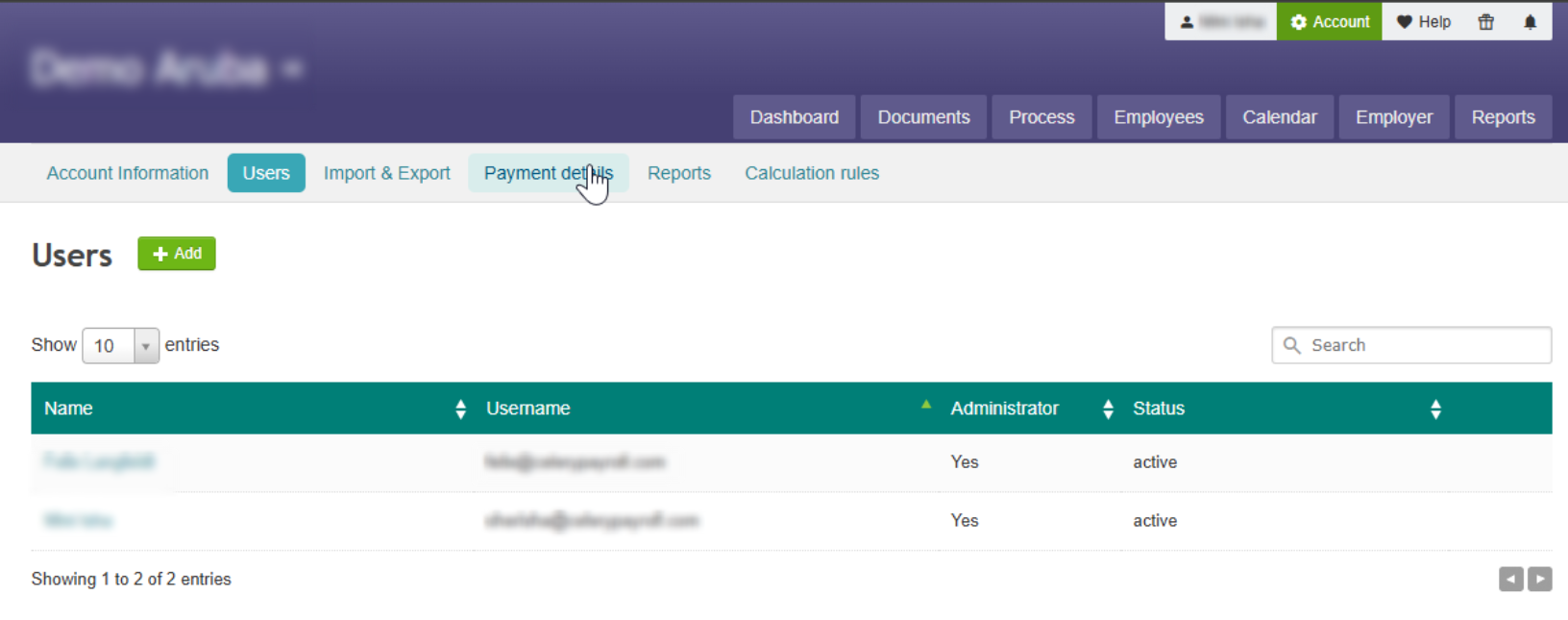
- Go to Account (next to your name at the top).
- Click Users.
- Click the Add button.
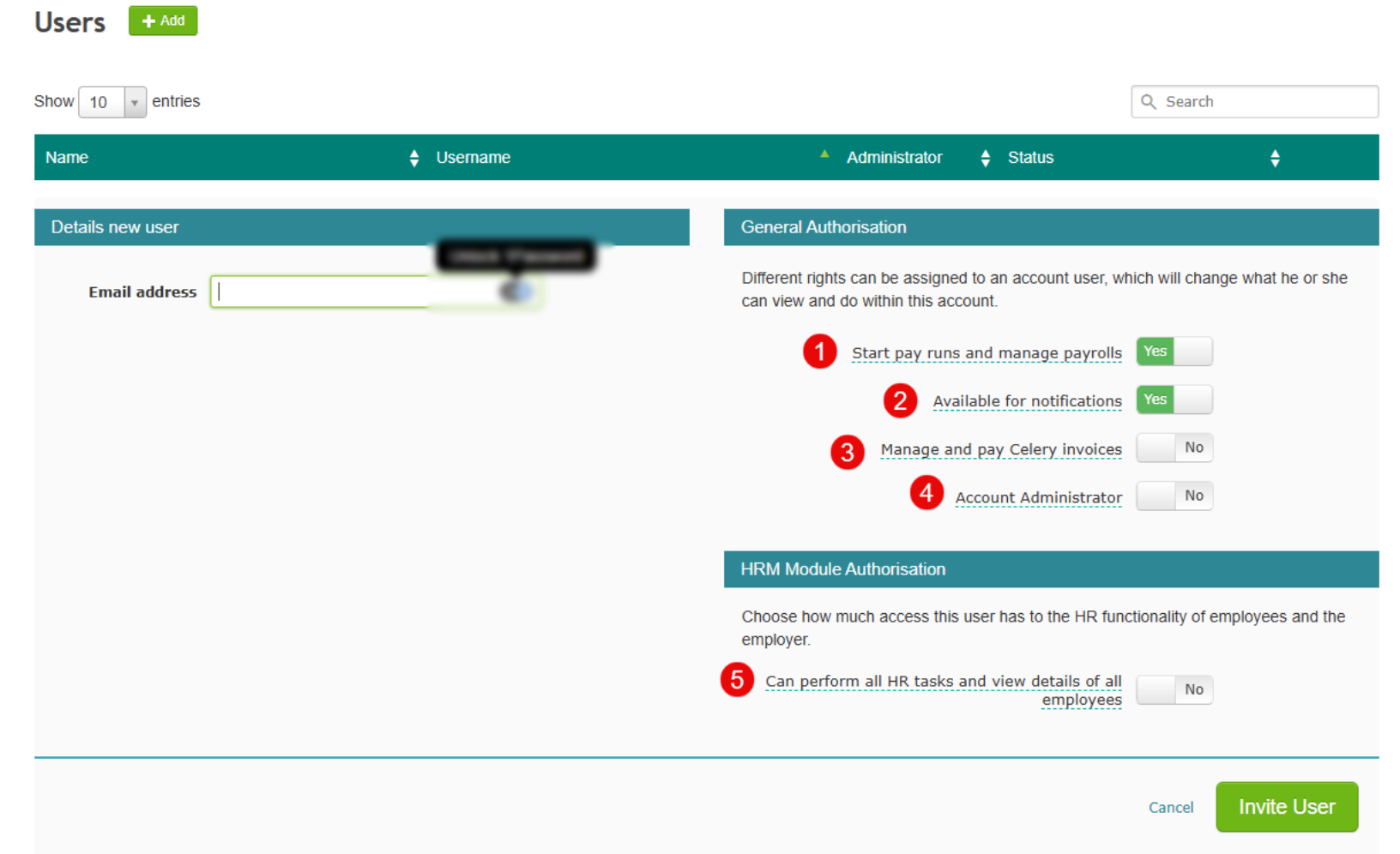
- Enter the person's email address.
- Choose what this user is allowed to do:
What it does:
1. Can start and manage payroll runs
2. Gets an email from Celery when a payroll is finished
3. Can download and pay Celery invoices by credit card
4. Can add or remove other users (account admin) — note: an admin can never delete themselves
5. Can manage HR tasks (view all employee info, but cannot edit it)
How to remove an account user
Do this when someone leaves the company.
- First, add the new user who will take over their tasks.
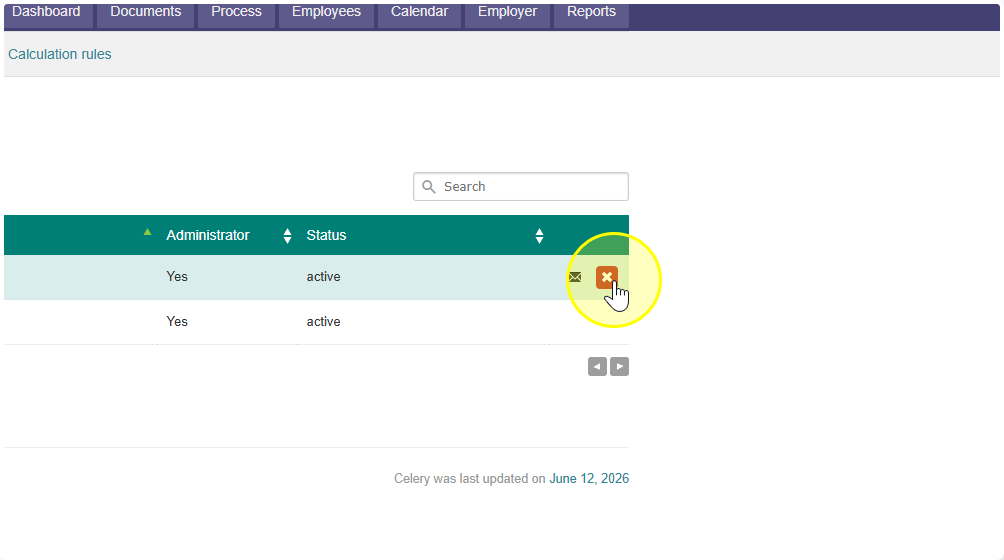
- Go to Users and hover your mouse over the name of the user you want to remove.
- Click the x that appears on the right.
- Celery will ask you to pick a replacement user — this makes sure any open payroll runs or HR tasks are handed over.
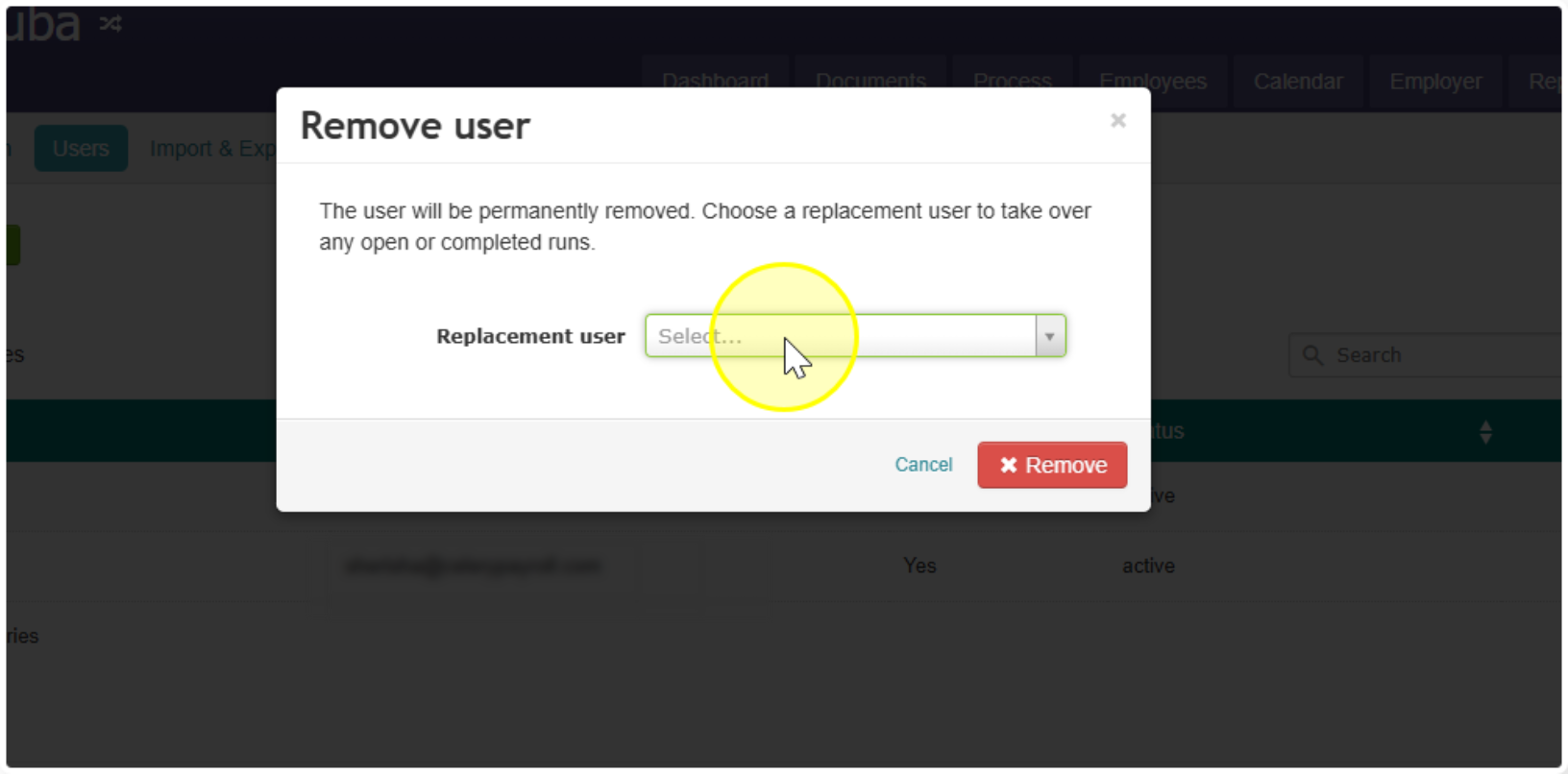
- Click Delete to permanently remove the user.