HRM - Optional - How to set up Time-for-Time (TVT) in Celery
Time-for-time (also called TVT or time back) lets employees save up extra hours they worked and later request time off in return. Here's how to set it up.
Step 1 — Go to the right place
- Go to Employer
- Click HRM
- Click Time-Off Policies
- Click + Add to create a new policy
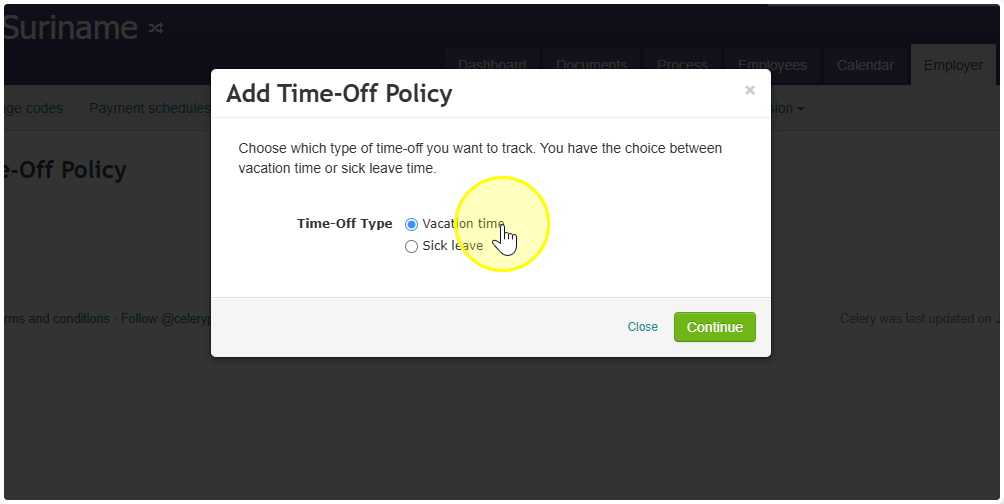
- Choose Vacation time as the type
Step 2 — Fill in the settings
Use these settings exactly:
Accrual method → choose All time given at once
(This means hours aren't built up automatically — they get added manually.)
Total time per year → enter 0
(Leave it at zero. The manager or HR adds hours manually per employee.)
Does timeback carry over? → choose YES (unless hours expire at the end of the year)
Limit requests to balance → choose YES
(This stops employees from requesting more hours than they actually have saved.)
Integration with payroll processing → do not link this to payroll
(If you do link it, the TVT hours will mix with regular holiday hours — and that's not what you want.)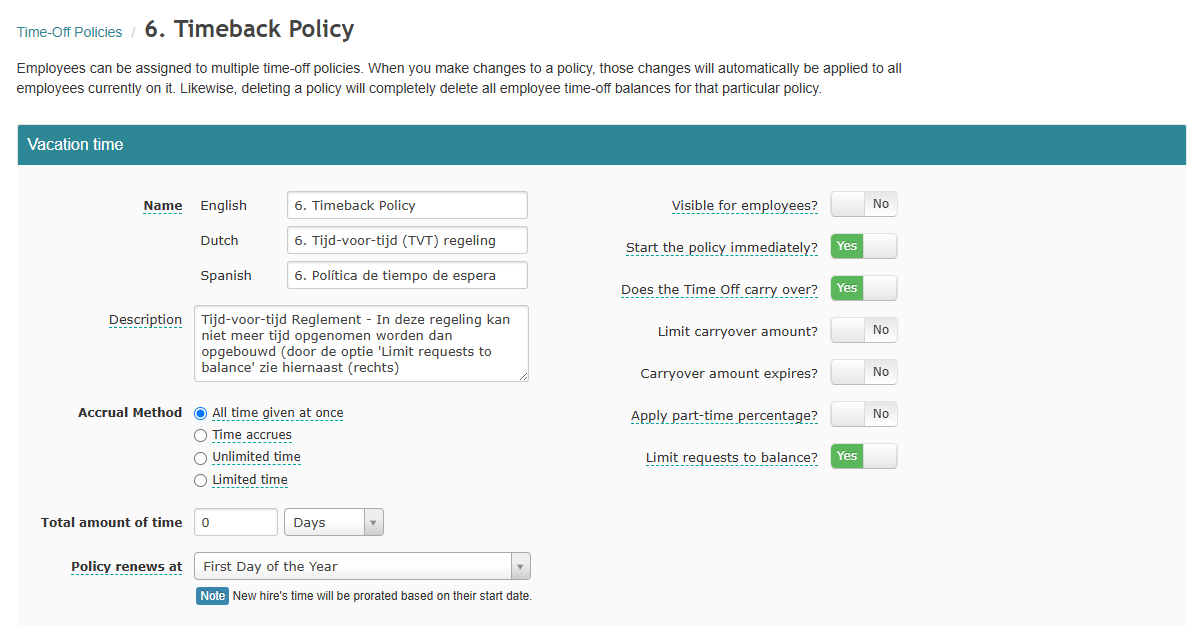
Step 3 — Adding hours per employee
The manager or HR manager adds the saved/overtime hours manually:
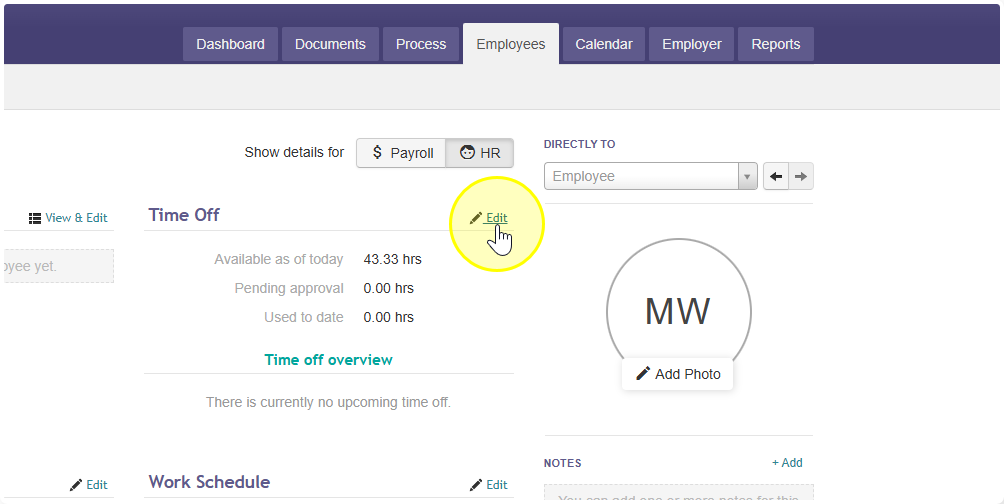
- Go to the employee in Celery
- Open their Time off
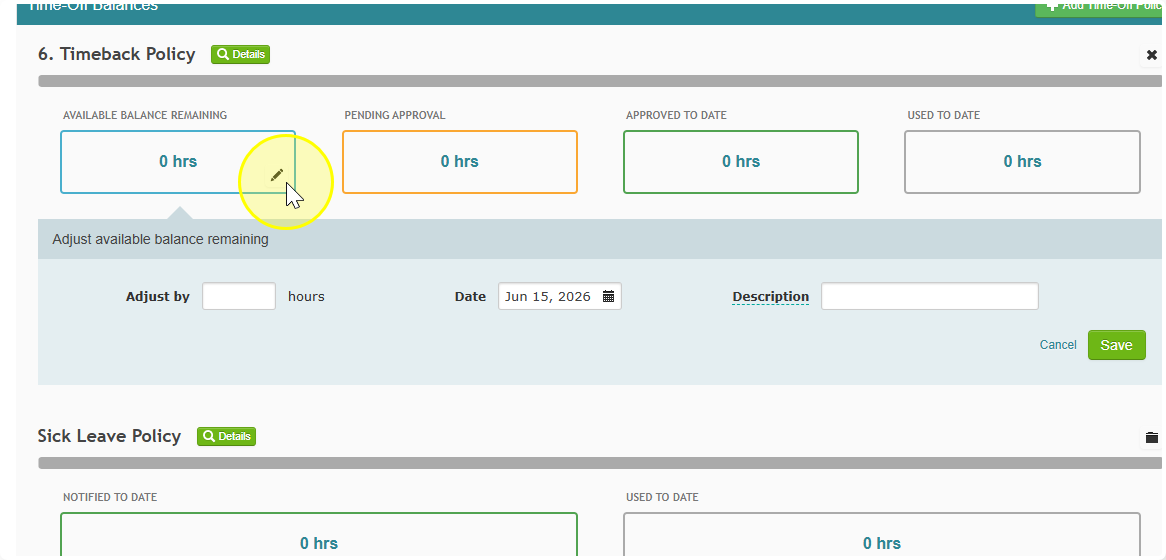
- Add the TVT policy and click on the pencil to adjust the balance
- Enter the number of hours earned
Step 4 — How employees use their hours
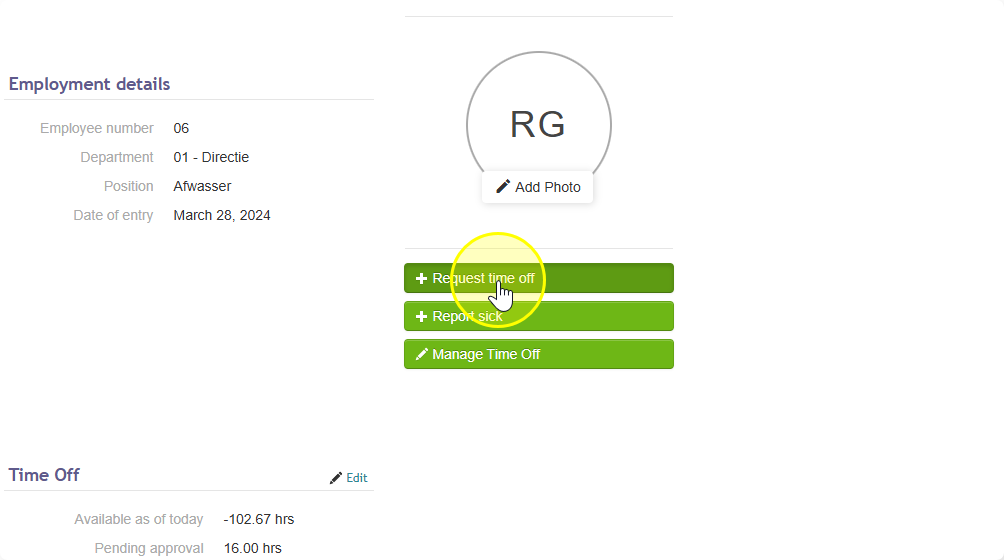
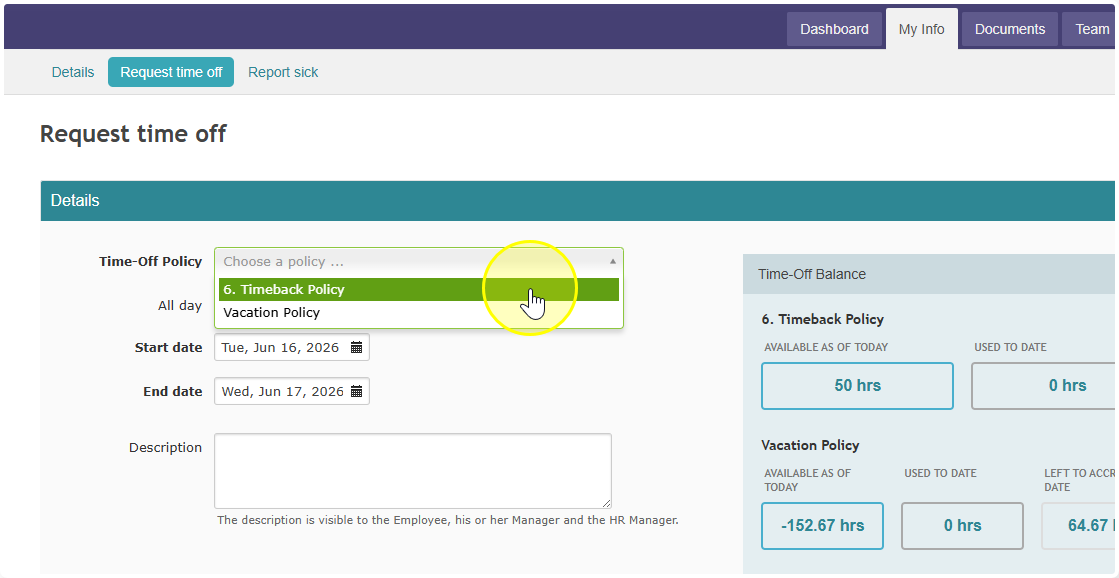
Employees request their saved hours the same way they request regular time off — through their dashboard. Simple as that.