HRM Payroll Service Provided (PSP) - step 2 - Permissions and enabling module
Using an accounting firm that works with Celery? Then you can use the HRM module yourself for your HR tasks.
Step 1 – Ask your firm to activate it
Your accounting firm (PSP) needs to turn on the HRM module for you. Ask them to do this via: Employer → Integrations → Human Resource Management (HRM)
The costs are charged to your firm — not to you.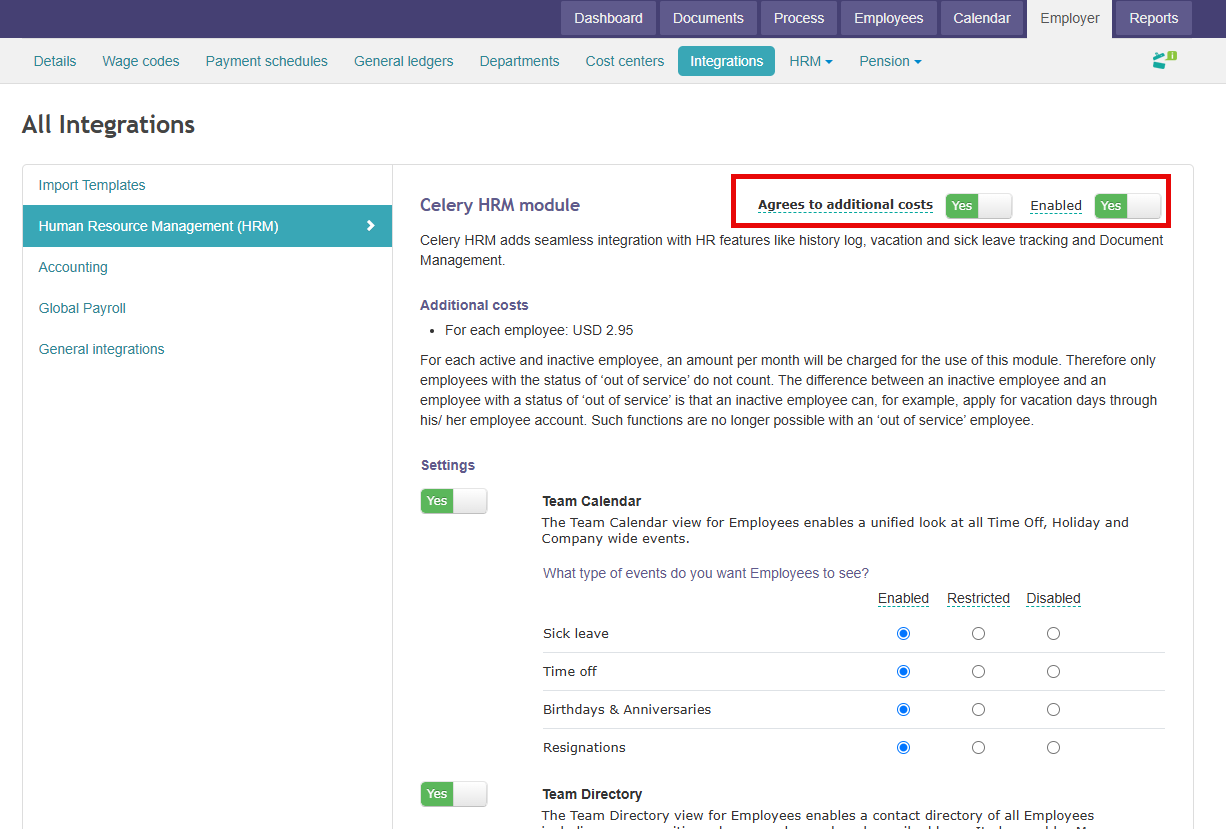
Step 2 – Set up access
Your firm gives you (the company user) access via: Employer → Details → Edit → Grant Access
After that, you will see a new Employer tab in your account.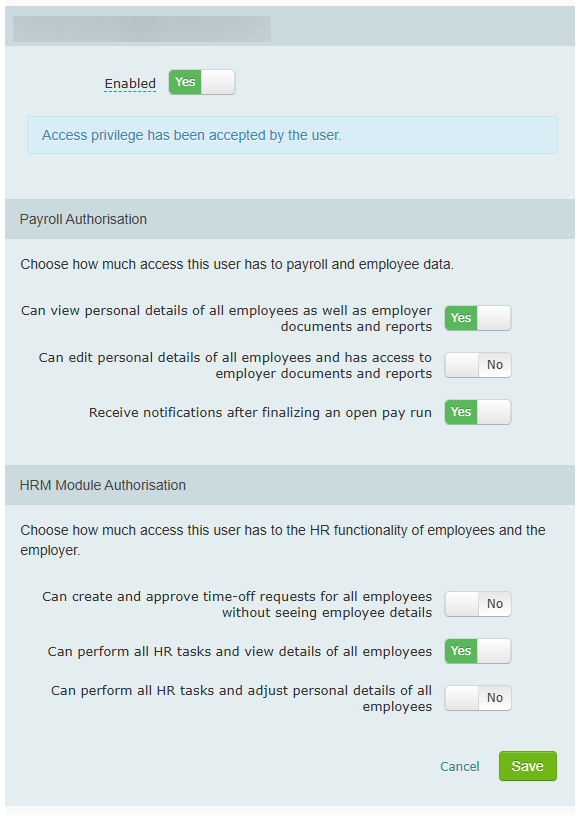
What can you do then?
- Upload HR documents
- Set up public holidays
- Create time-off policies (vacation, sick leave, etc.)
- Save documents and information per employee
Good to know: Celery already includes two standard time-off policies — vacation and sick leave. You don't have to build everything from scratch.
Employer: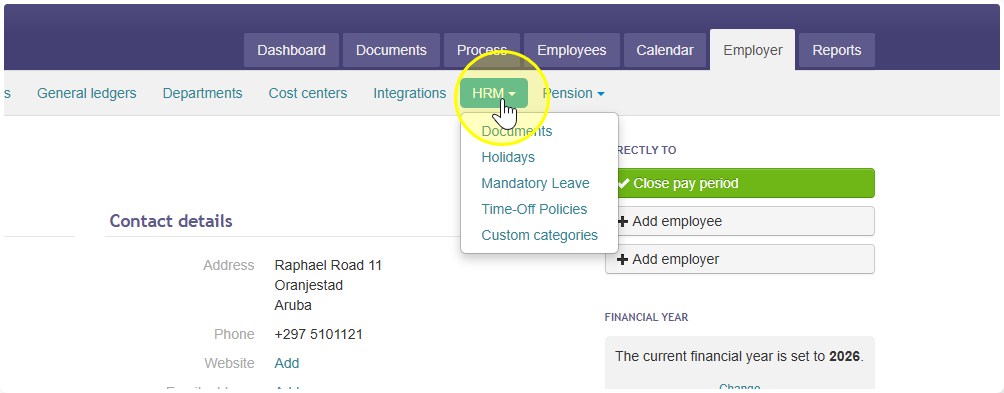
Employee: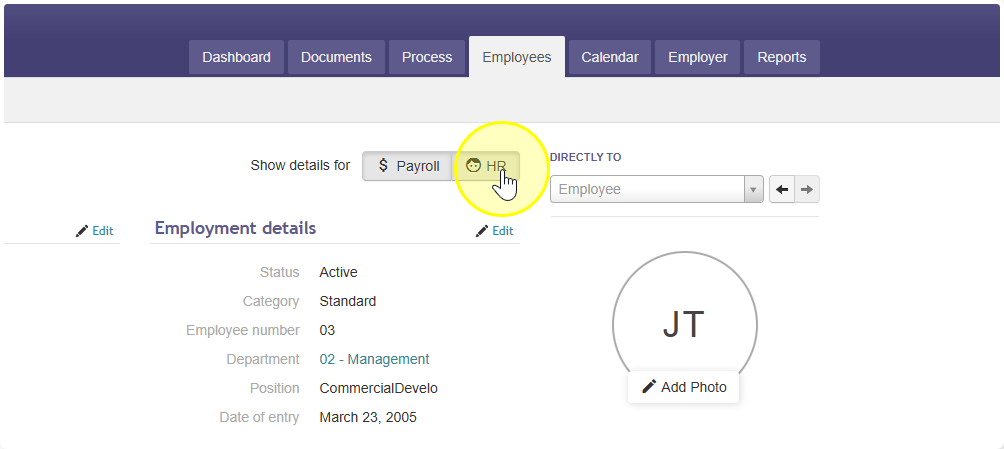
Step 3 – Inform your employees
Once everything is set up, let your employees know. Send them this link: What has changed in my account?
Need help? Go to Help at the top of Celery. You'll find answers to common questions there. Still have a question? Send an email through that same menu. Free of charge!