TimeTec - Celery Setup and Configuration
TimeTec TA is a time and attendance system. The integration allows you to sync employee data from Celery to TimeTec TA, and pull worked hours back into Celery for payroll.
1. Set up the Integration in Celery
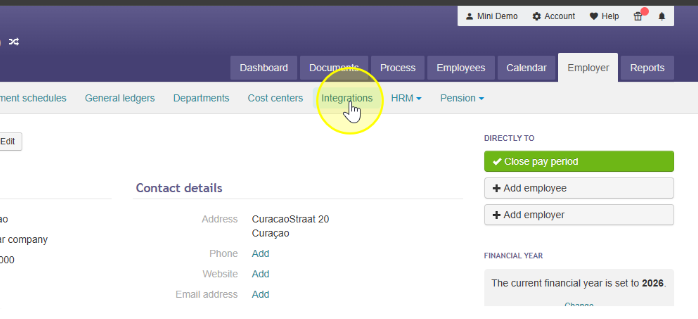
1. Go to Employer, then Integrations, then HRM, and click on the TimeTec TA integration.
2. Click on Agree to additional costs and Enable.
Both of these options should be set to Yes.
There are also instructions available within the integration itself.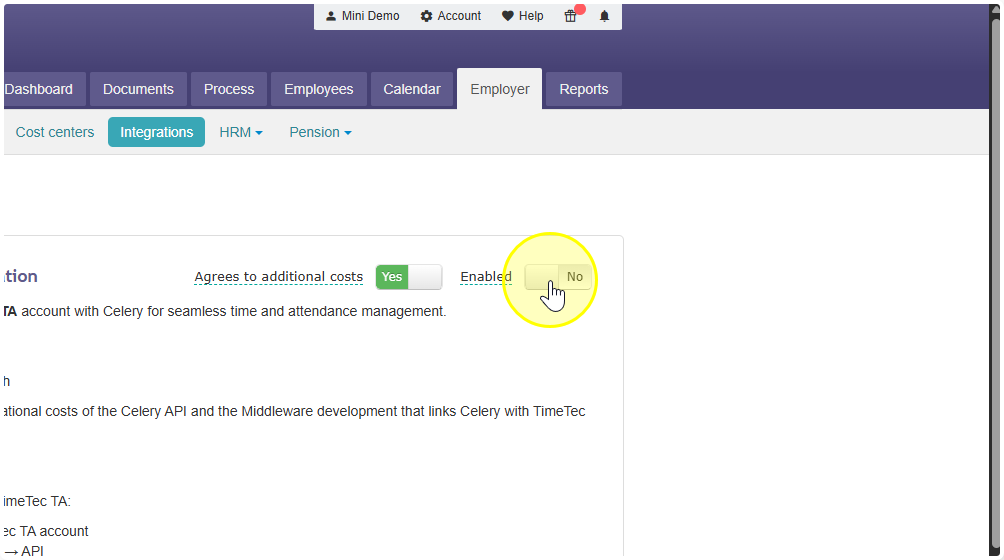
3. Click Connect Celery to link the logged in Celery user. If you want to use a Service Account User, first sign in to Celery with that user and then start from step 1. After clicking Connect, the email address of the logged-in user appears automatically in the Celery user field.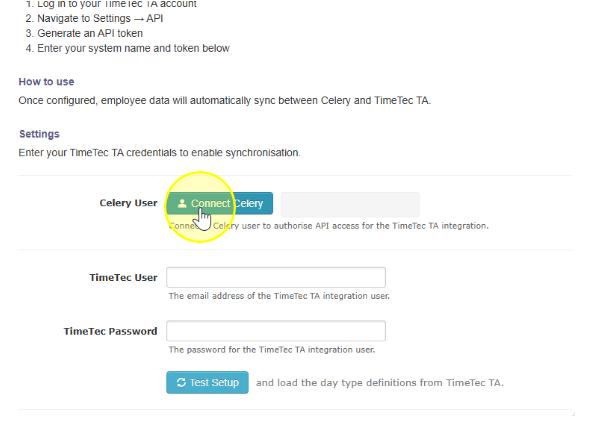
4. Enter your TimeTec user and TimeTec Password.
This information can be found in the TimeTec Ta account under:
- The Company tab.
- Click on System Settings.
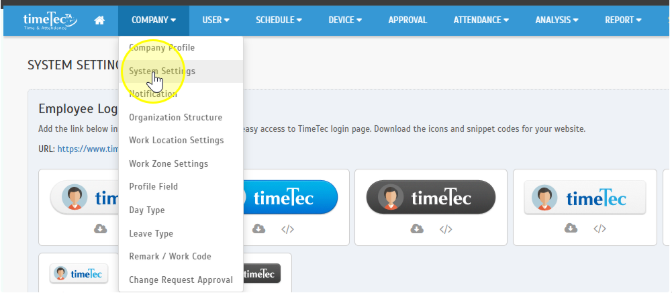
- Look for TimeTec API Login / LPS API Login Details. (The information about this activation in TimeTec can be found on this website How to Enable TimeTec API). Here you will find your TimeTec username and password.
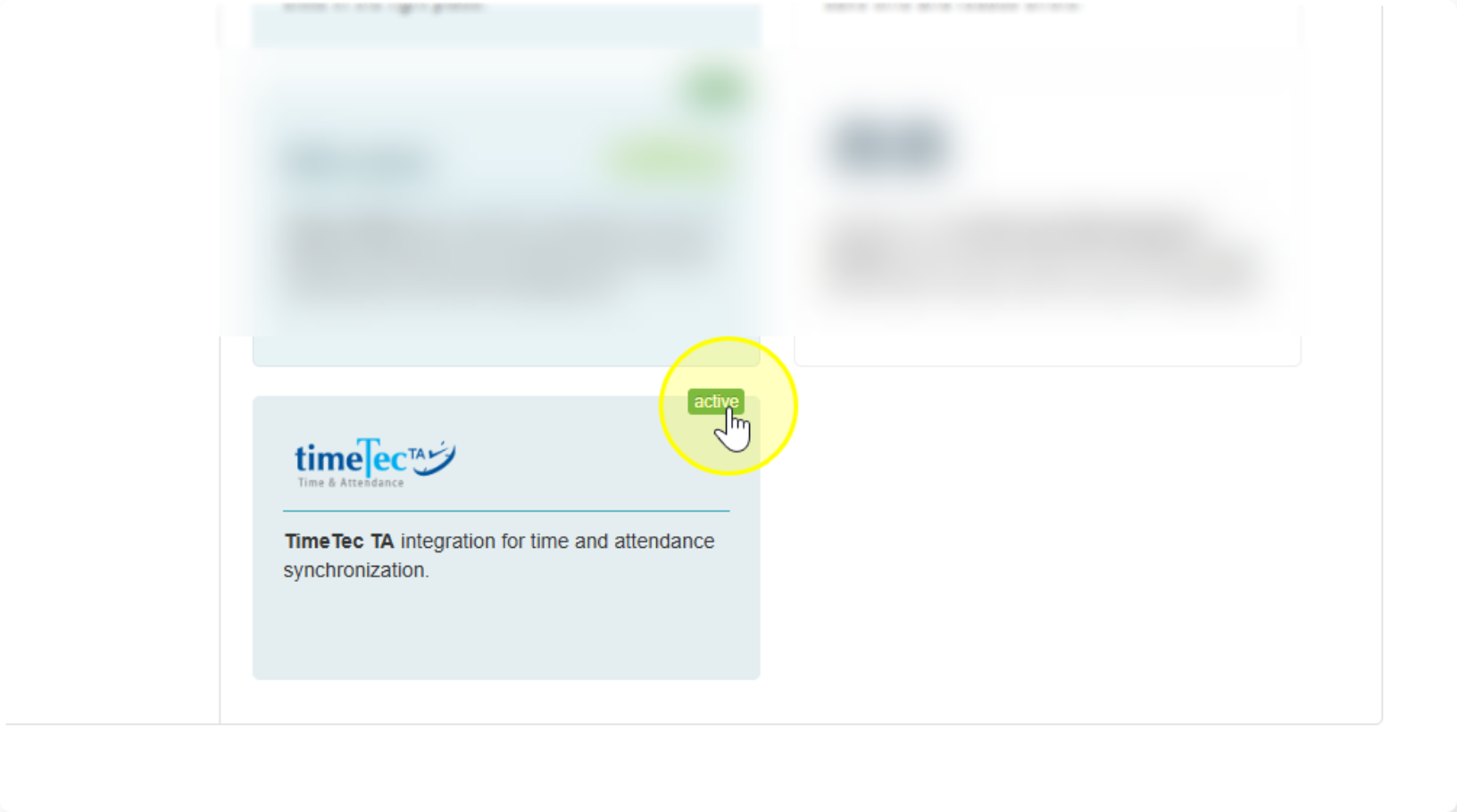
5. Click "Test Setup" this activates the TimeTec TA Wage Components in Celery.
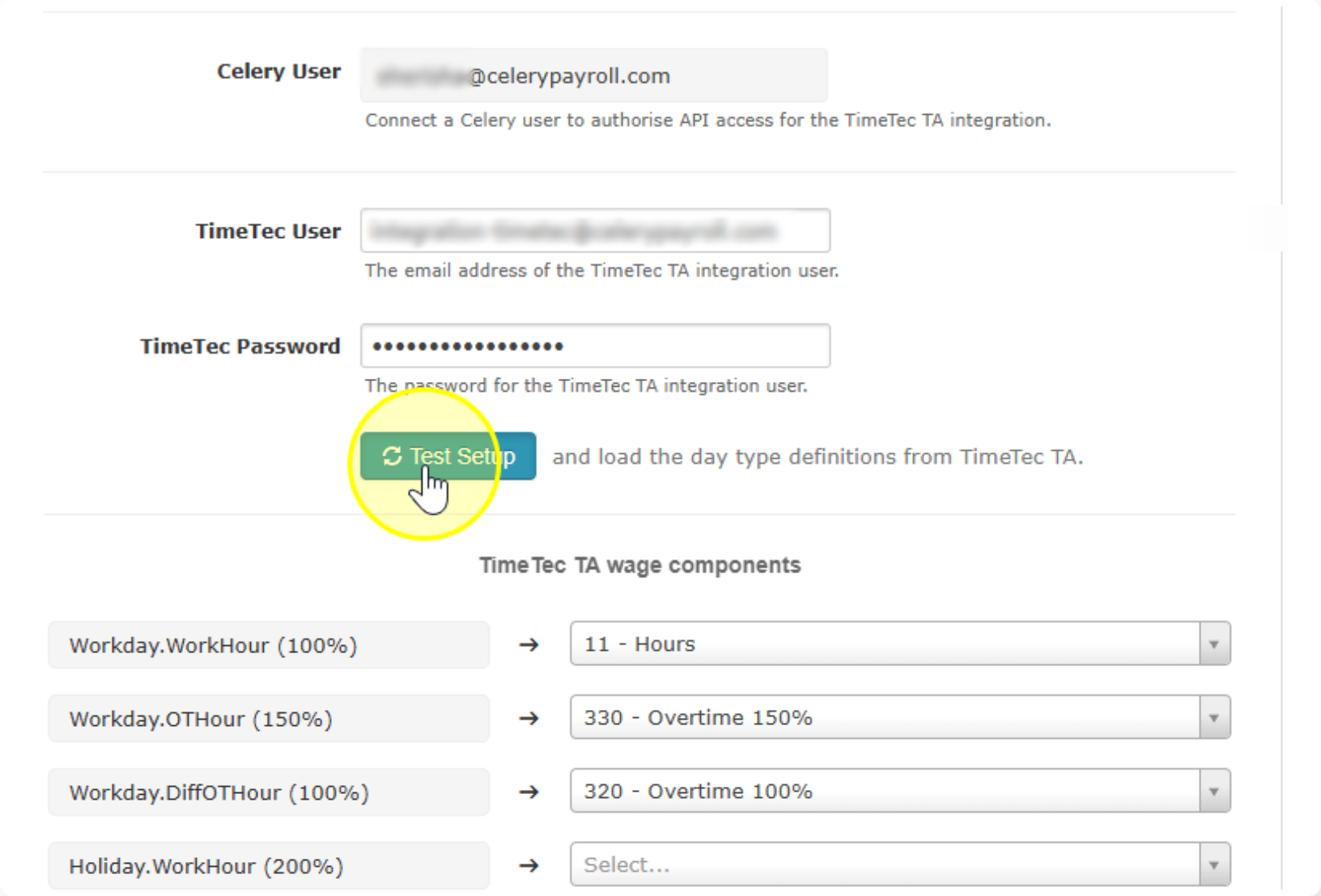
2. Fill in the Wage Components
- You need to add the wage codes that are used in your company.
- Celery is the main wage code system.
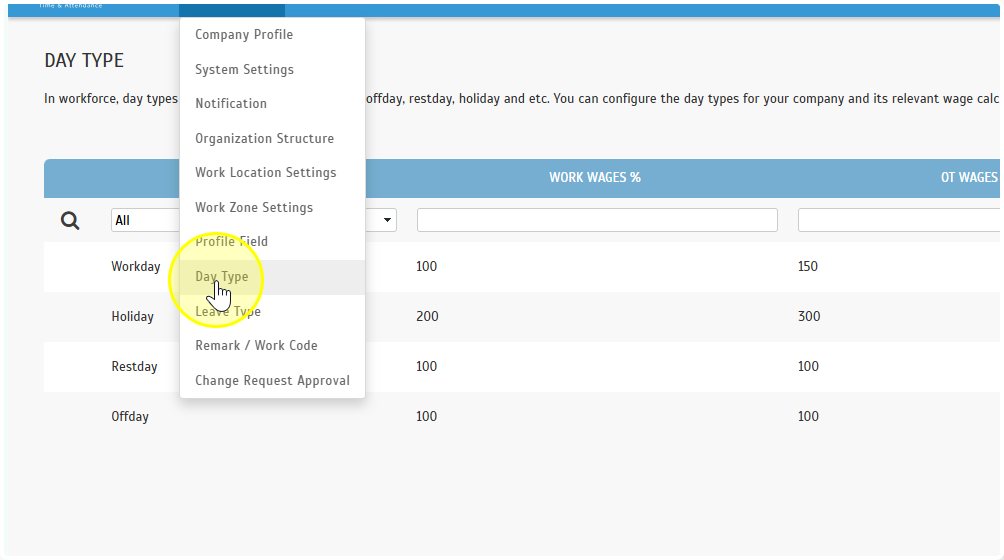
- To find out which wage codes you need, check one of these two places:
- In TimeTec: go to the Company tab → Day Type
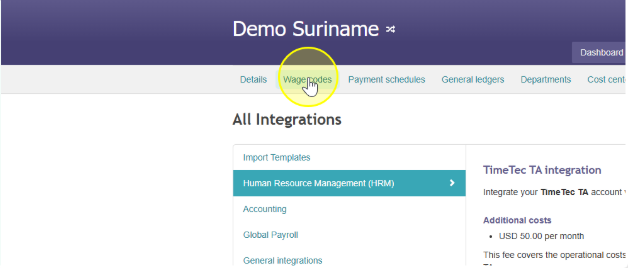
- In Celery: go to the Wage Codes tab
- In TimeTec: go to the Company tab → Day Type
- Add all the relevant wage codes.
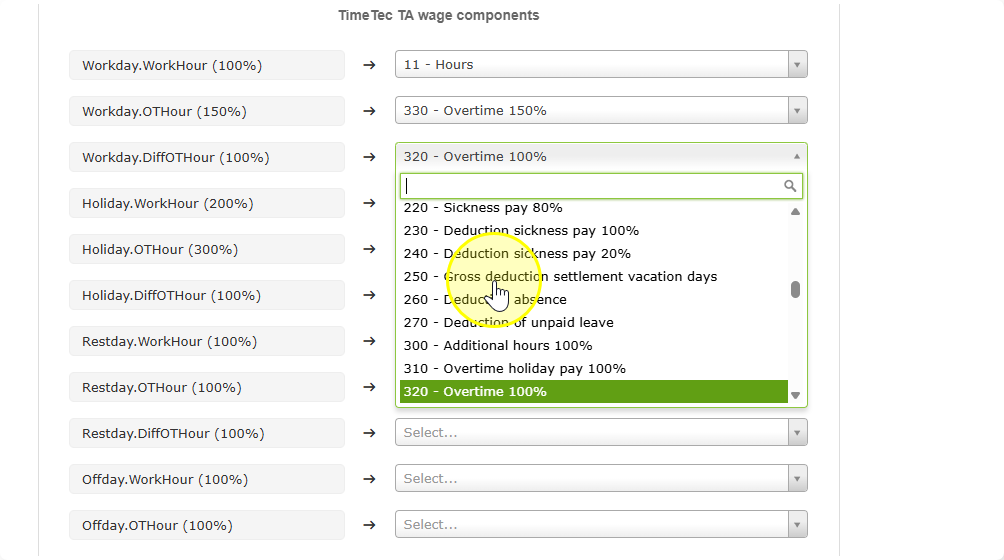
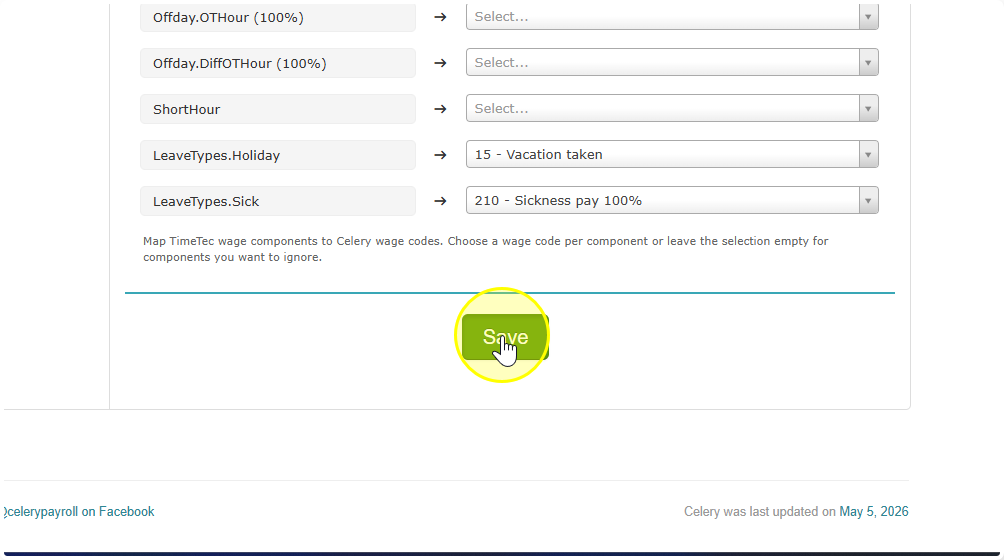
- Click Save this activates the Celery API connection with TimeTec.
3. Add an Employee to TimeTec
There are 2 options when creating a user:
Option A: New user The user does not exist in the system yet. You create a new account for them in TimeTec. Nothing gets overwritten
Option B: Existing user The user already has an account in TimeTec. The data will be overwritten.
⚠️ Important: When you link an existing user, the data from Celery takes over. Celery data is leading meaning it overwrites what is already in the Timetec. Any info that was there before may be replaced by the Celery data. Always check first if that is okay.
Option A: Create a new user in TimeTec
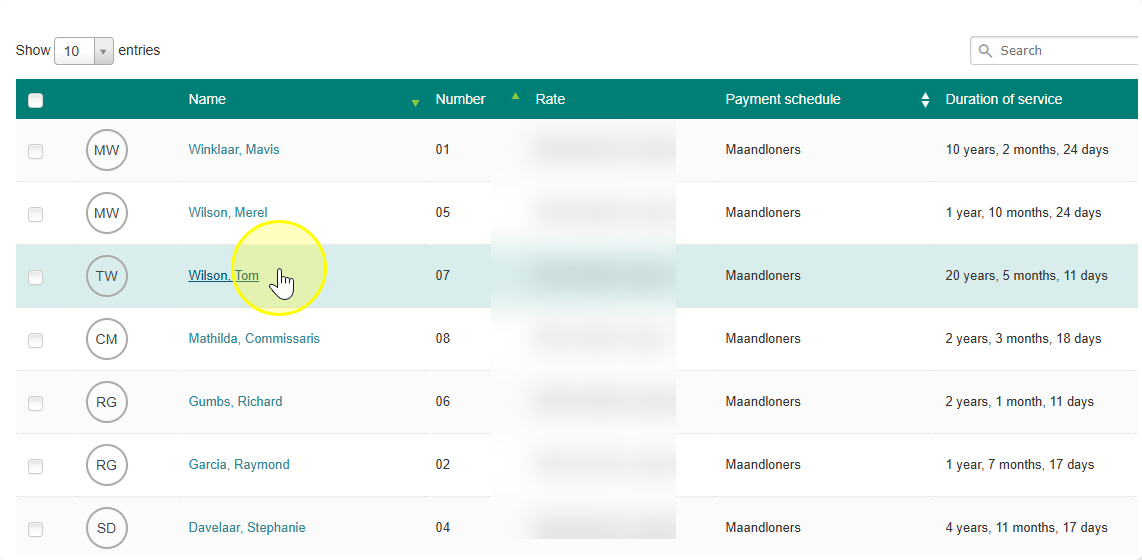
- Go to the Employees tab in Celery.
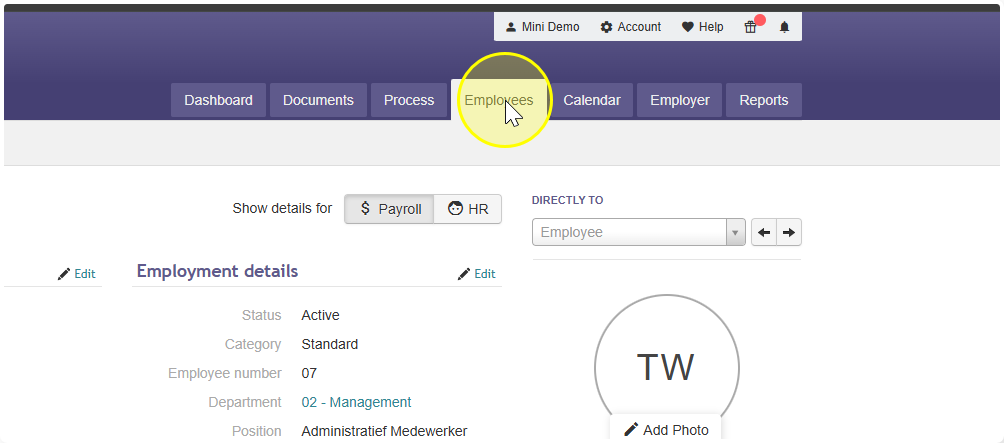
- Click on the employee's name.
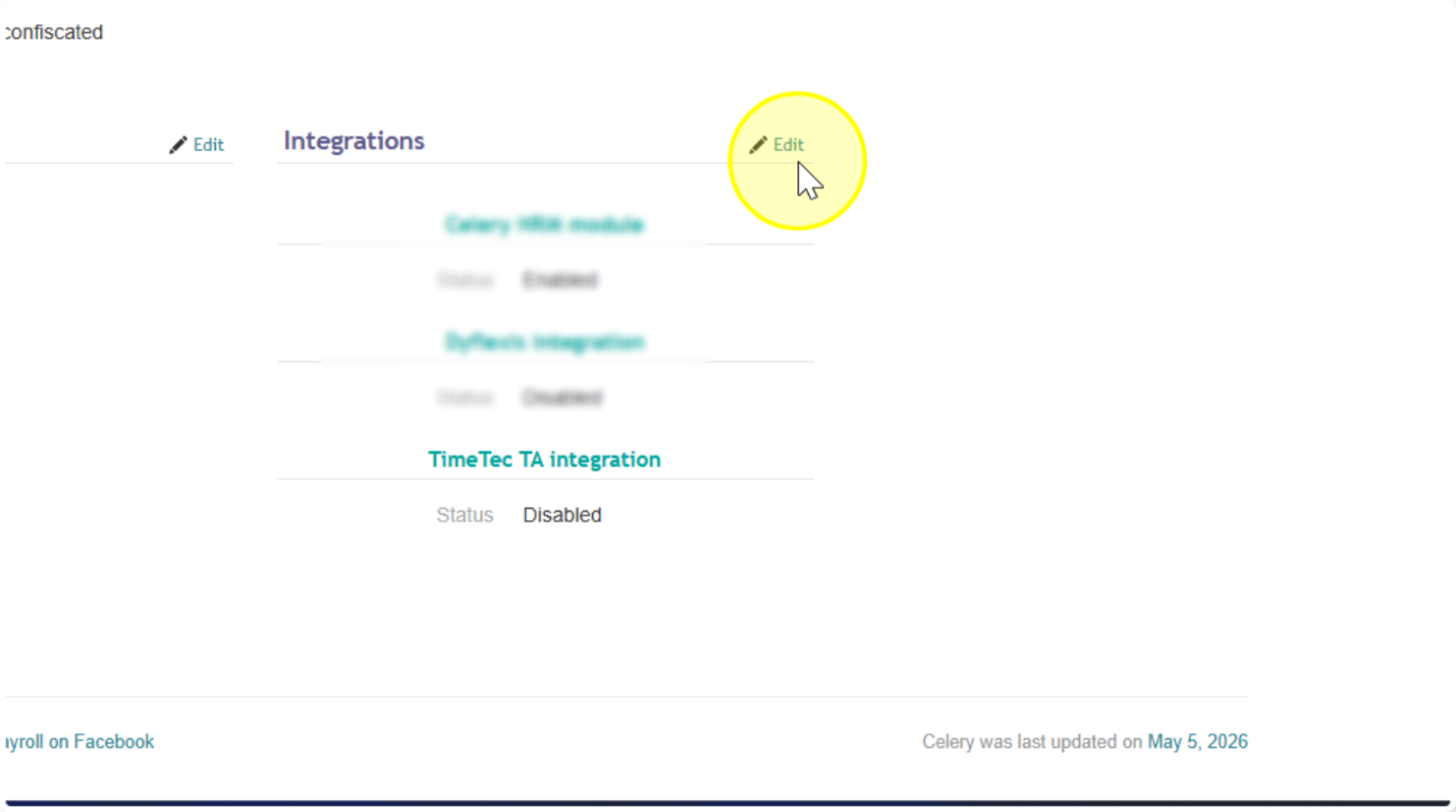
- Scroll down to Integrations and click Edit.
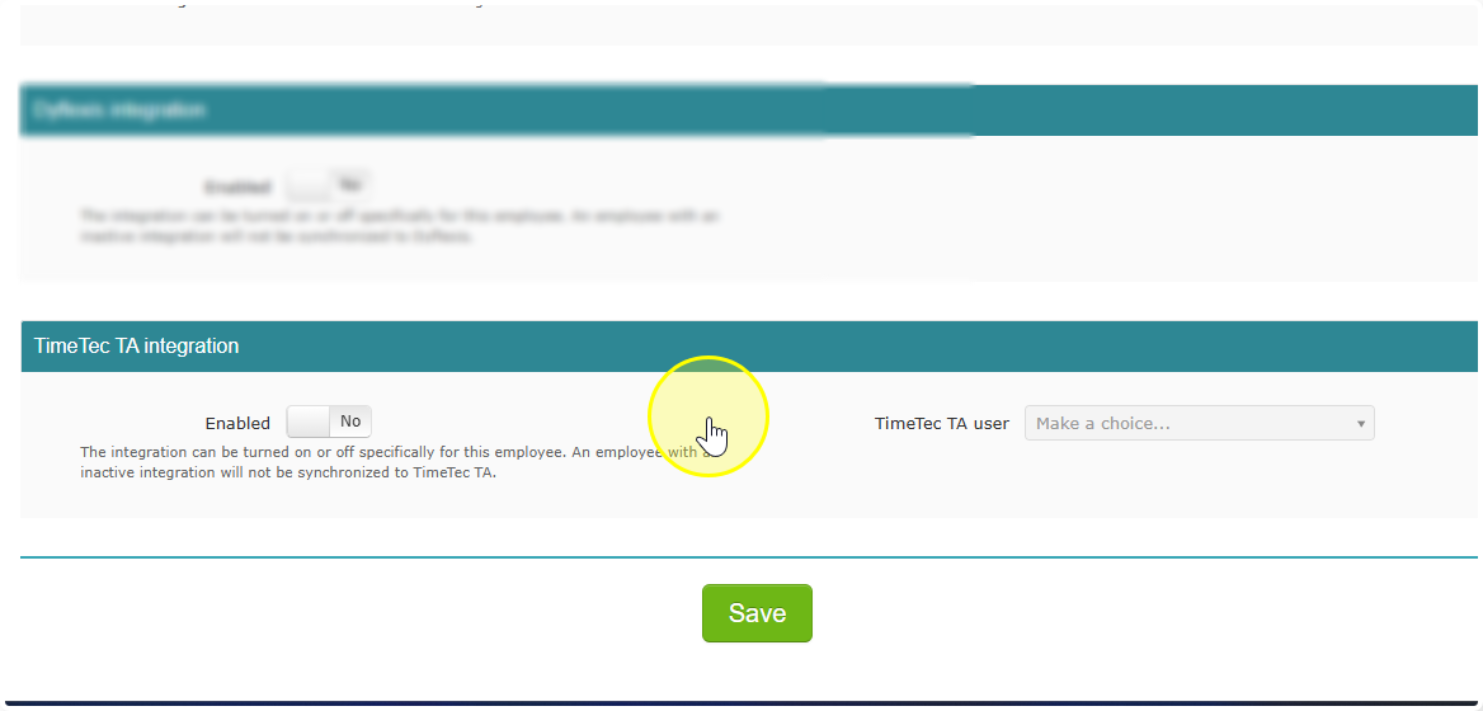
- Enable the TimeTec Integration.
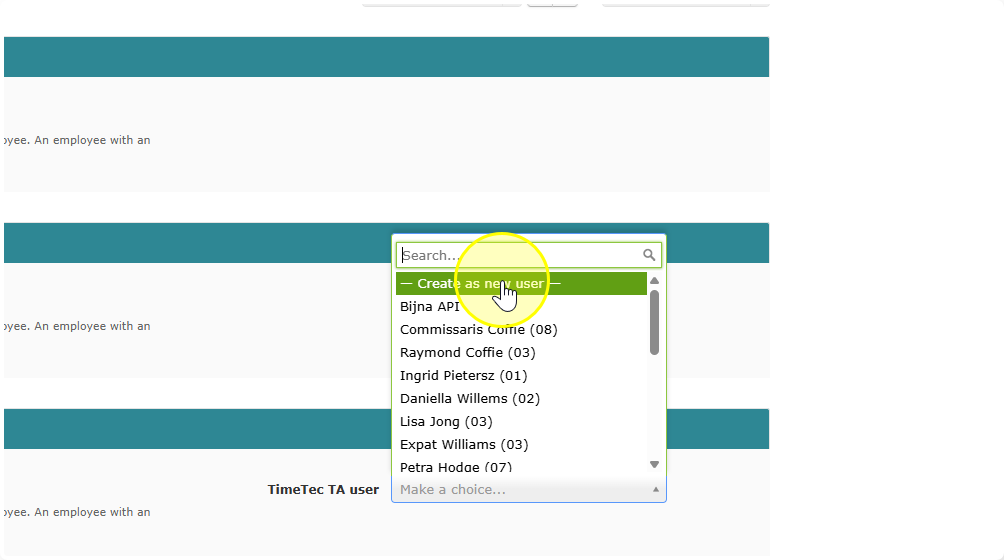
- In the dropdown, select "Timetec TA User" and choose "Create as new user".
- Click Save.
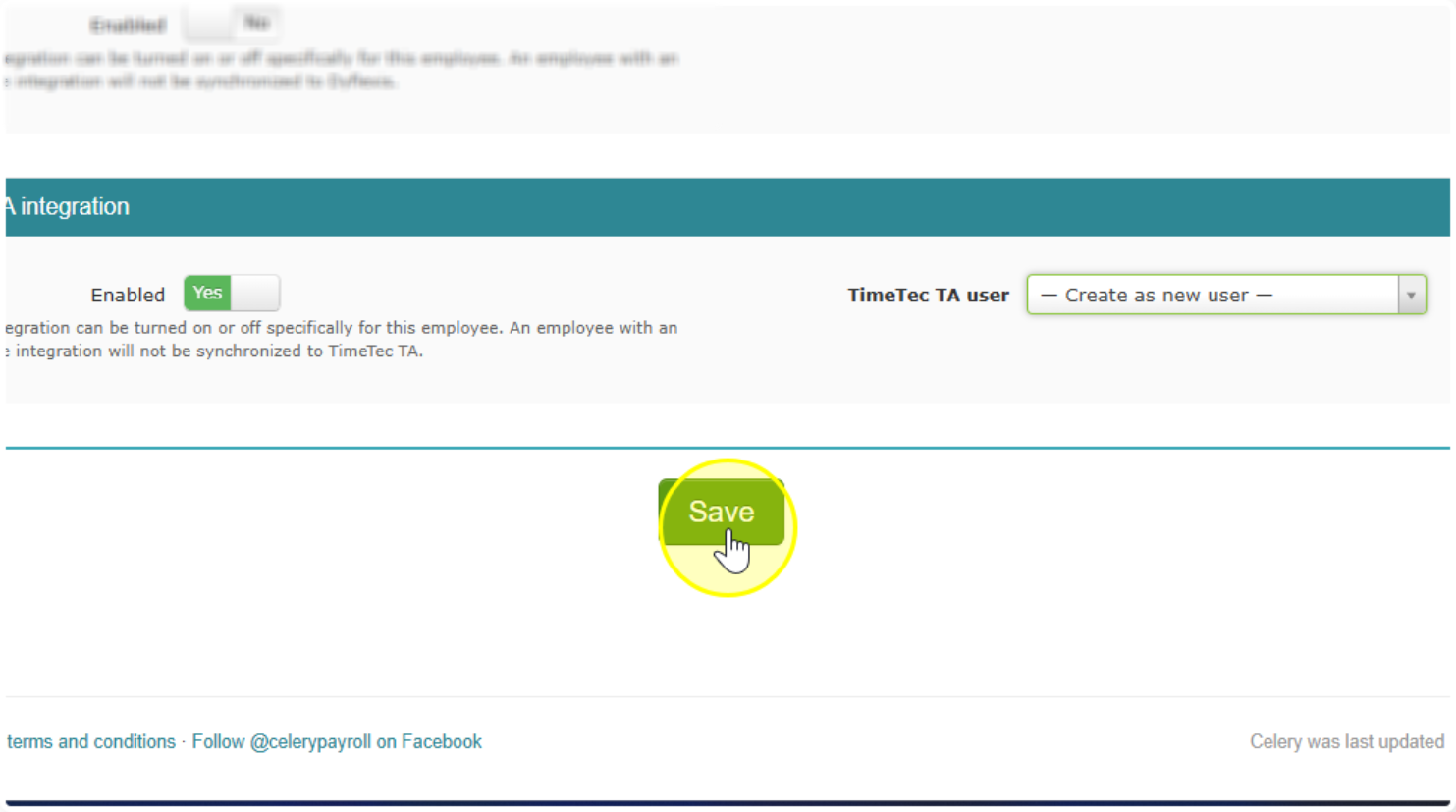
- Wait a few minutes the employee will appear in TimeTec and you can add their data.
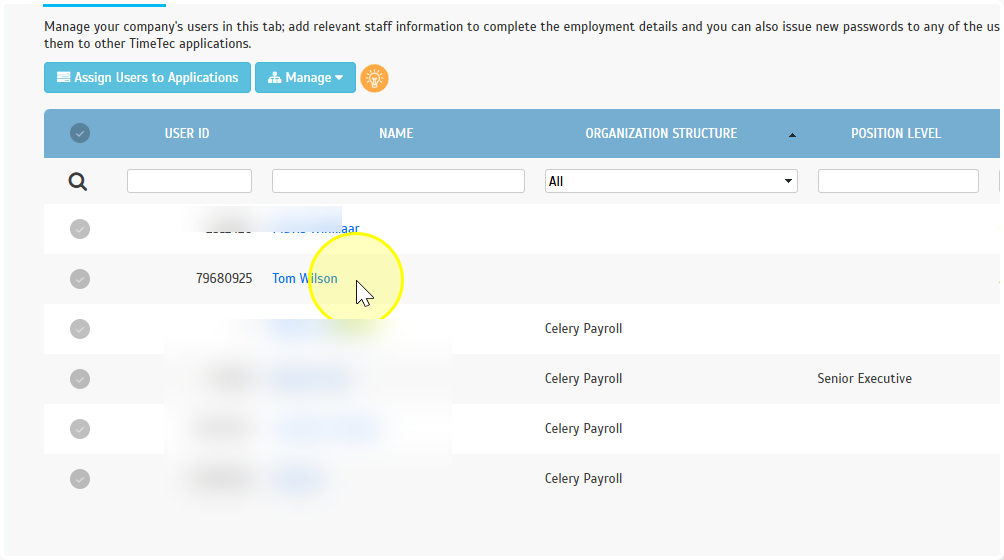
Option B: Employee Already Exists in TimeTec
- Click on the employee in Celery.
- Scroll down to Integrations and click Edit.
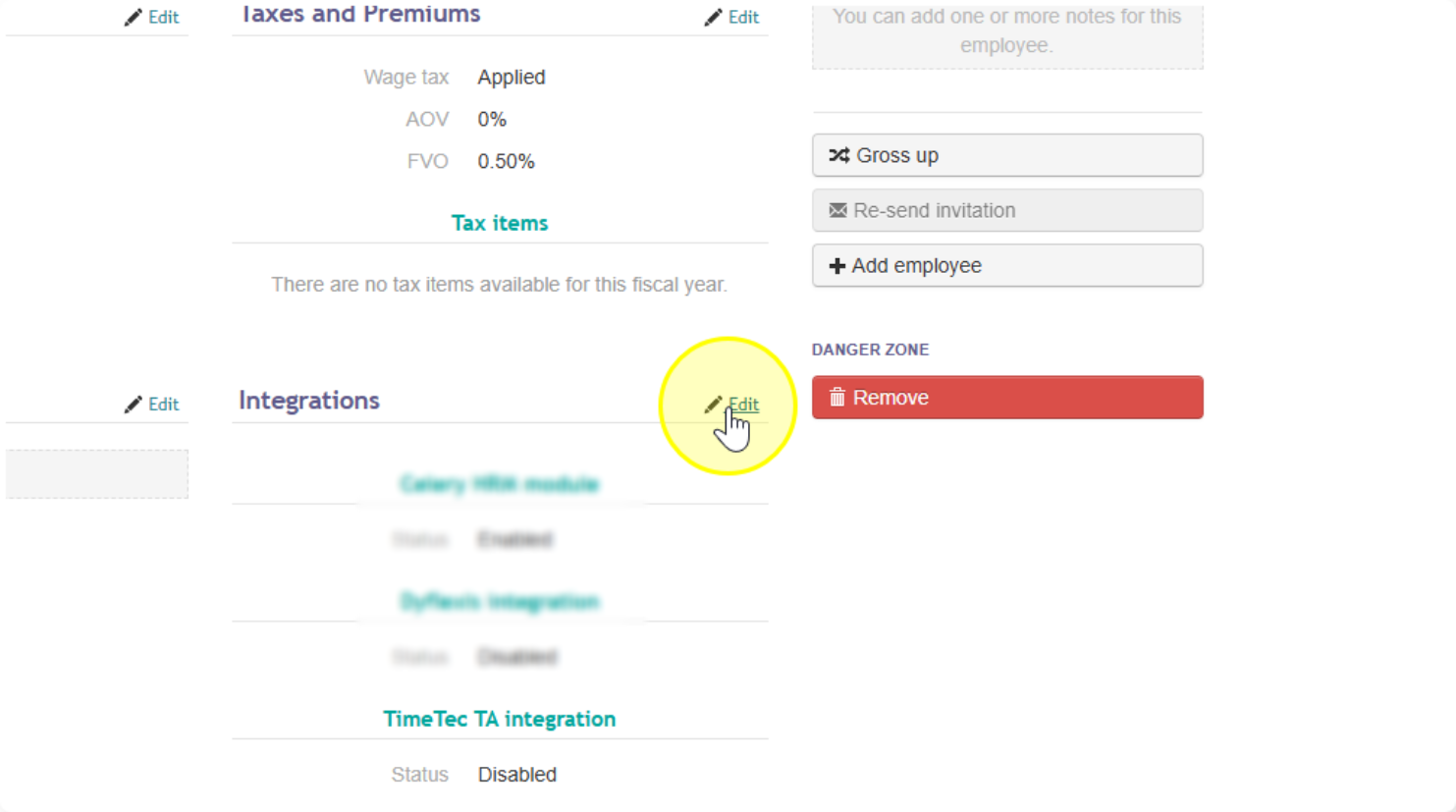
- Enable the TimeTec TA Integration.
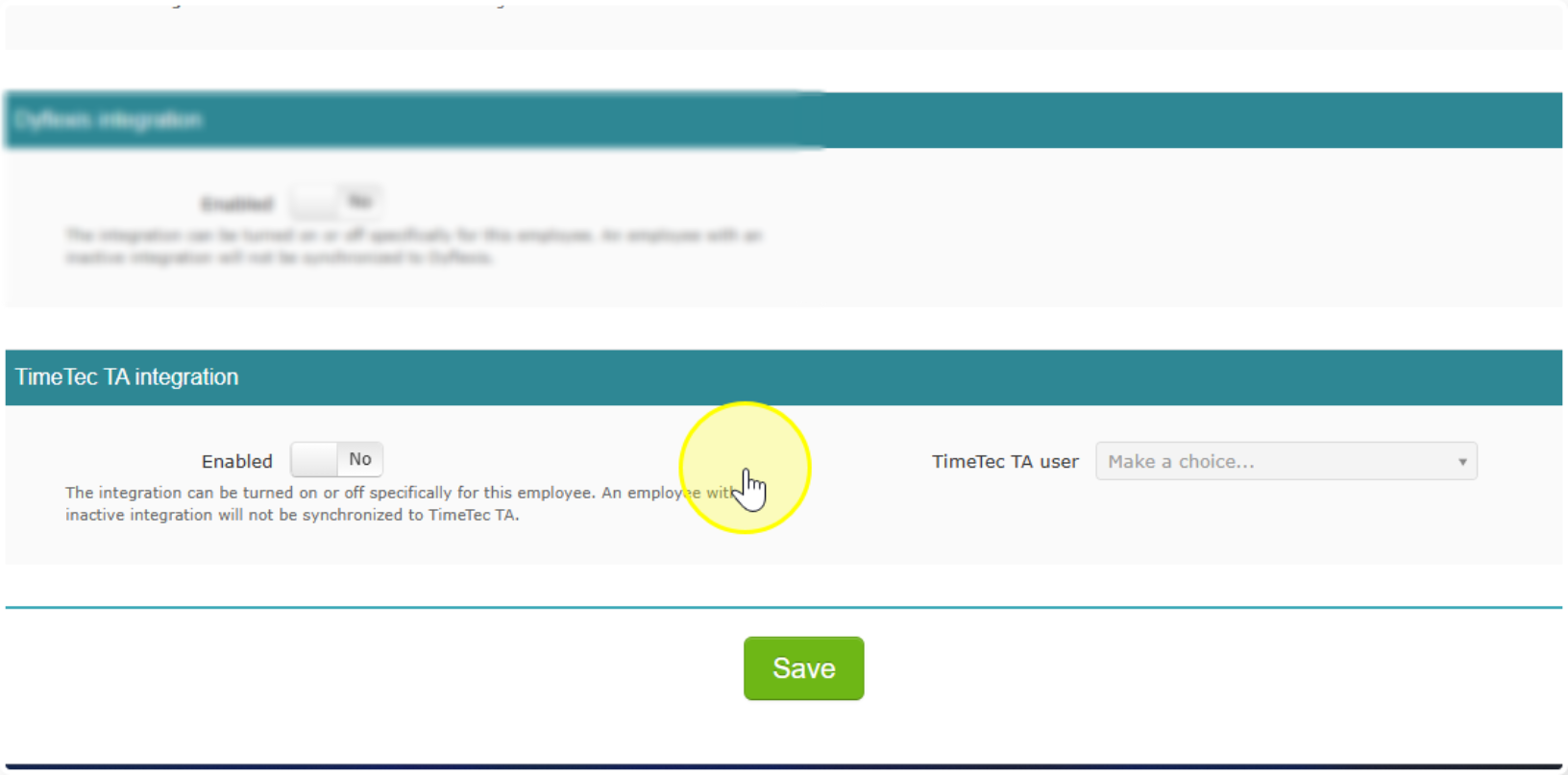
- When the employee already exists in TimeTec, check the dropdown the employee's name should appear there.
- If the name shows up: Click on it and press Save. The employee is now linked.
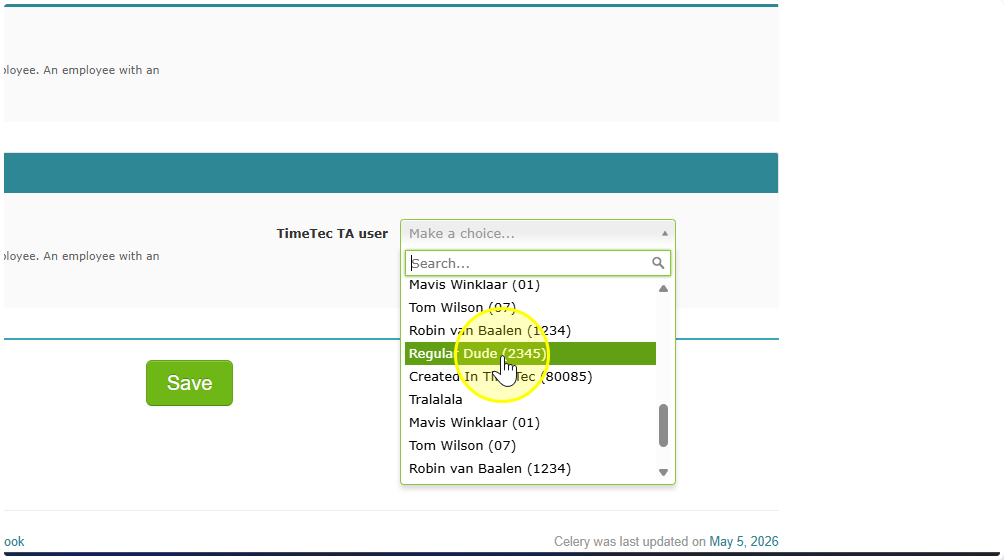
- If the name does NOT show up: Check the employee name in TimeTec or choose to create a new employee.
- If the name shows up: Click on it and press Save. The employee is now linked.
4. Push employee information to TimeTec
NOTE: The push function is only for employees that are already connected to TimeTec.
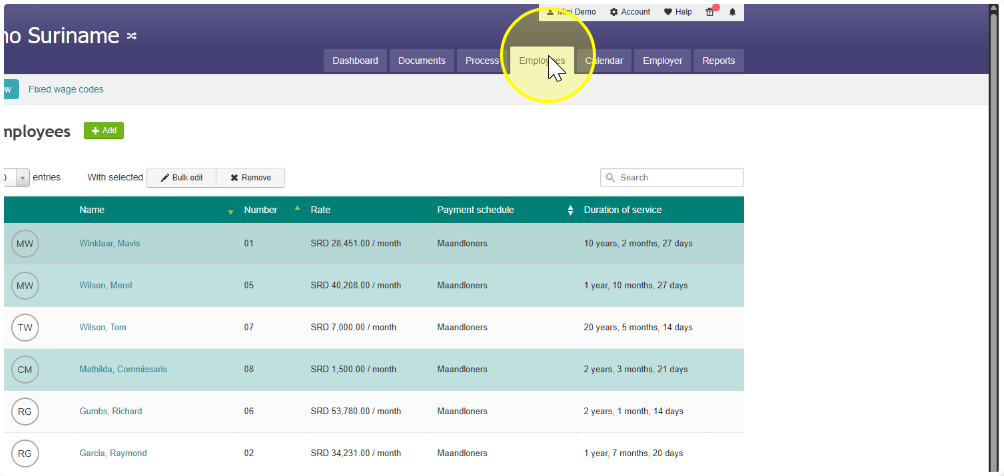
- Go to the Employees tab.
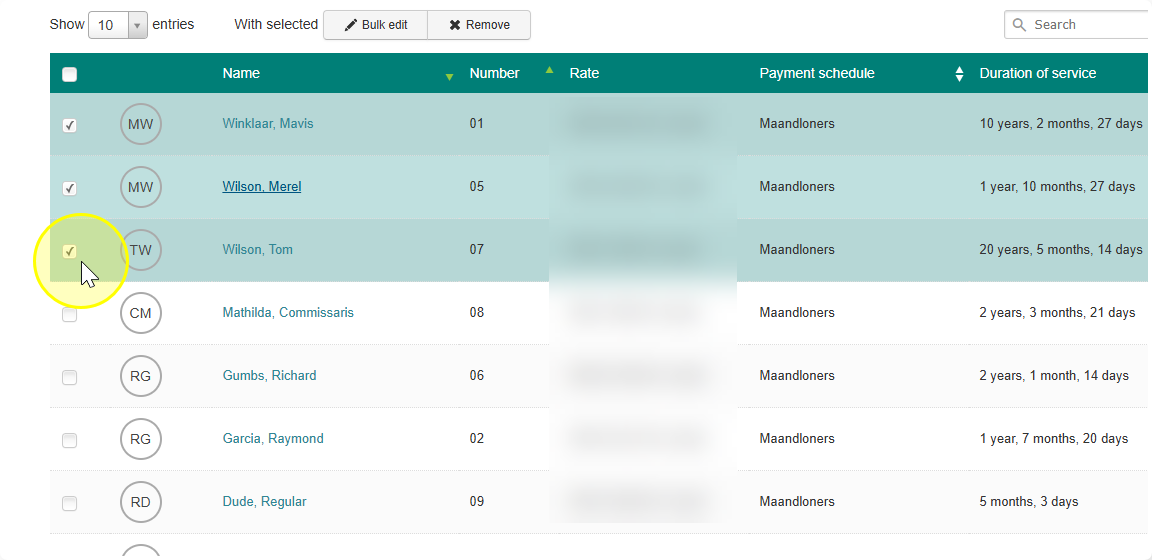
- Select the employees.
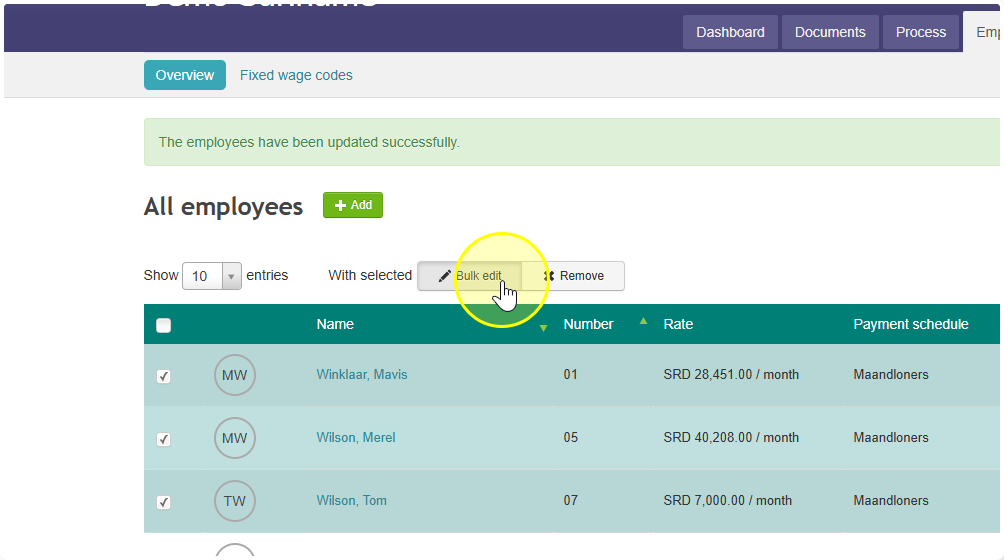
- Click Bulk Edit.
- Click on Add and scroll to Integrations.
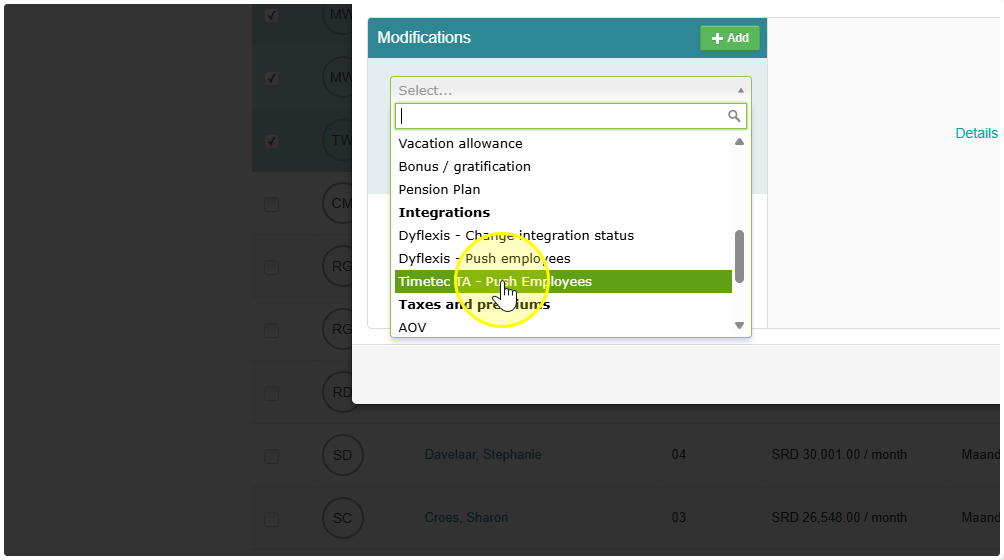
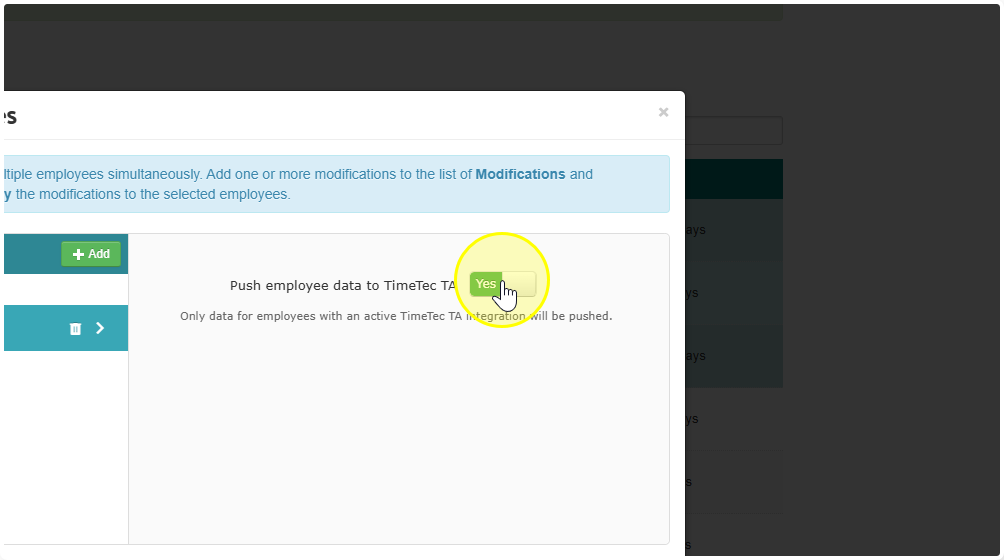
- Set TimeTec TA - Push Employees to Yes.
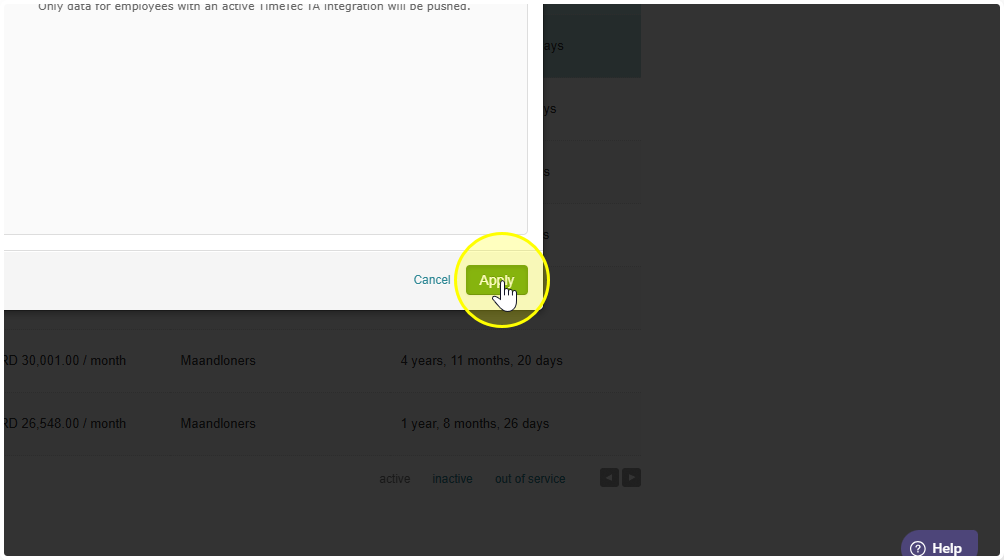
- Click Apply. This will send the selected employee data to TimeTec.
5. Add hours in Timetec
For more details on adding hours and overtime, please refer to the TimeTec Support section and the e-learning platform.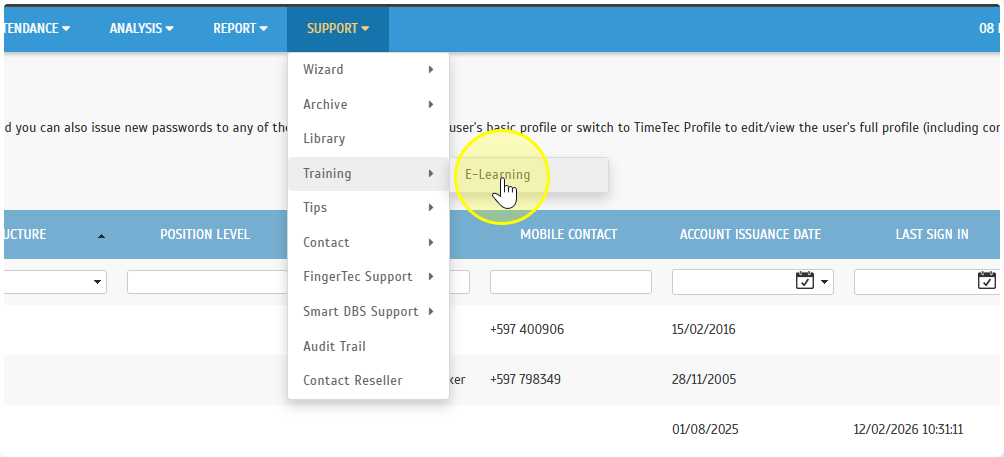
6. Pull Hours from TimeTec into Celery
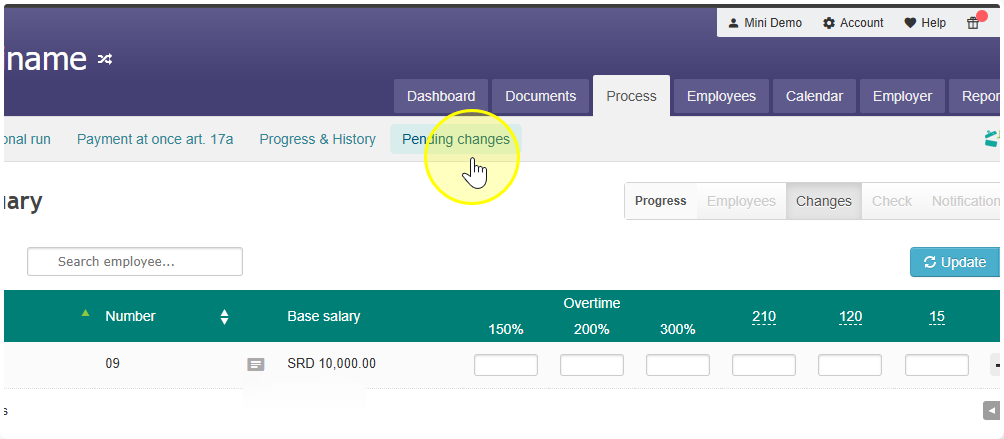
- Go to the Process tab in Celery.
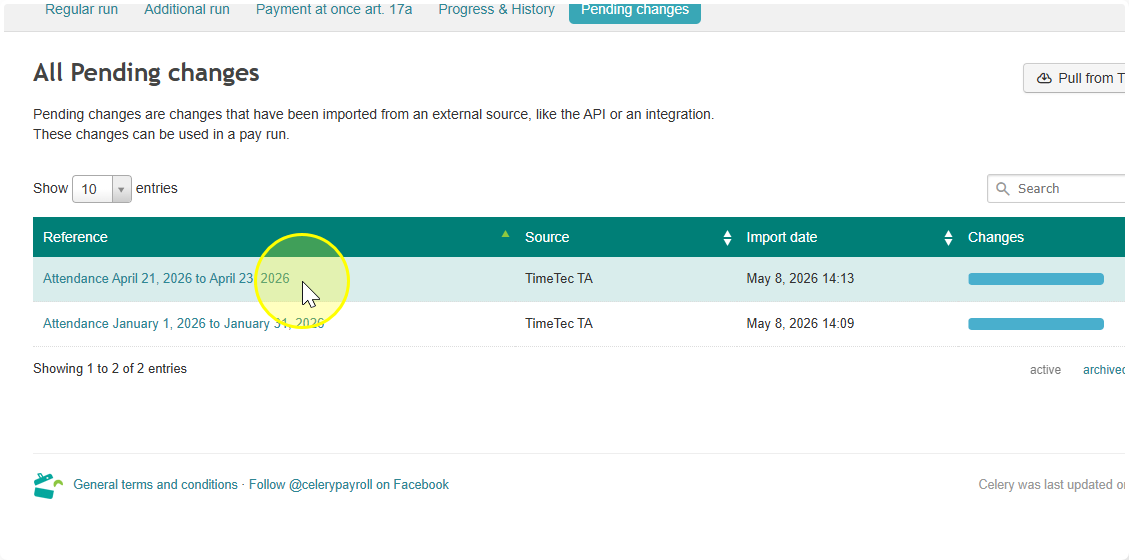
- Click on Pending Changes.
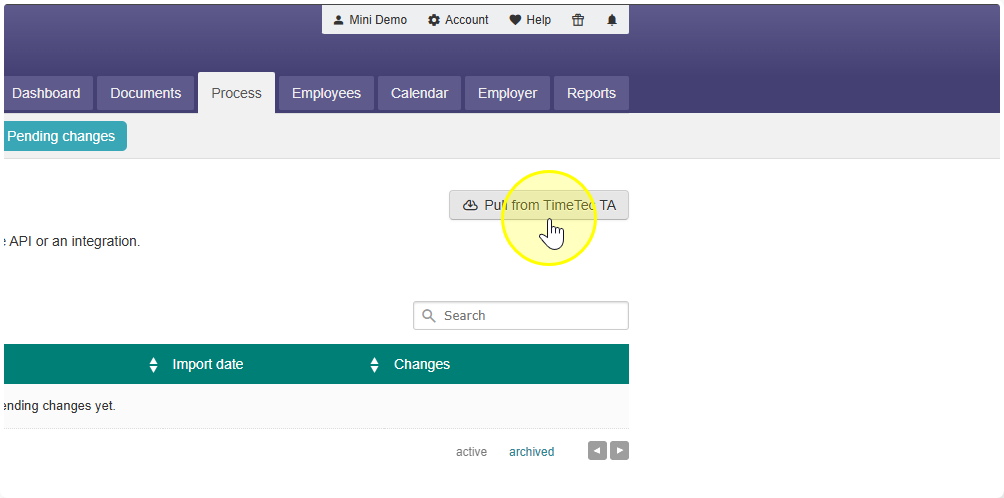
- Click the button "Pull from TimeTec TA".
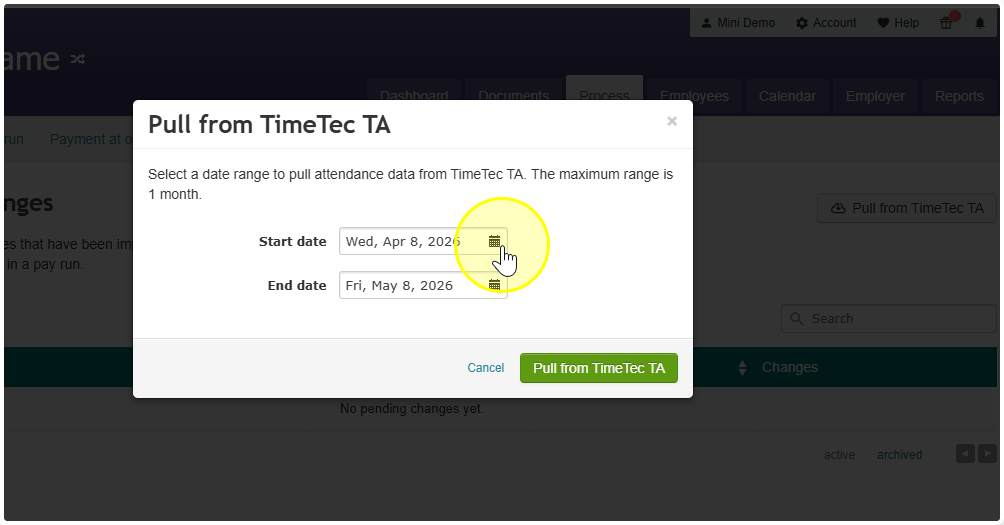
- Enter the start date and end date from which you want to pull data. This is limited to a month.
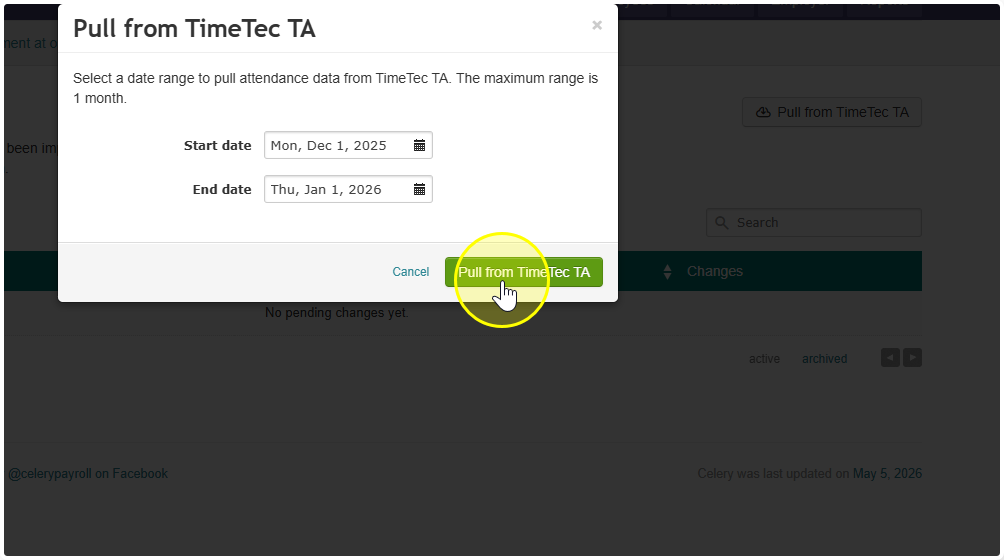
- Click "Pull from TimeTec TA" button and the data will appear in the reference section.
7. Process the Payslip
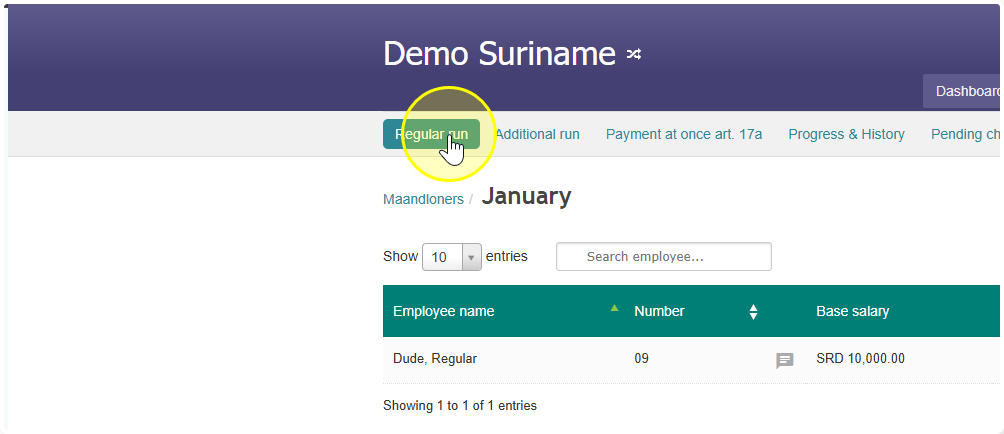
- Process a payslip for the employee for the correct period.
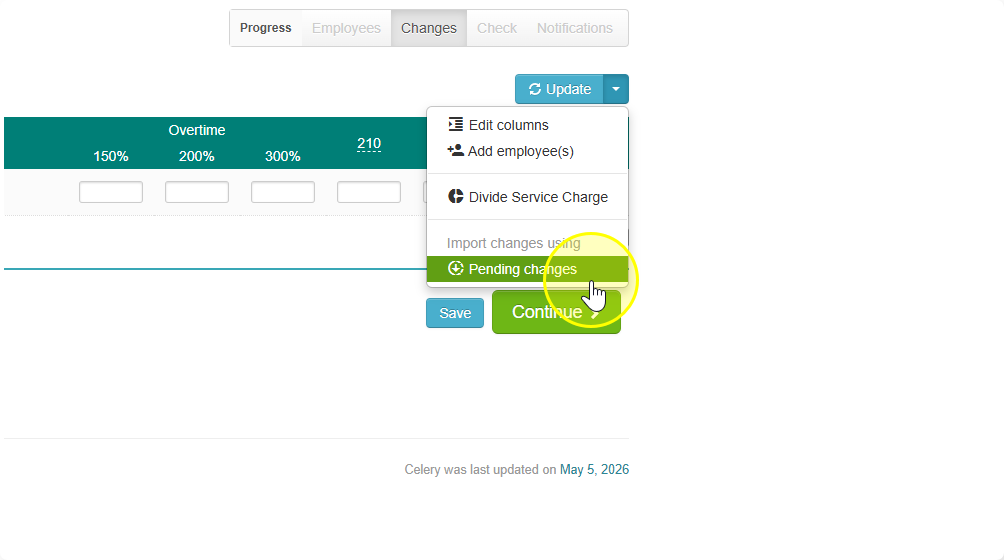
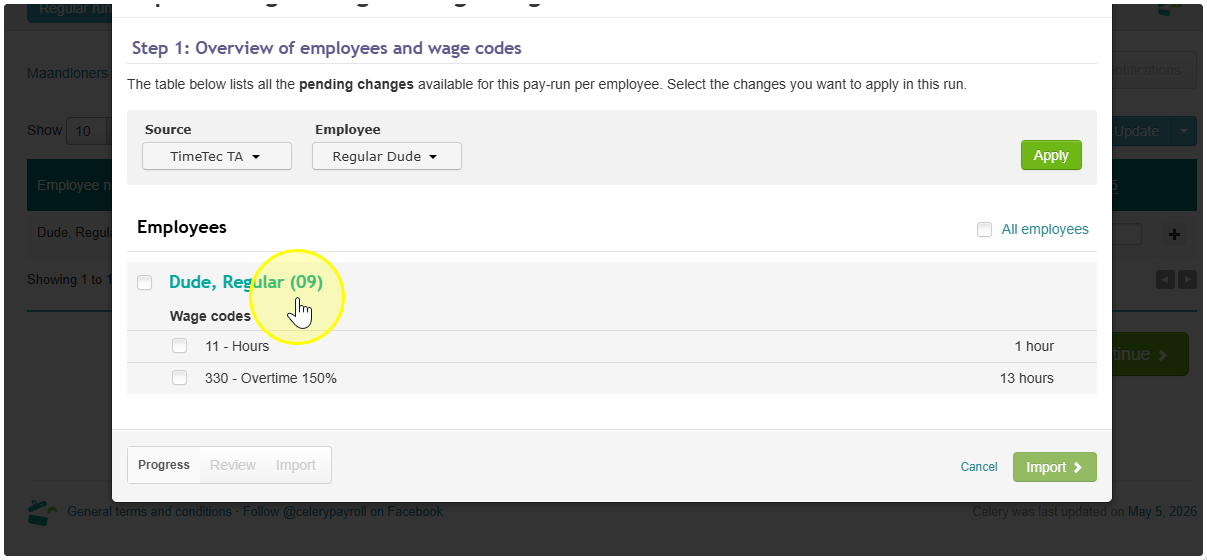
- Click "Update" and "Pending Changes".
- Fill in the filters and then click on Apply
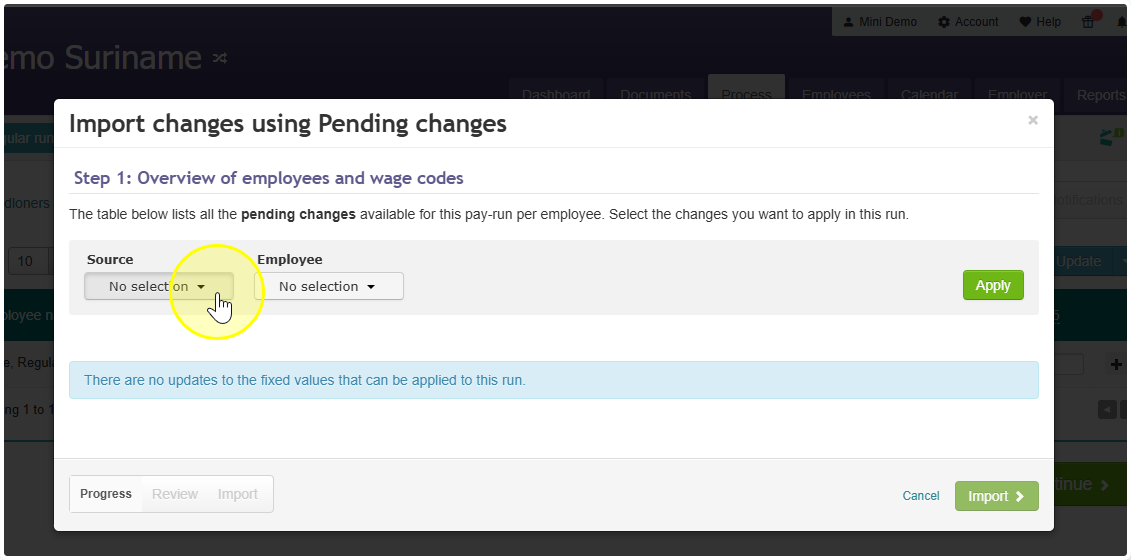
- The employee information will show up. Do not forget to select the wage codes.
- Click Import.
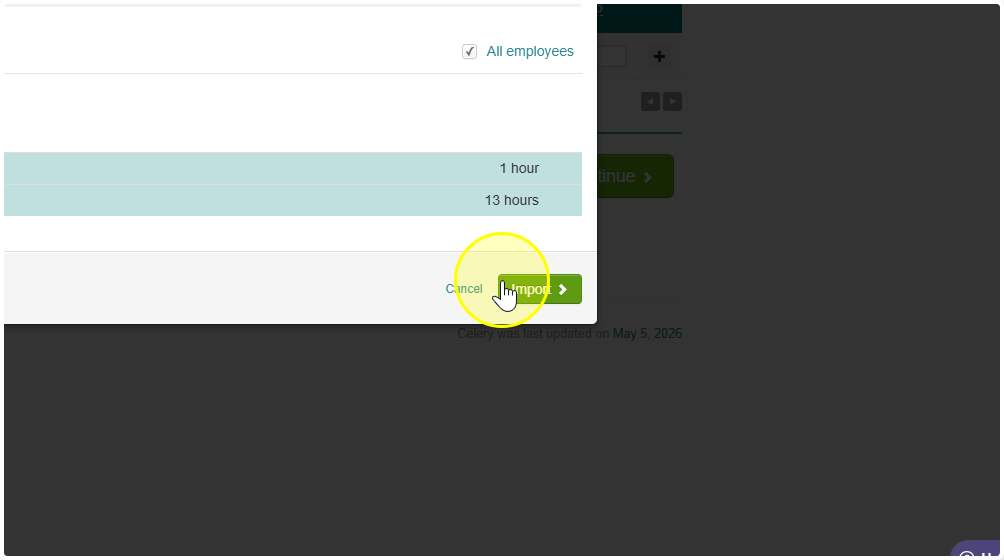
- The hours are now added to the correct wage codes.