Dyflexis - Celery Setup and Configuration
Below is a clear and structured guide describing how to set up and use the integration between Dyflexis and Celery.
1. Enable Payroll Module in Dyflexis
Dyflexis needs to Activate the Payroll module first in their system. For more information contact Dyflexis: support@dyflexis.com
2. Configure the Dyflexis Integration in Celery
The Dyflexis integration uses a Celery user to make calls to the Celery API. This user needs to have at least permission to view employees and process pay runs. You can use a "real" user account for this purpose, but we recommend creating a Service Account User that does not get disabled when a regular user is removed from Celery. A Service Account User is just a fancy name for a user that has an email address that is not directly linked to a person in your organization.
Set Up the Integration in Celery
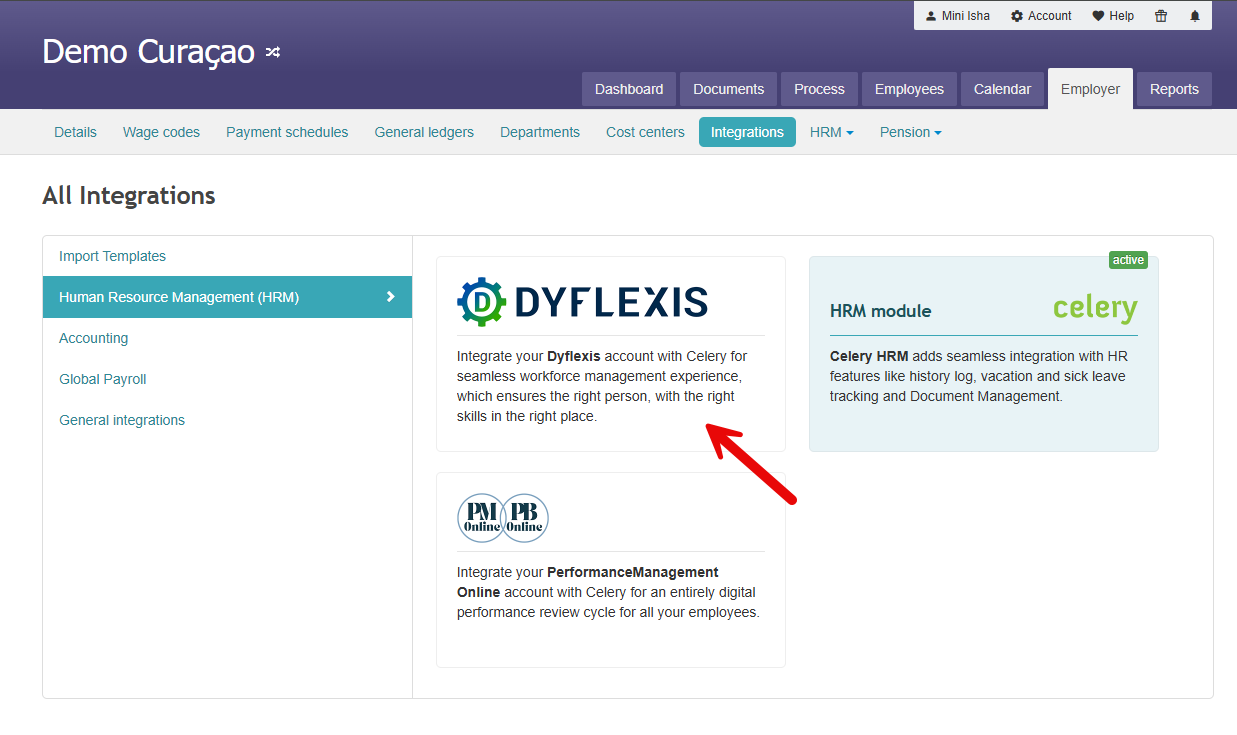
- Navigate to the Dyflexis integration through Employer, Integration and HRM.
- Click on Agrees to additional costs and Enable. Both of these options should be on Yes.
There are also instructions available within the integration itself.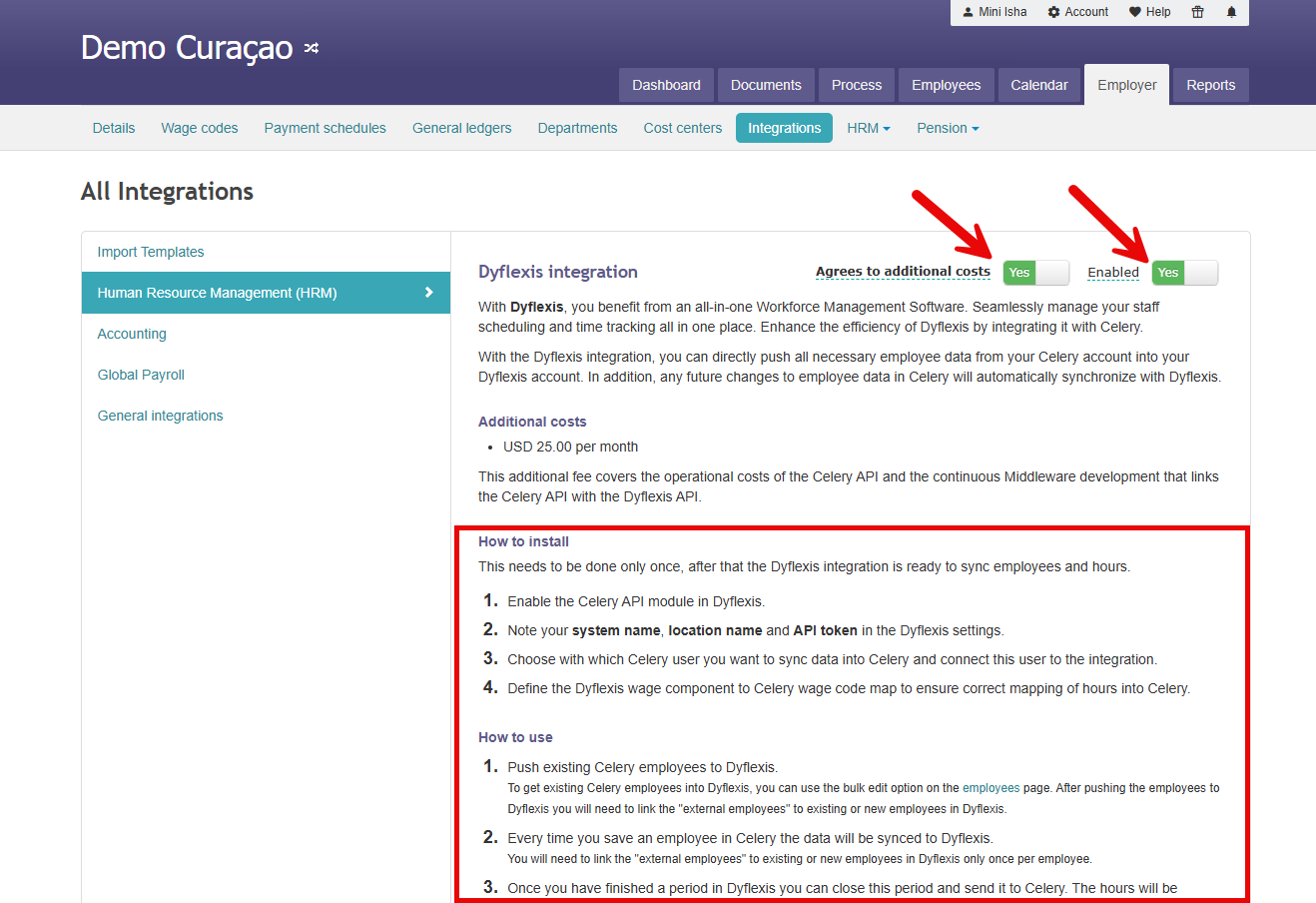
- Click the Connect button to link the logged-in user. If you want to link a Service Account User, you will need to sign in to Celery with that user and start from step 1.
The field should automatically display the Celery email address after clicking Connect.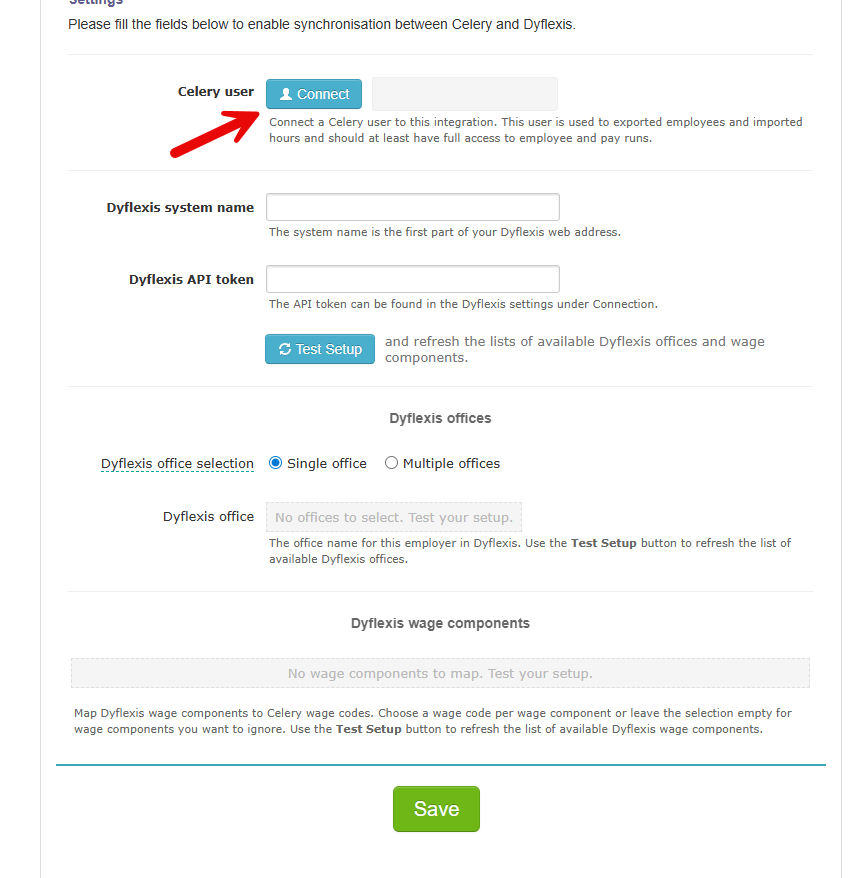
After the email address of the logged in user is added to the Celery user field. Add the Dyflexis system name and Dyflexis API token.
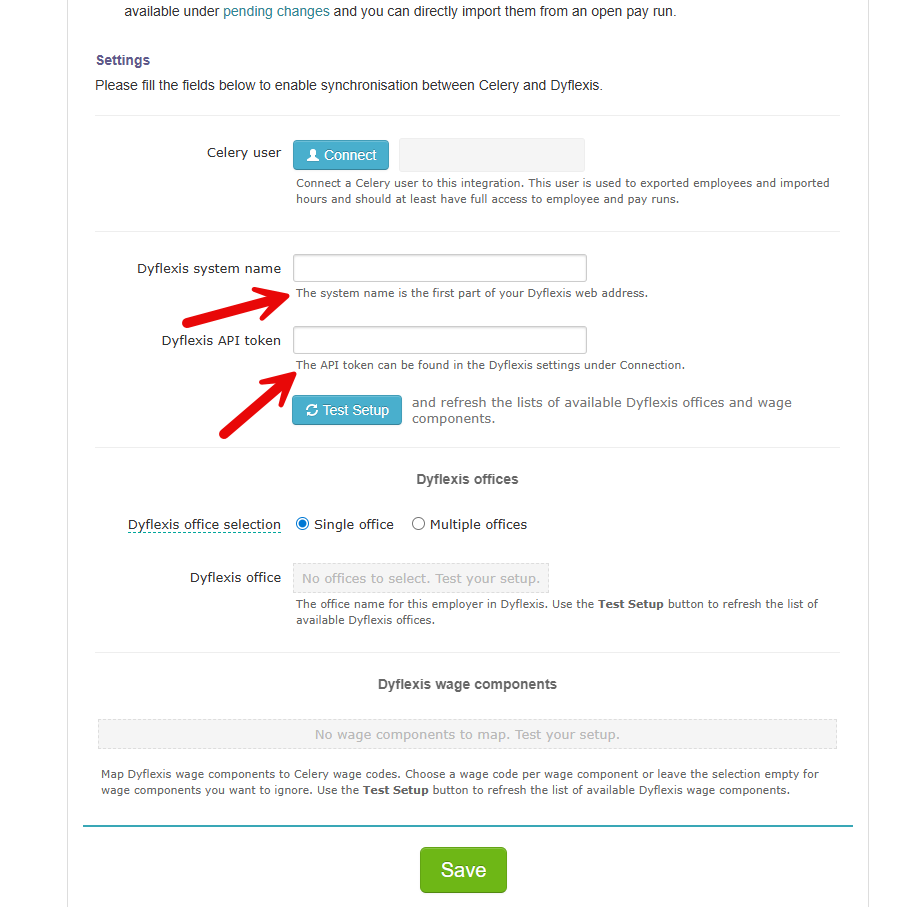
- The Dyflexis system name can be found in the web address of Dyflexis. For example: demo-celery.

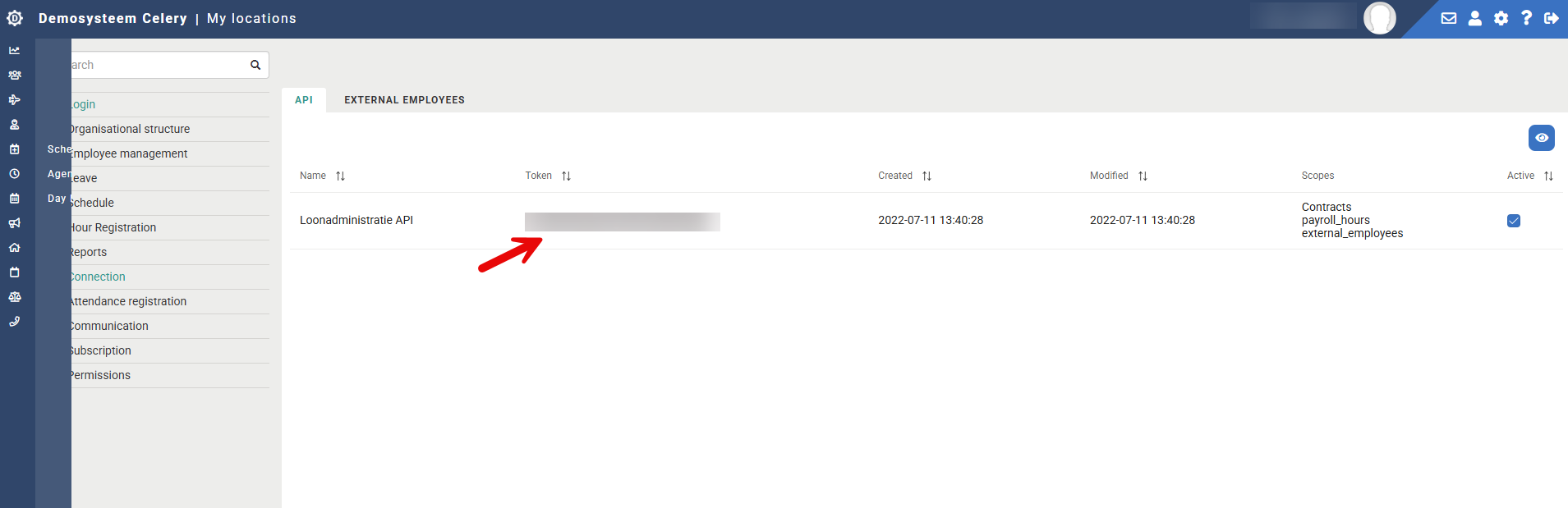
- The Dyflexis API token can be found in Dyflexis under Settings/Connection.
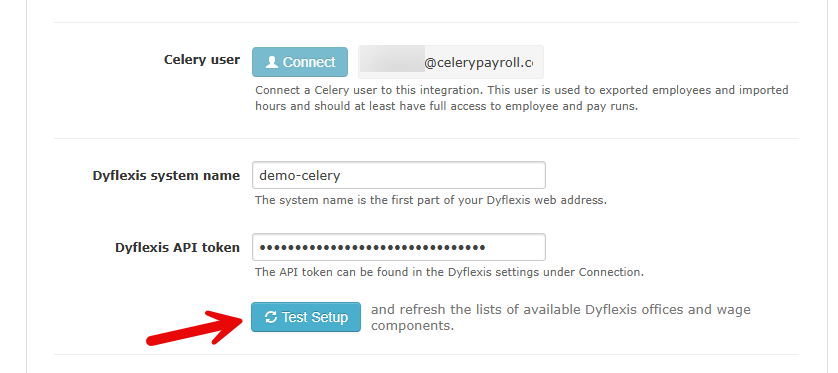
- After the Dyflexis system name and Dyflexis API token are added, click on the Test Setup button.
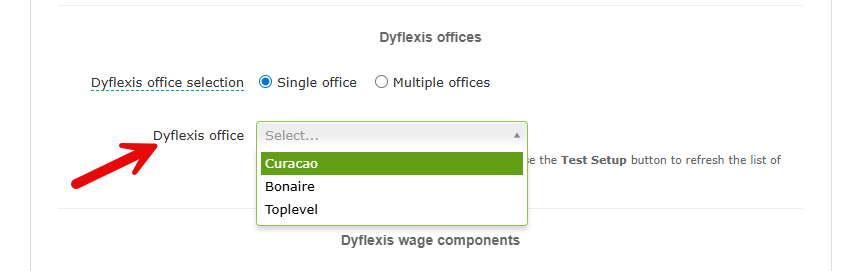
- After clicking the Test Setup button the field for Dyflexis offices shows up. Select the following options first:
Single Office → All employees are set to one office
Multiple office → You can set a default office and adjust the office per employee
Set up the wage codes that are going to be used for the Dyflexis system. For example: Wage code 11 - Worked Hours.
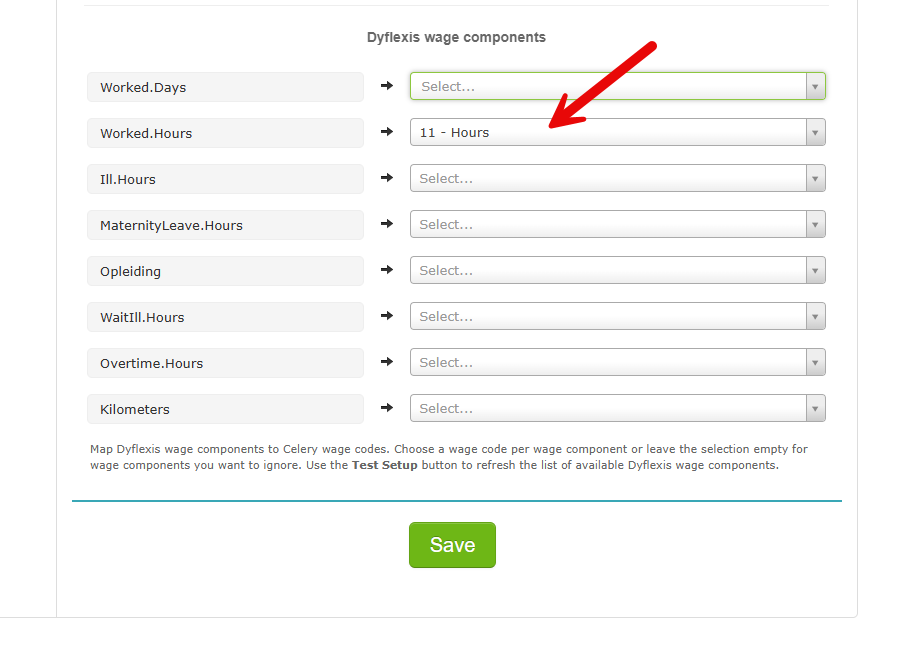
After all the fields are filled in accordingly, click on Save to activate the Dyflexis integration in Celery.
3. Enable Integration (Bulk Edit) in Celery
Use the Bulk Edit function to enable the Dyflexis integration and push employees to Dyflexis.
Note: This action only needs to be performed ONCE. After this the employees will automatically sync to Dyflexis.
Go to Employees and select the employees that need to show up in the Dyflexis system.
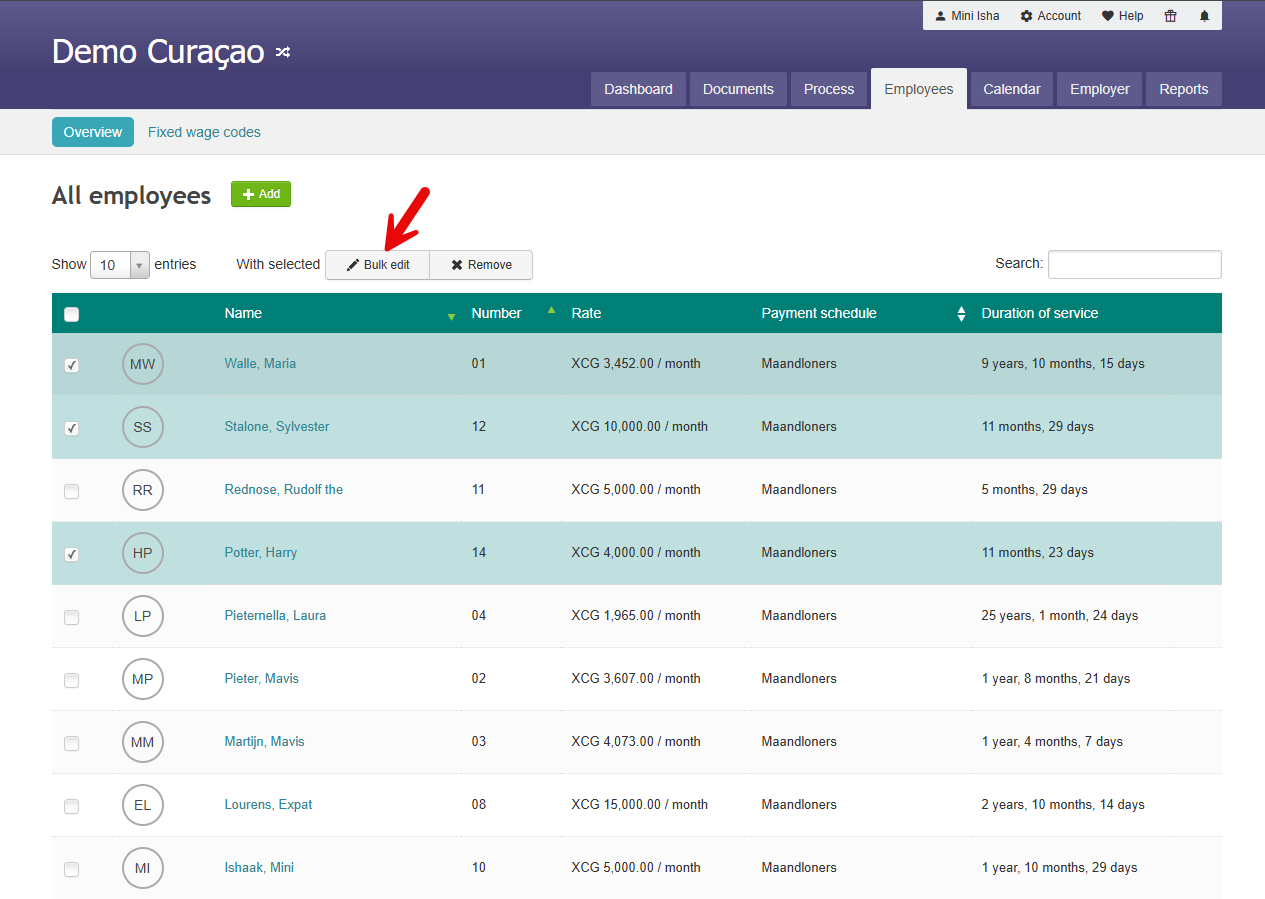
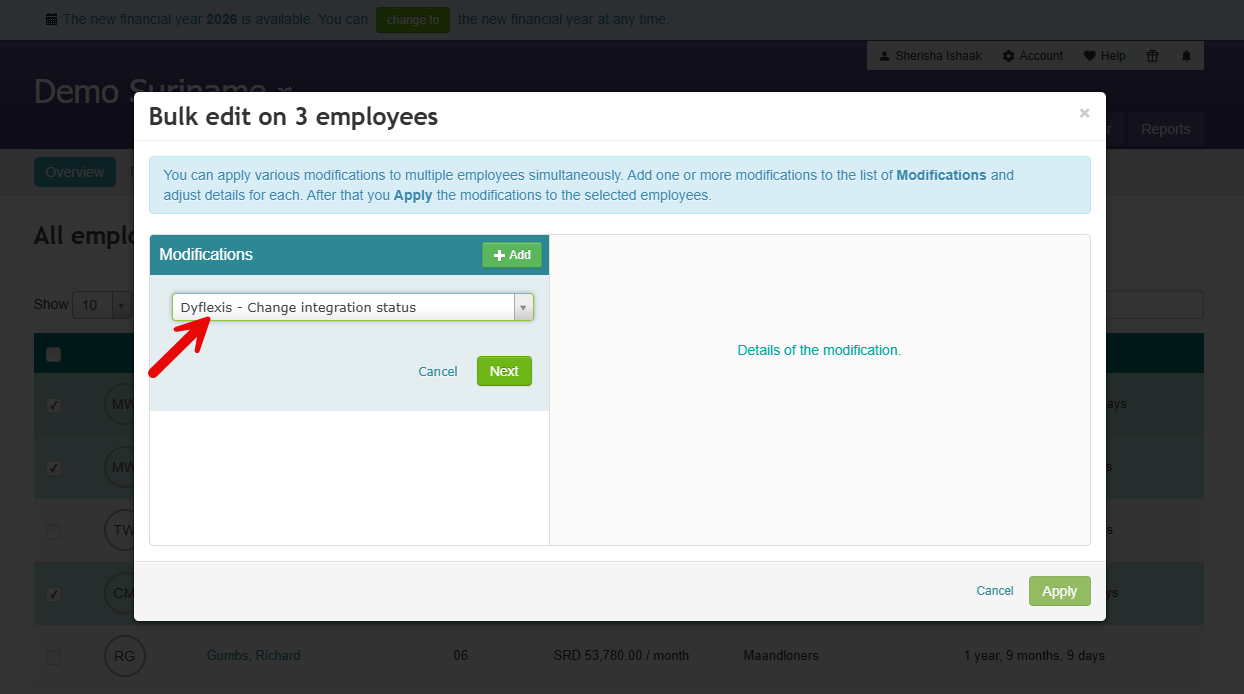
Use Dyflexis - Change integration status to turn on the Dyflexis integration for the selected employees.
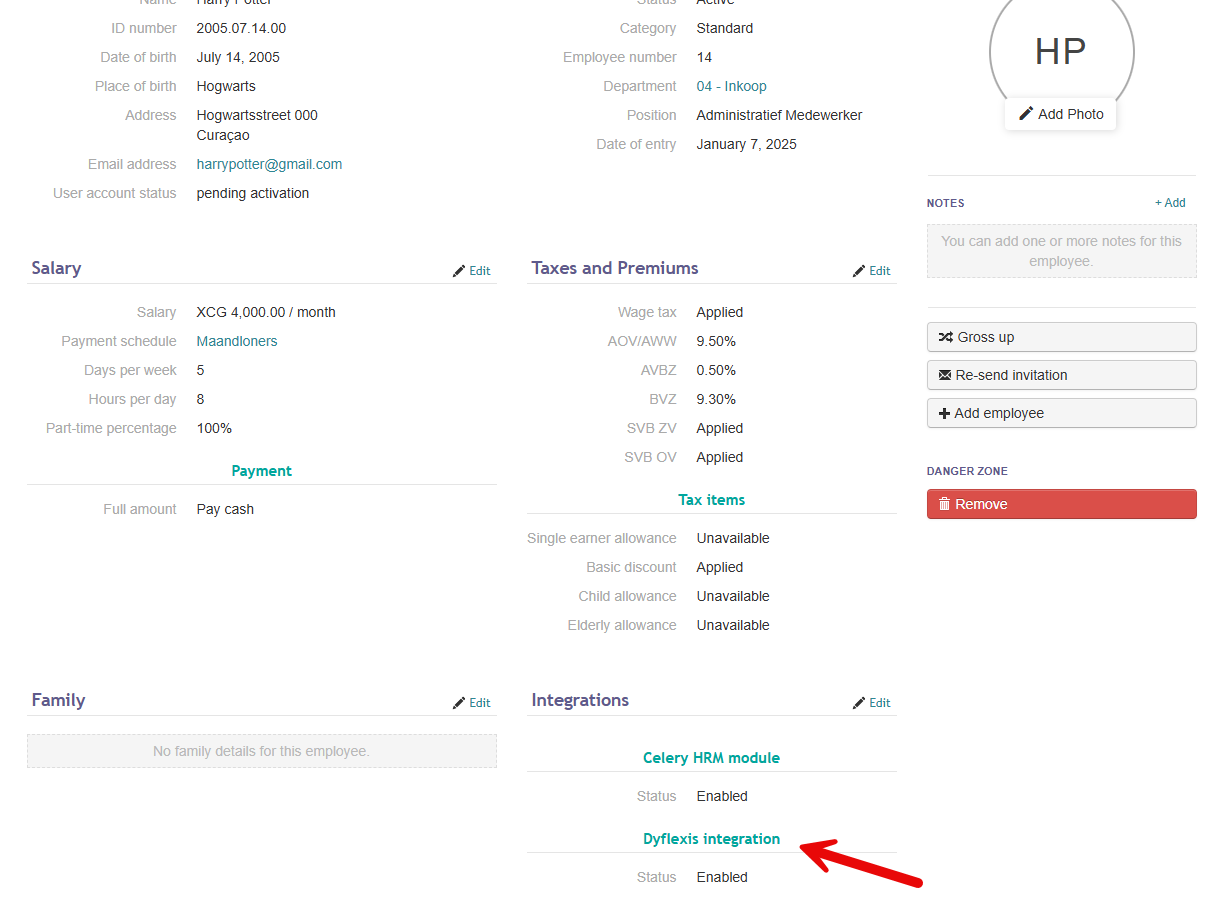
To verify if the integration is enabled, check the employee dashboard under Dyflexis Integration Status. If the integration is active, it will display as Enabled. After the integration is enabled the employees have to be pushed to the Dyflexis system.
Return to the Employees page, select the desired employees, choose Bulk Edit, and then use the Dyflexis - Push Employees to sync them to the Dyflexis system.
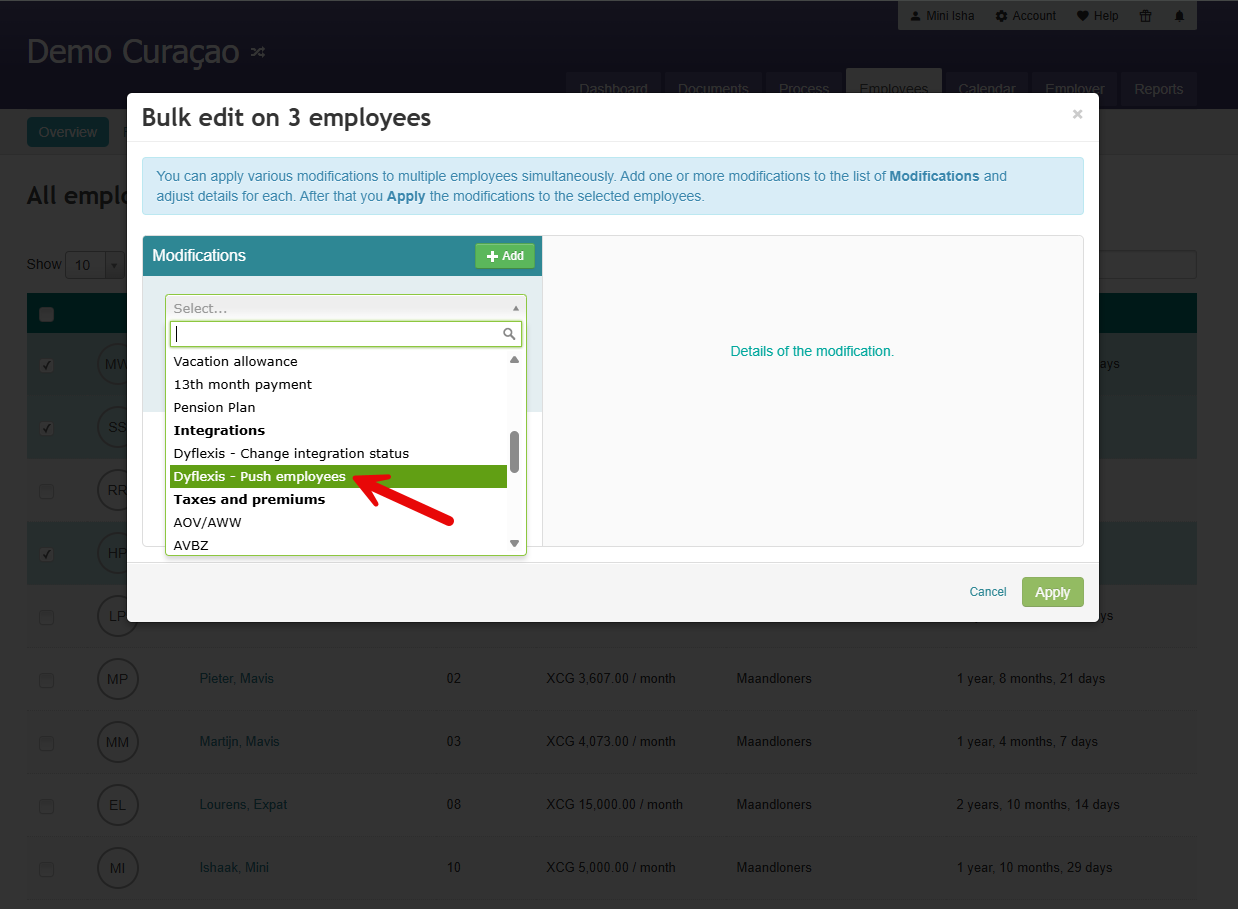
Once the Dyflexis integration is enabled and the employees have been pushed to Dyflexis, they are immediately made available in Dyflexis.
4. Employee & Contract Management in Dyflexis
After employees are pushed to Dyflexis, they will appear in the Employees tab within Dyflexis.
Employees that are pushed from Celery show up in the employees list inside Dyflexis. Click on Link to connect the employee to the time sheet.
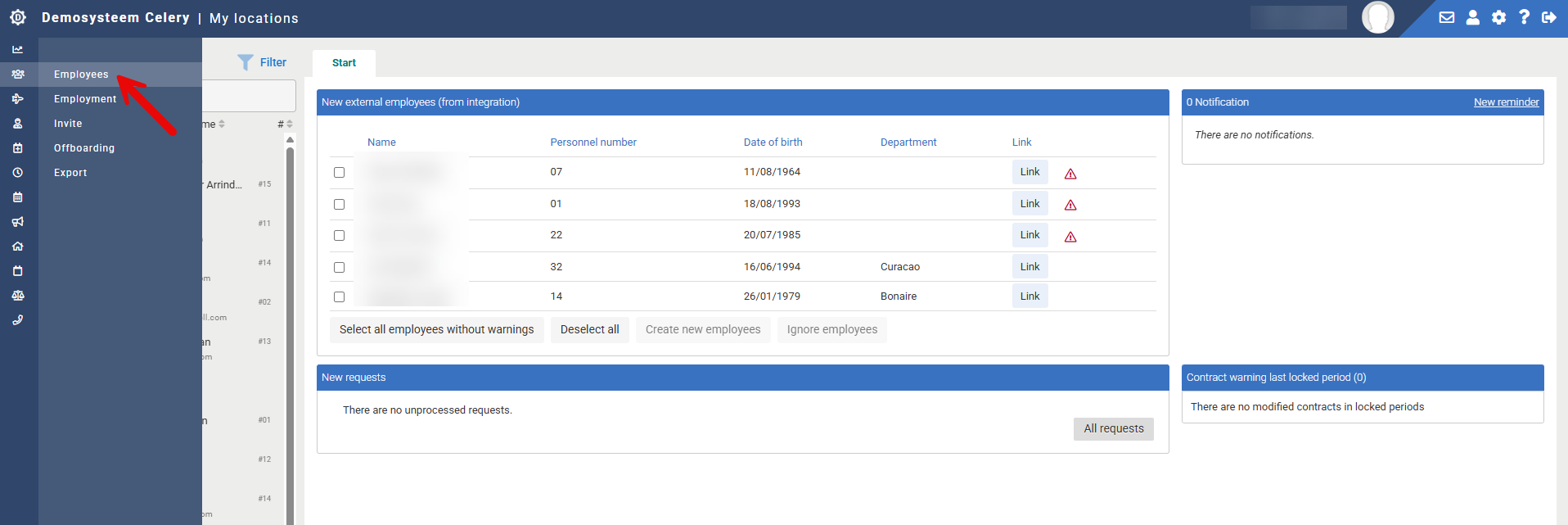
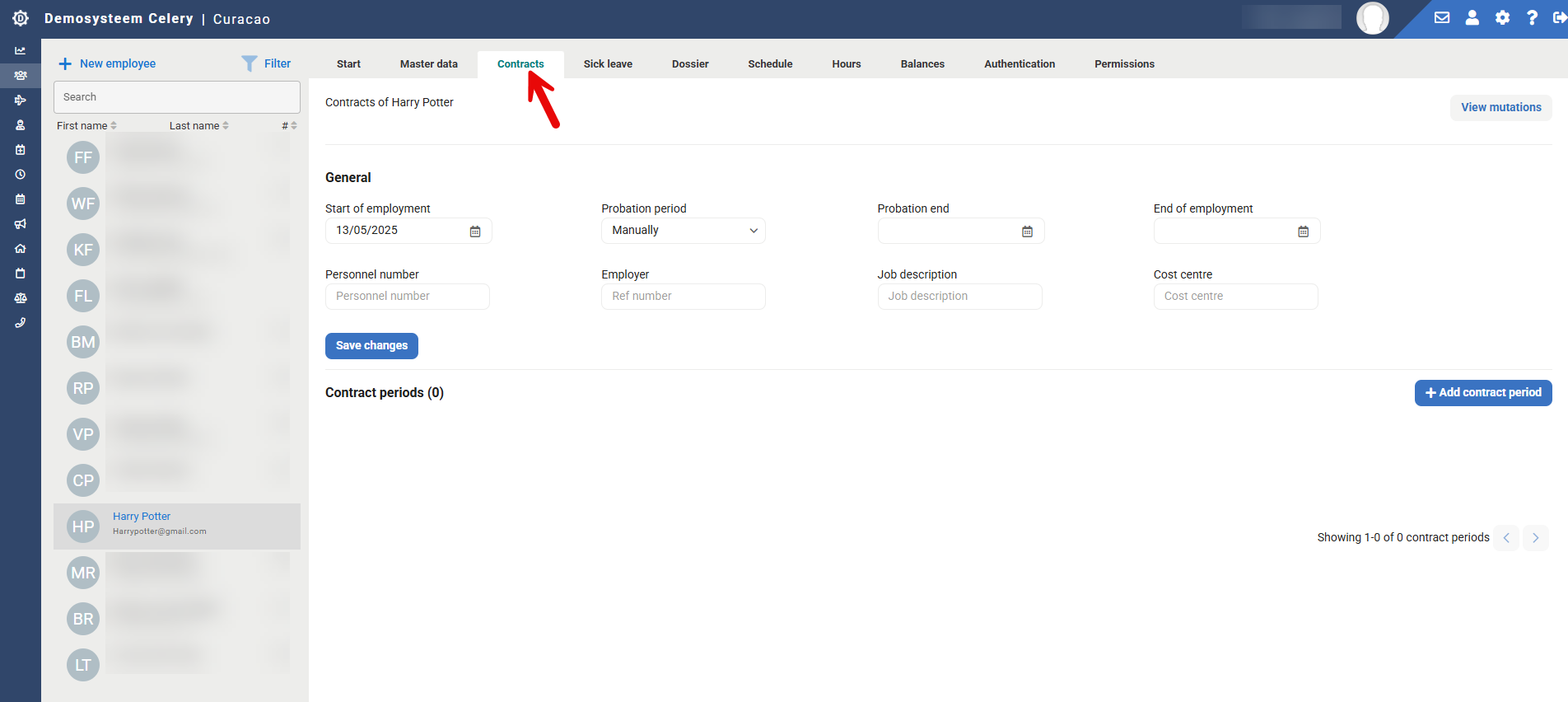
In the Contracts tab, the various salary agreements are imported into Dyflexis as contracts.
When the data needs to be sent to Celery go to the Payroll tab, to verify all data.
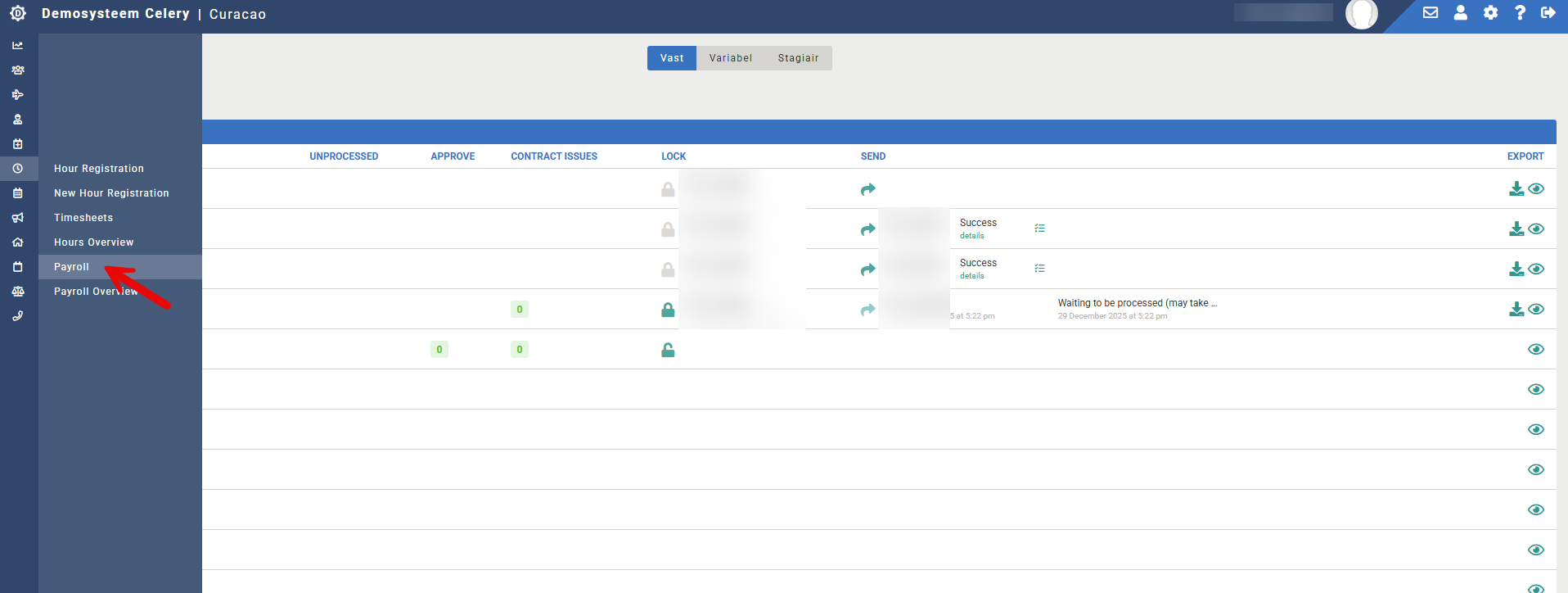
After verification each period must be closed before sending it to payroll Celery.
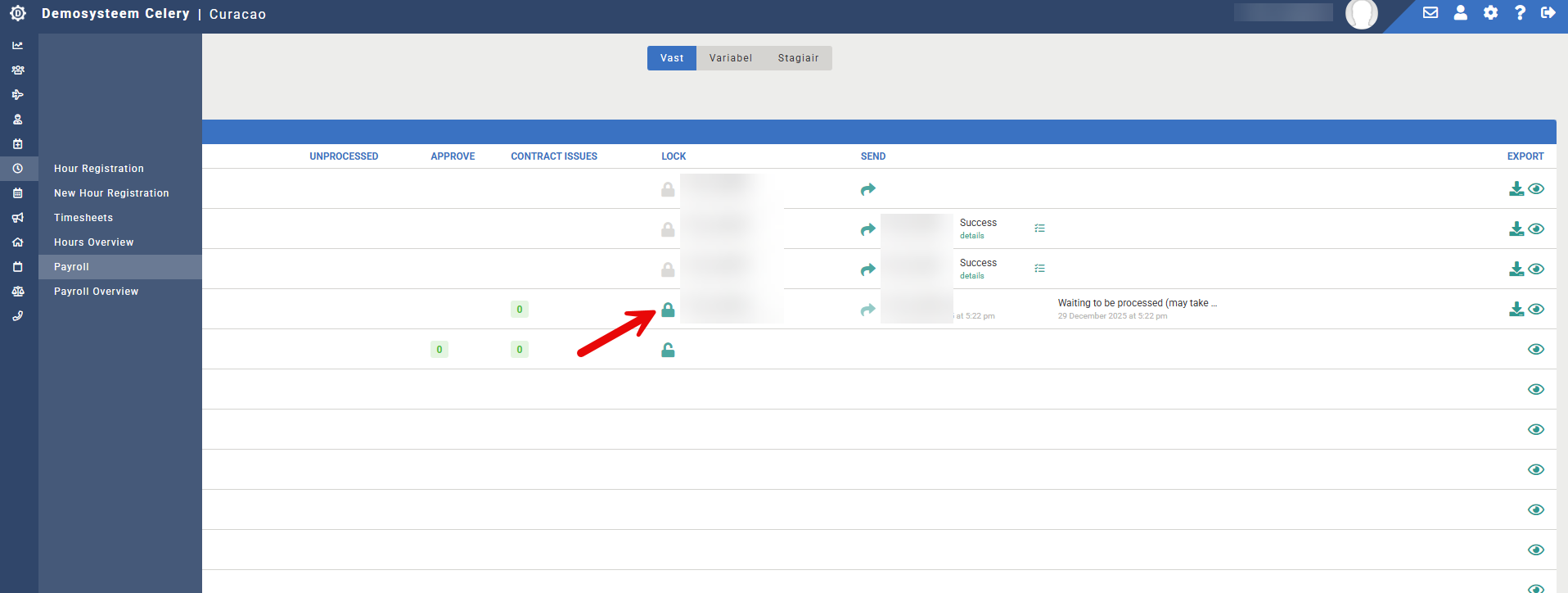
Send the data from Dyflexis to Celery with the Send. This might take a while.
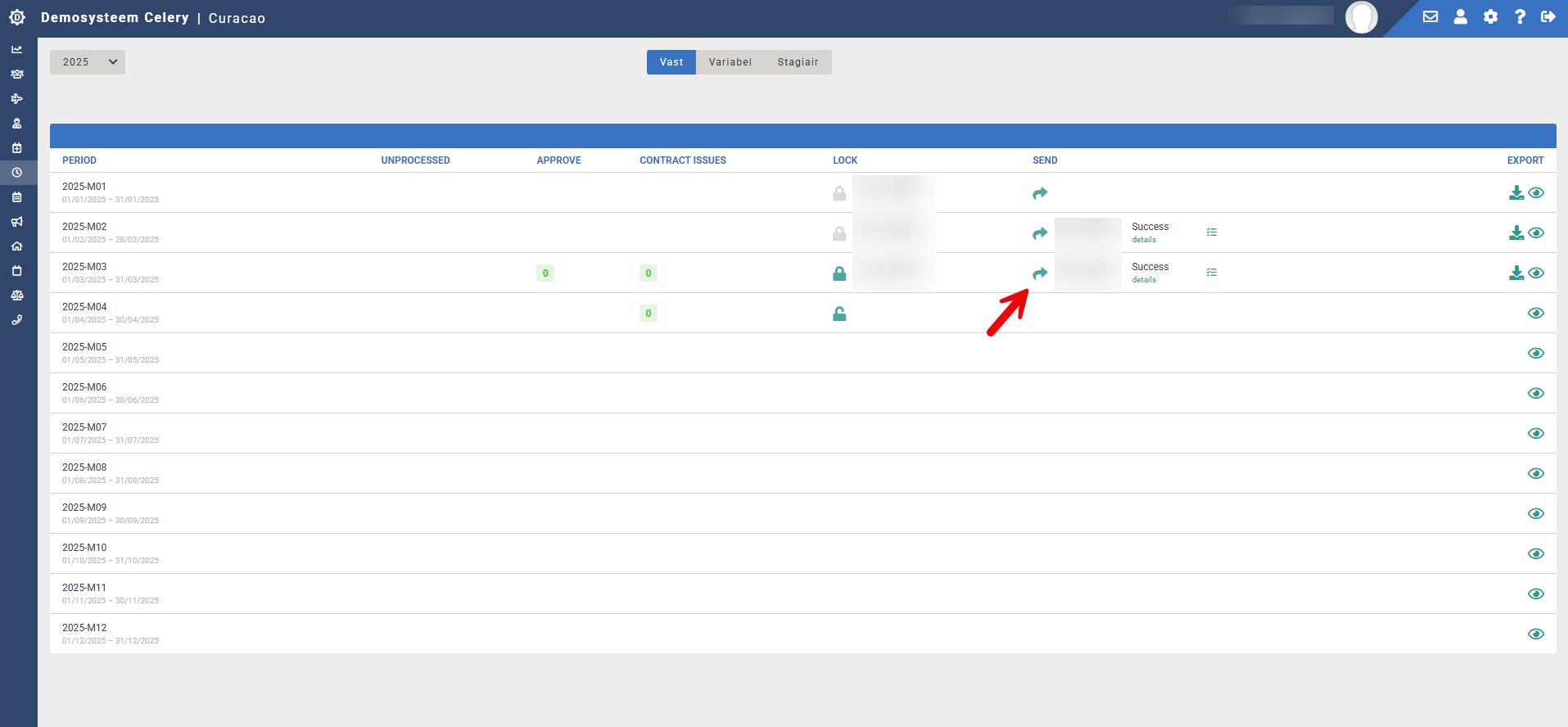
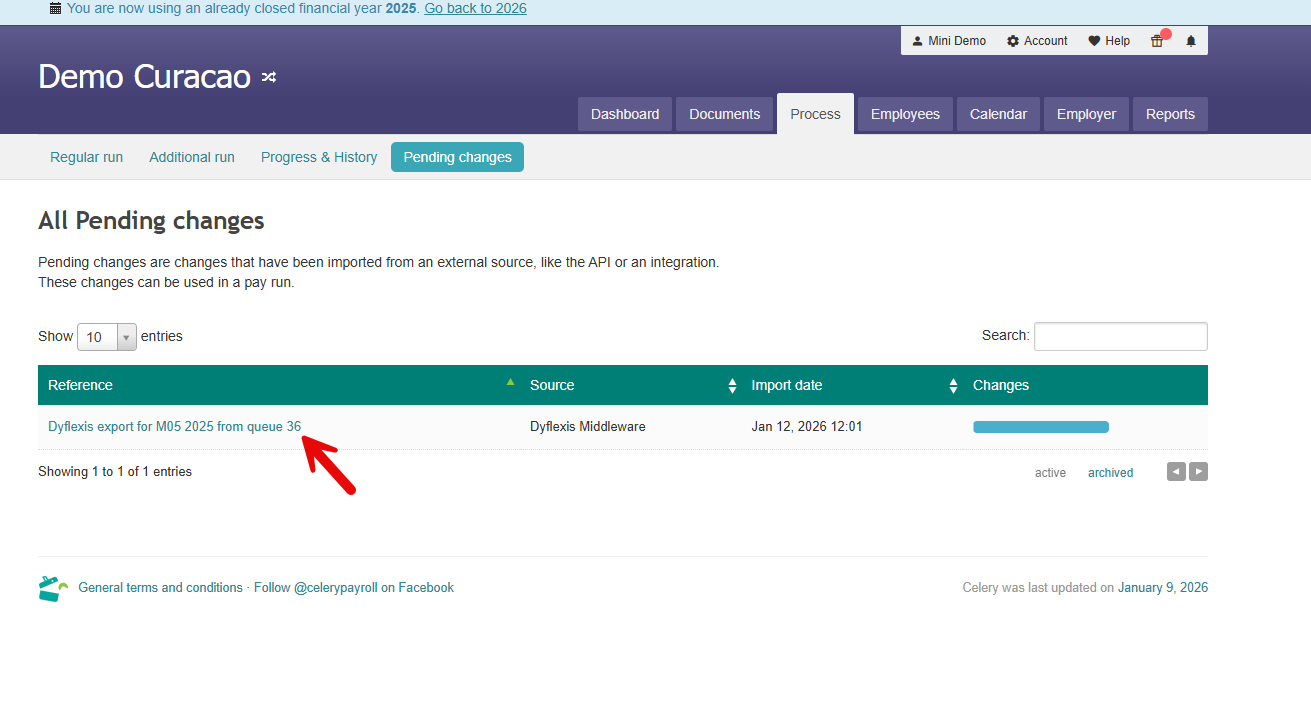
5. Processing Data from Dyflexis in Celery
Data sent from Dyflexis arrives in Celery as Pending Changes under Process.
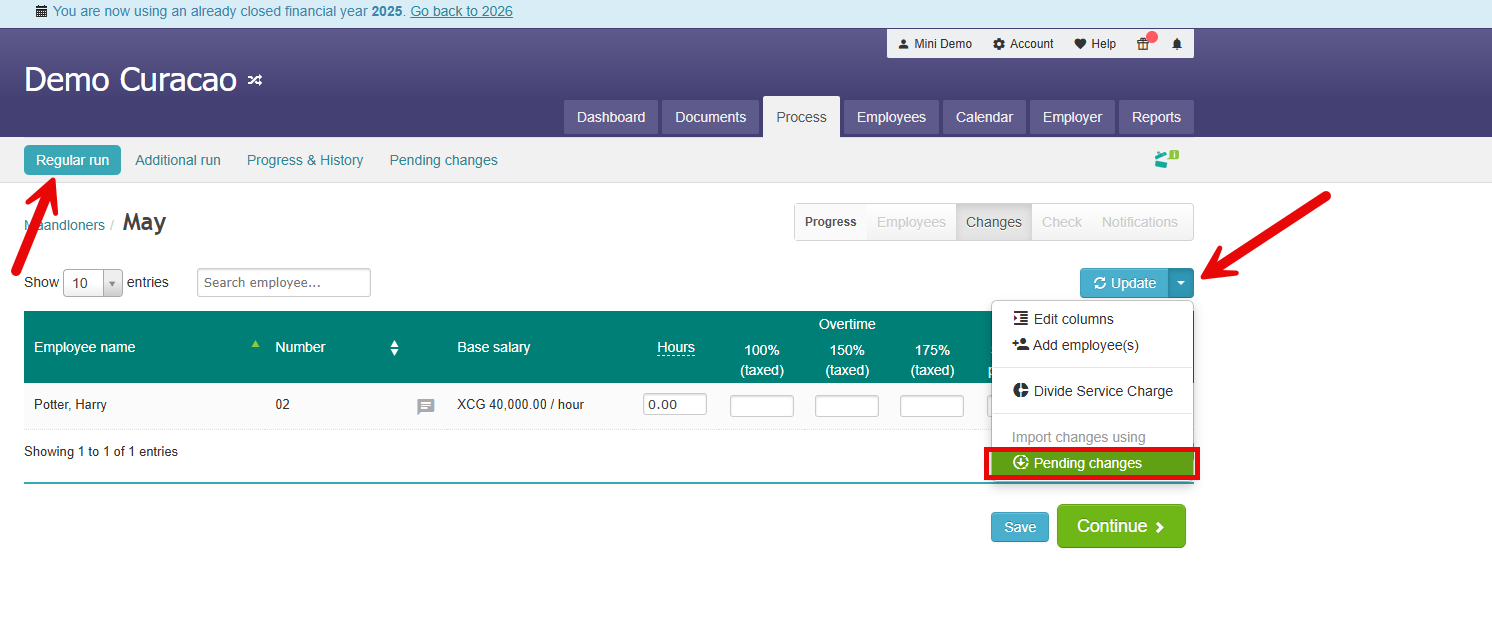
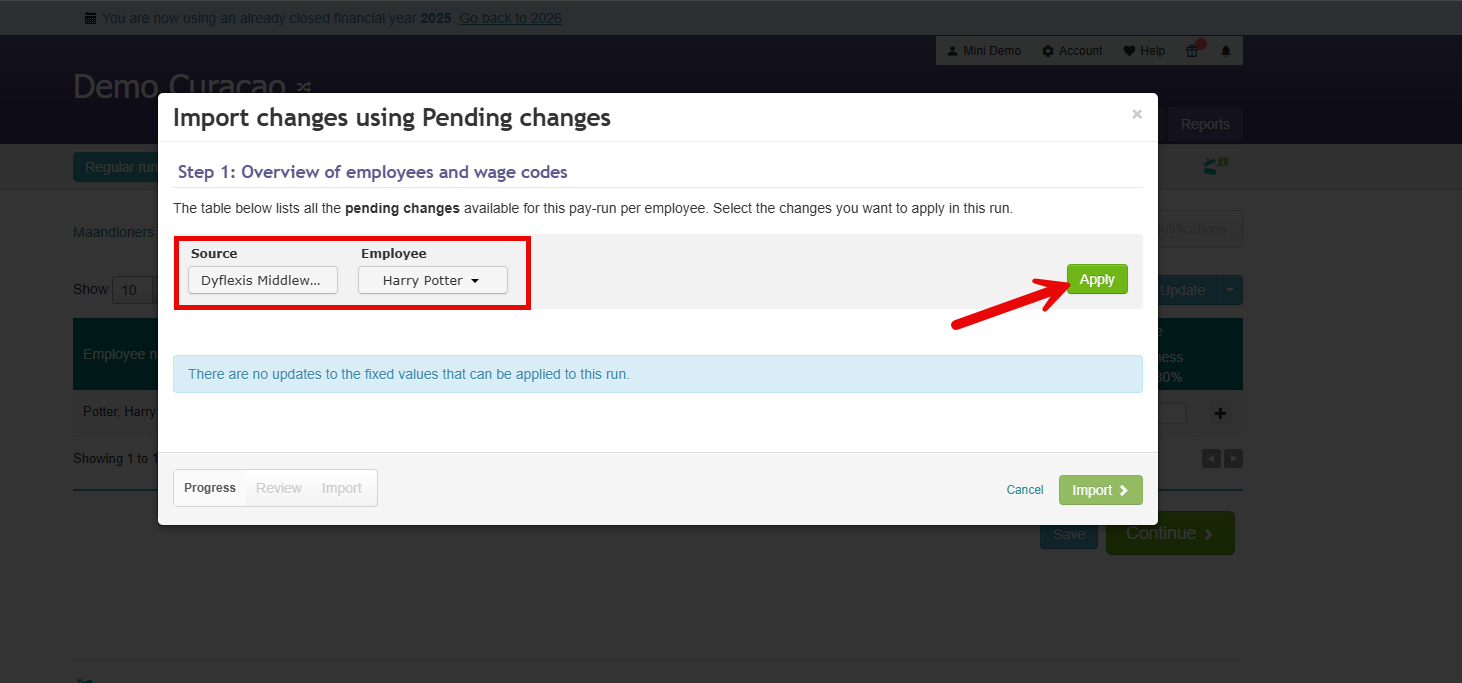
Process a run for the employee and click on the dropdown under Updates to find the Pending Changes.
Fill the dropdown with the information and click on Apply.
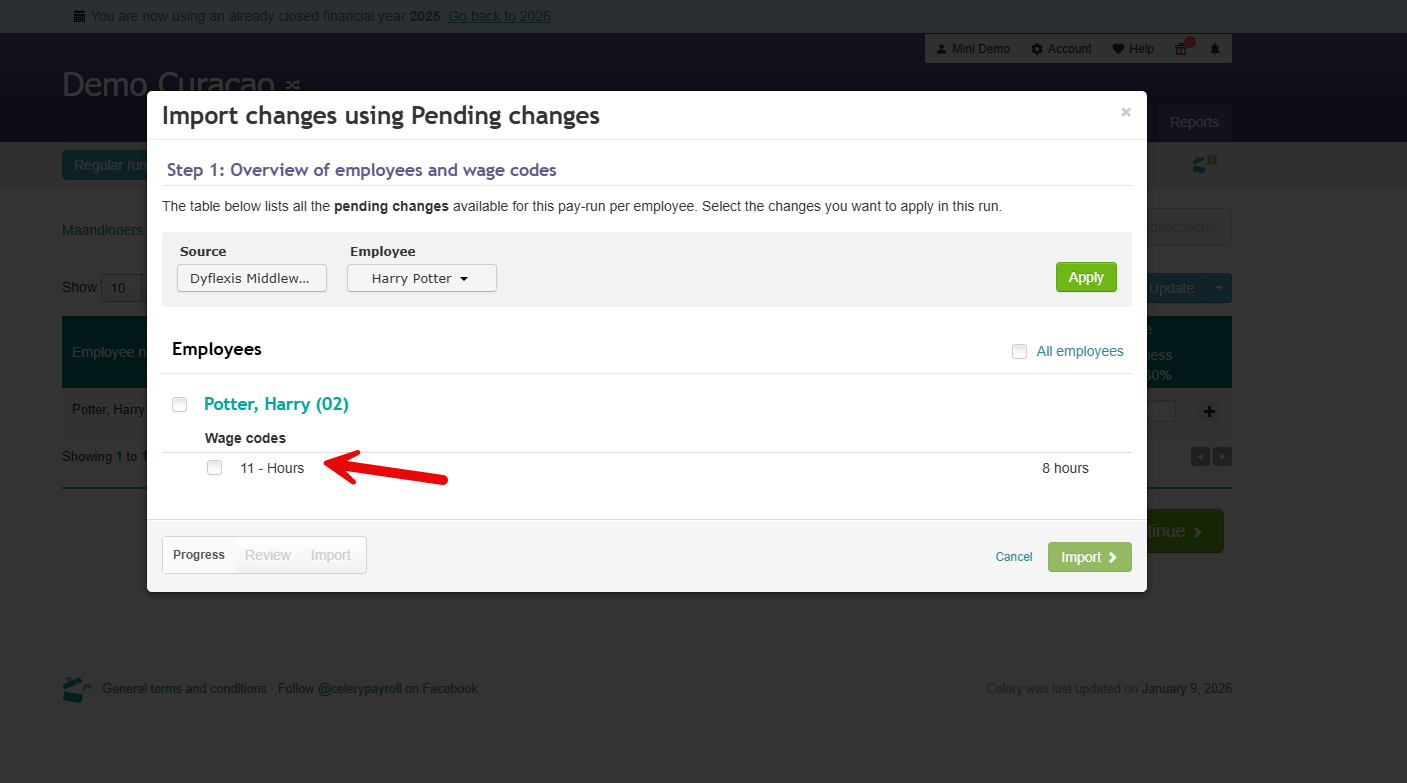
The Dyflexis worked hours information appears under the employee’s name. Please remember to select the checkboxes before clicking Import.
- After everything is completed, the pop up can be closed.
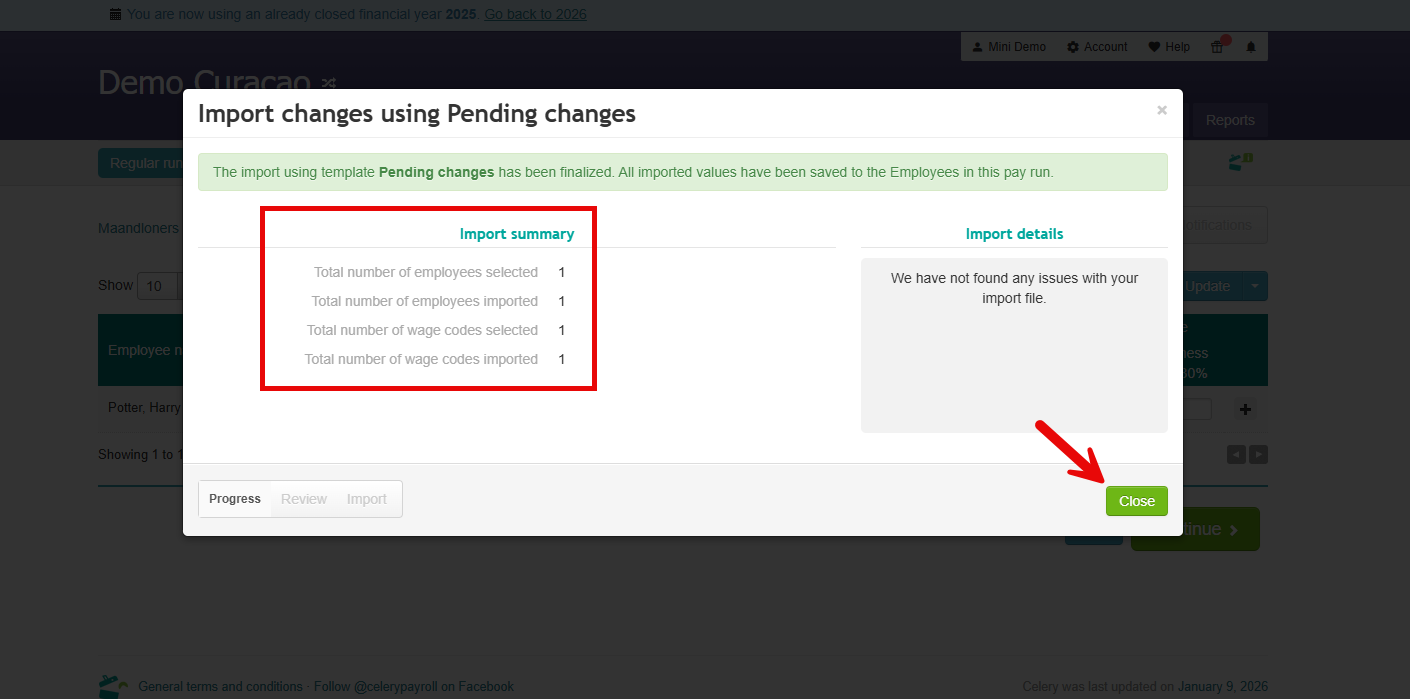
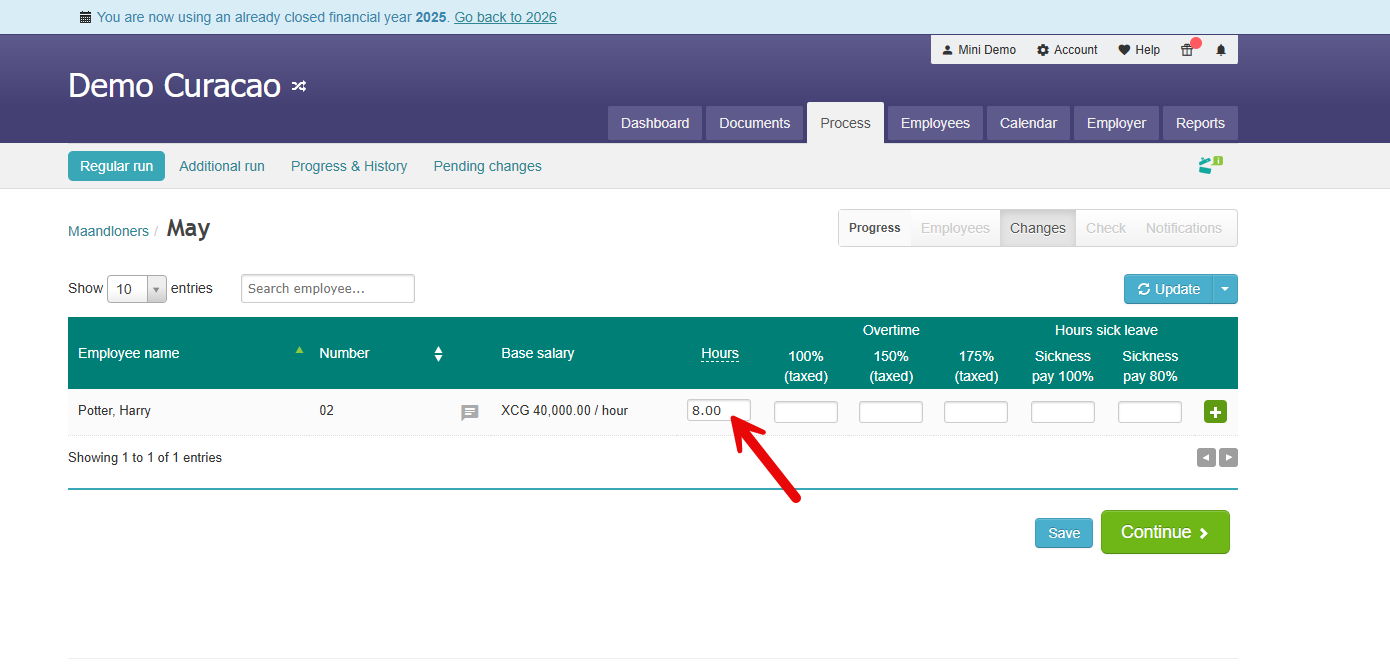
- The hours will show up in the wage code in this case Wage code 11 - Worked hours.