Payroll - step 4: Add your employees to Celery
You have two options: add employees one by one, or import them all at once.
Option 1: Add one employee manually
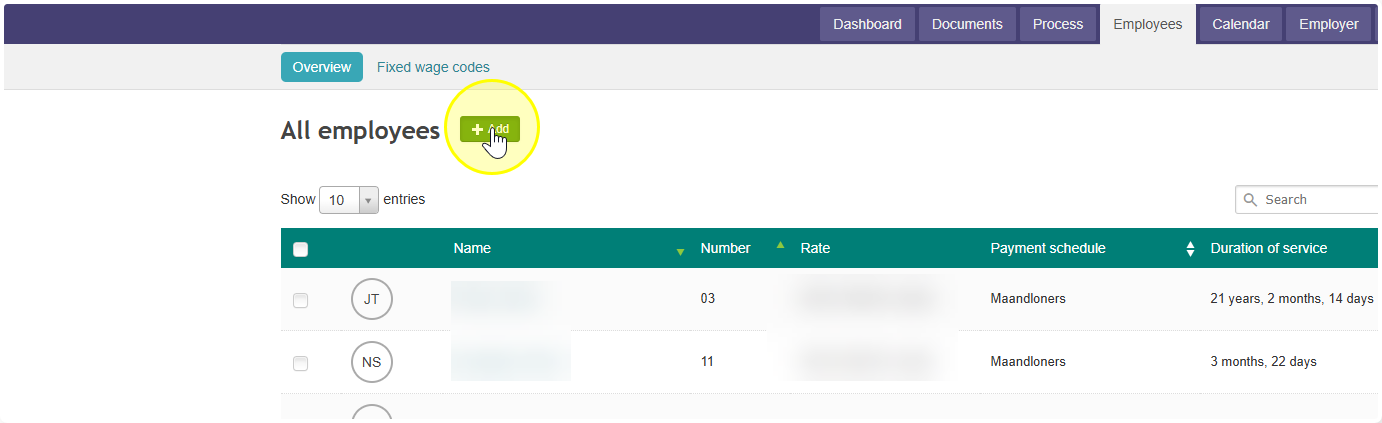
- Go to the Employees tab in Celery.
- Click Add.
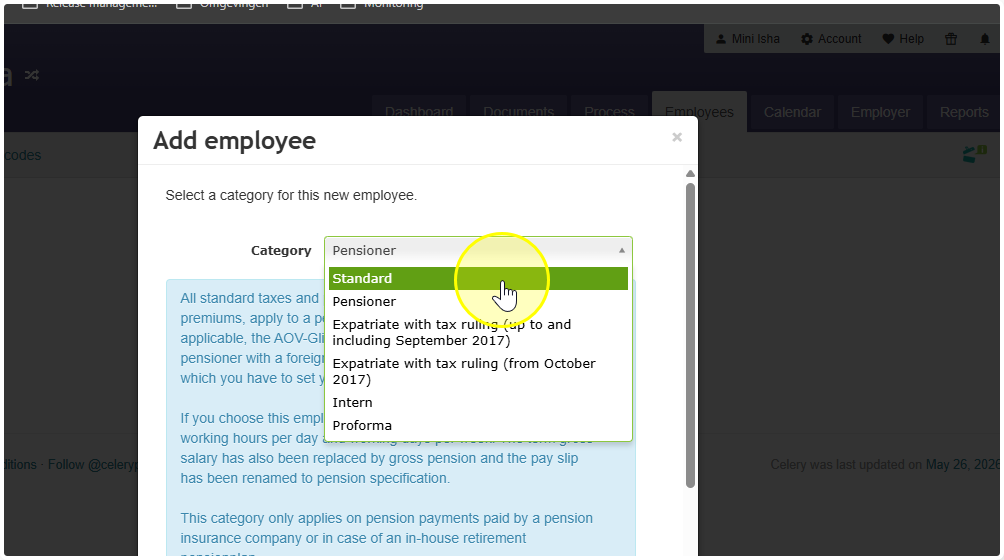
- You will be asked to pick an Employee Category. Each category has a short explanation to help you choose the right one.
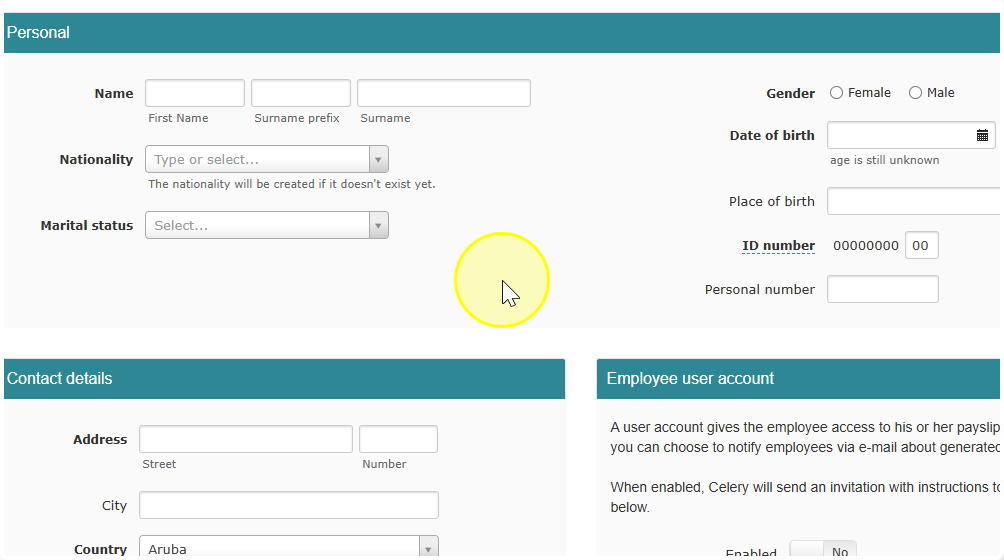
- Fill in the employee's details.
Option 2: Import multiple employees at once
If you have many employees, importing saves a lot of time. Choose the method that matches where your data is coming from:
From an Excel or CSV file
- In Celery, go to Account → Import & Export → Import employees.
- Download the example file shown there.
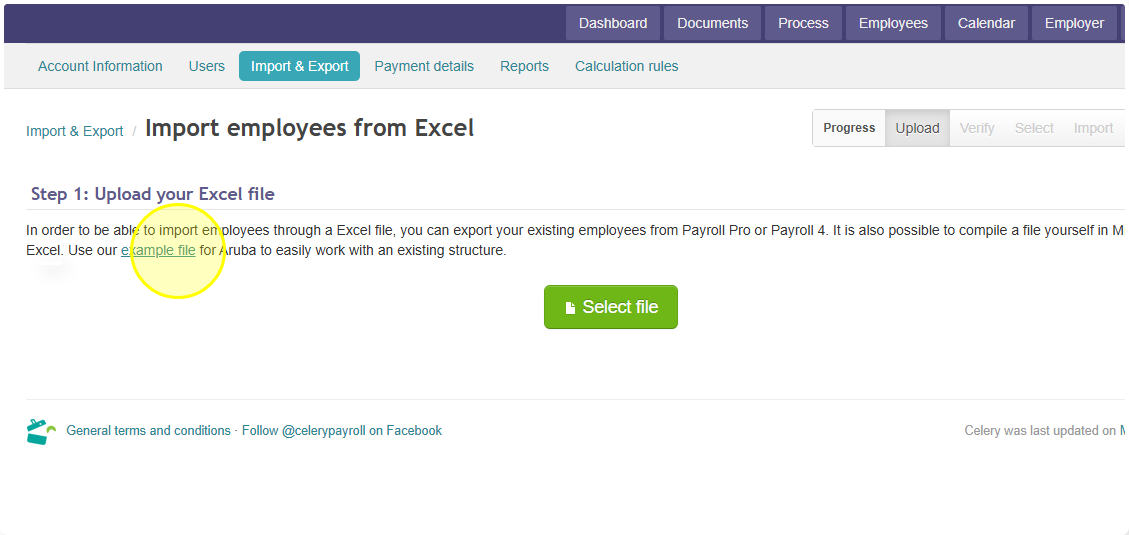
- Fill in your employee data using that example as a guide.
- Save the file to your computer — you'll upload it in the next step.
From another payroll system:
Are you coming from a different payroll system? You can also import employees directly from systems like PayTime, Rainbow, Payroll Pro, Visual Payroll, or Payroll4. The instructions for each system are in the import tool itself — just select your system and follow the steps shown there. Ready to import?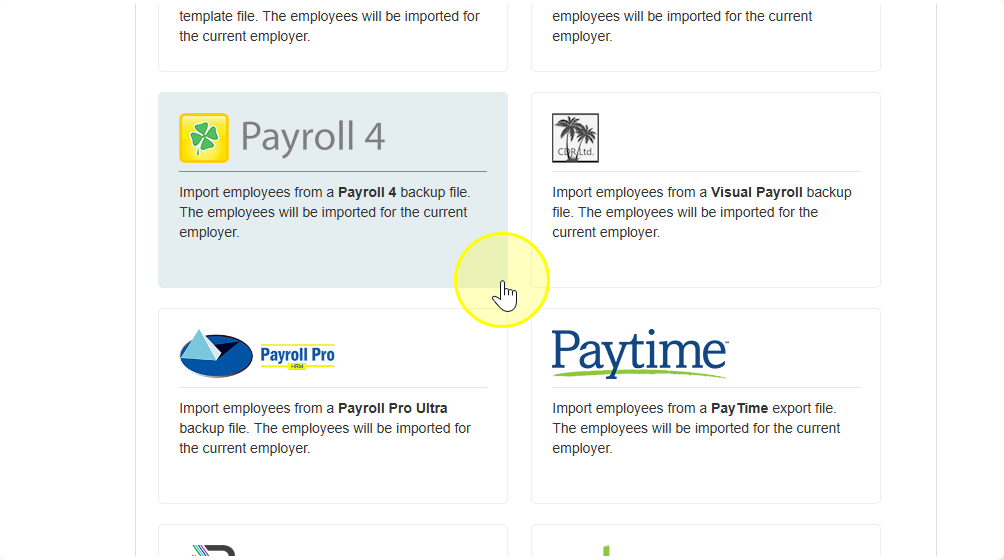
Once you have your file ready, follow our step-by-step guide: How to import employees