Payment Files in Celery
What is a payment file?
A payment file is a digital file you send to your bank. It tells the bank who to pay and how much. You make this file in Celery and upload it to your online banking.
Step 1 – Set it up
Before you can use a payment file, you need to turn it on.
You need to turn this on for all employees. Use the bulk option to do them all at once. This saves a lot of time.
Select the employees and click on Bulk edit - Choose: Payment in payment file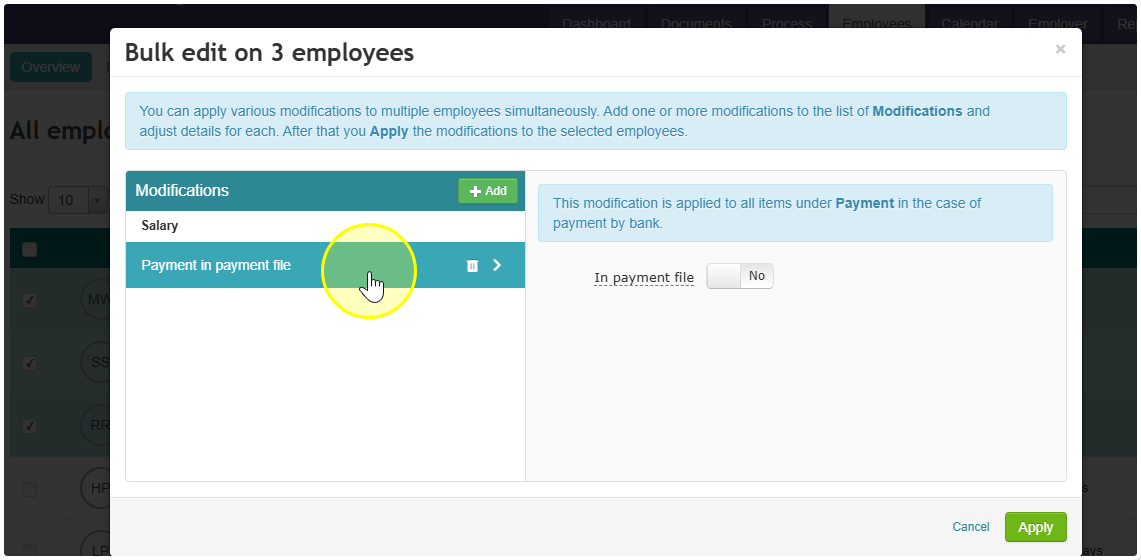
What can you include in a payment file?
You can pay these three things in one file:
- Net wages – the take-home pay for your employees
- Fixed amounts – payments to other accounts
- Withheld amounts – money you need to send to third parties (like tax or pension)
Step 2 – Run your payroll first
Make sure your payroll run is done before you create the payment file. Everything needs to be processed first.
Step 3 – Create the payment file
- Go to the Reports tab
- Click on Report 3 – Bank Transfers (under periodic reports)
- Fill in the details and click Apply
- Check that the overview looks correct
- Click Export
- Pick the payment file type for your country
- Confirm that you want to generate the report
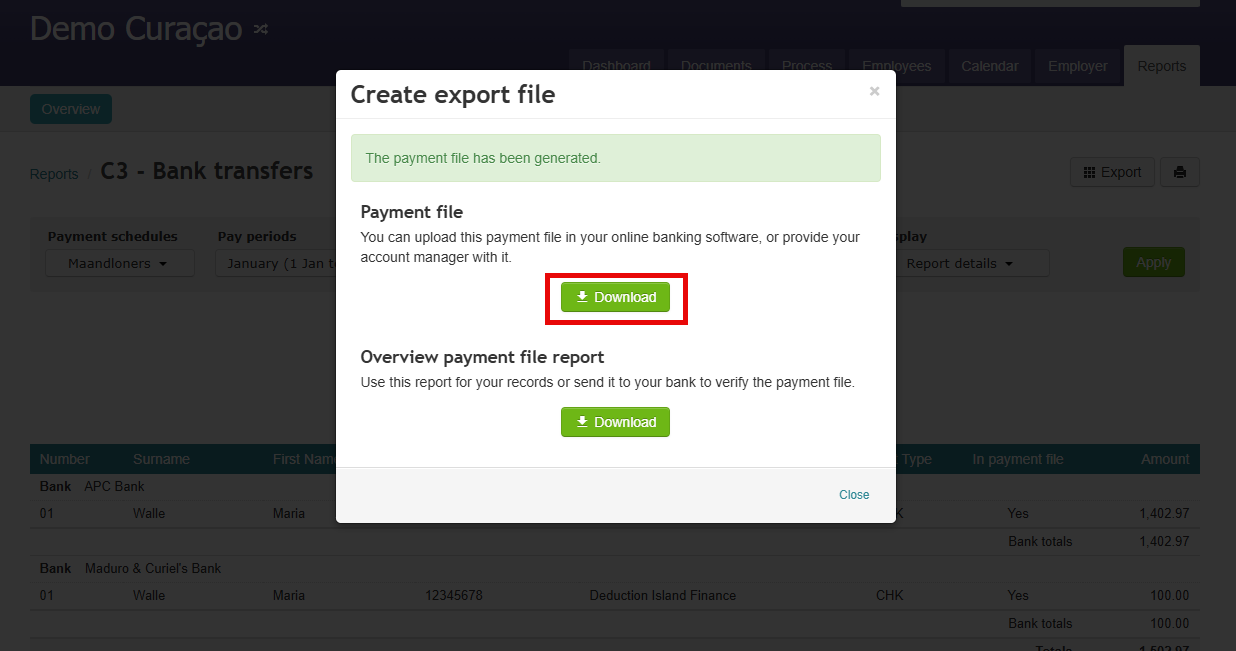
- Download the file — it goes to your Downloads folder
- Upload the file to your online banking
Using a specific bank? Read this first
| Bank | What you need to do |
|---|---|
| RBC | Ask the bank to turn on File Transfer in your RBC online banking |
| MCB, CMB, or WIB | You need Corporate Online Banking + ask the bank for your Originator ID code (you enter this once in Celery) |
That's it! Once the file is uploaded to your bank, the payments will be processed.