How to Add or Remove a Company User
What is a company user?
A company user is someone who can log in and work in Celery for a specific company.
You can add as many company users as you need — for free.
Tips:
- Never share login details. Each person should have their own account.
- Always use a work email address, not a personal one.
- Only an account admin can add, change, or remove users. If there is only one user in the account, that person is automatically the admin.
Not what you are looking for?
There are three types of users in Celery:
- Company user — access to one specific company. (That's what this article is about.)
- Account user — access to all companies on your invoice. See this article.
- Employee user — an employee who can only see their own data. See this article.
Do you use a payroll service provider? Ask them to add the user for you.
How to add a company user
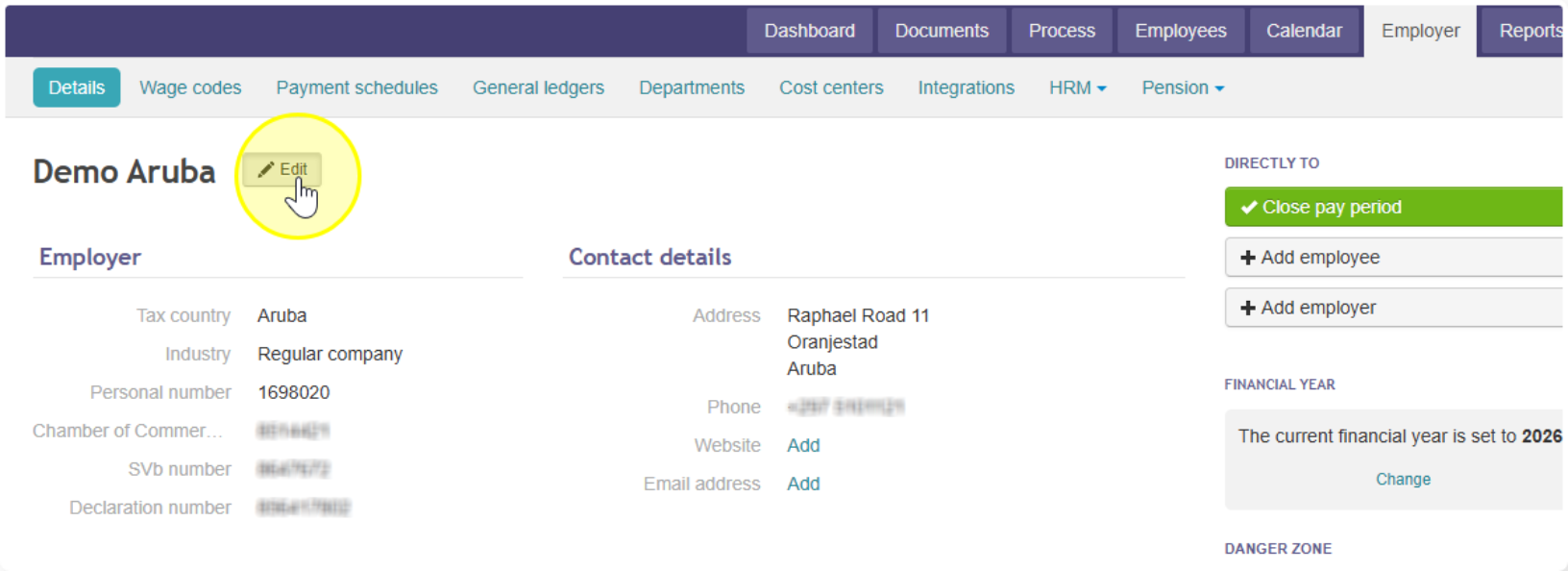
- Go to Employer and click Details.
- Click Edit next to the employer's name.
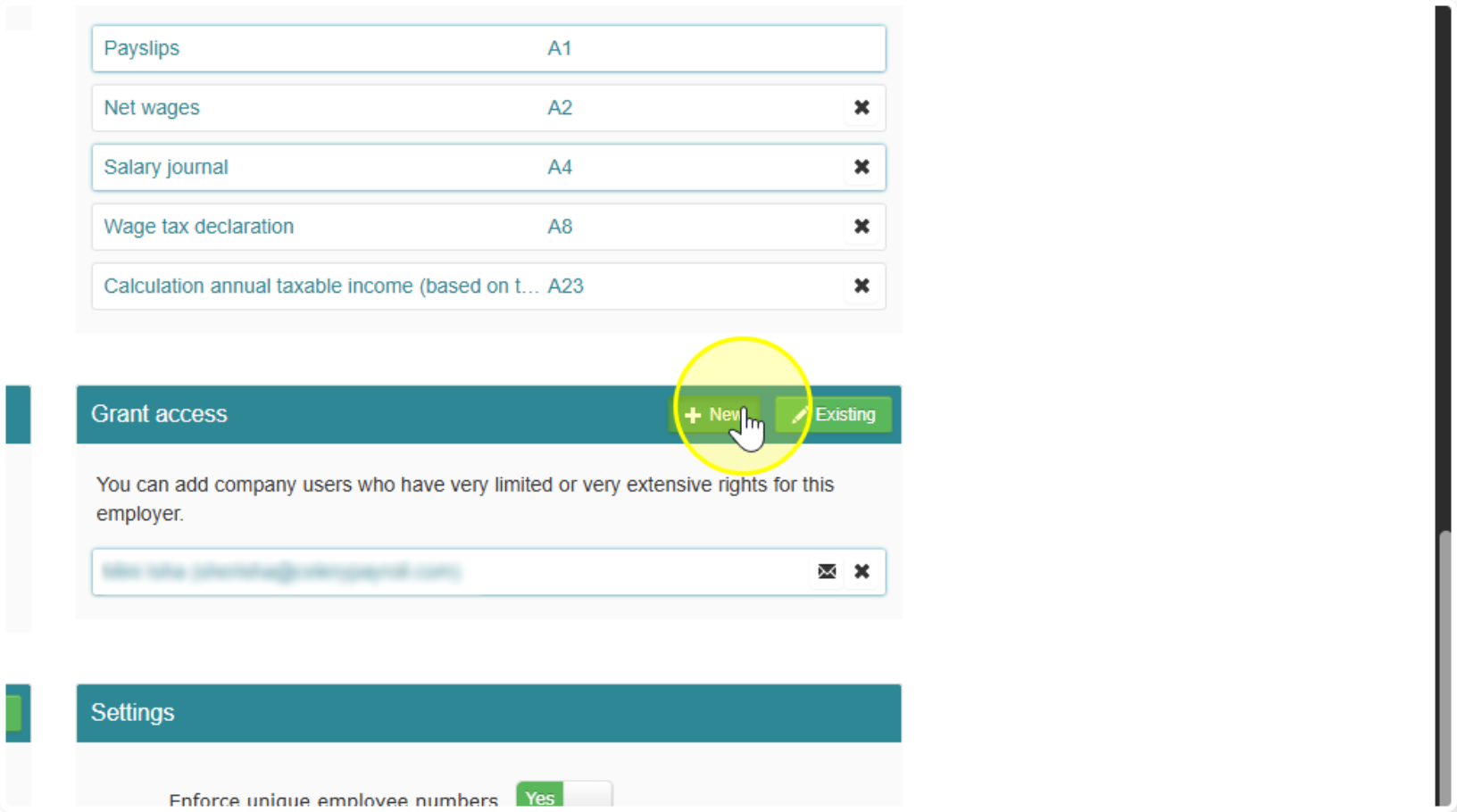
- Under Grant Access, click new.
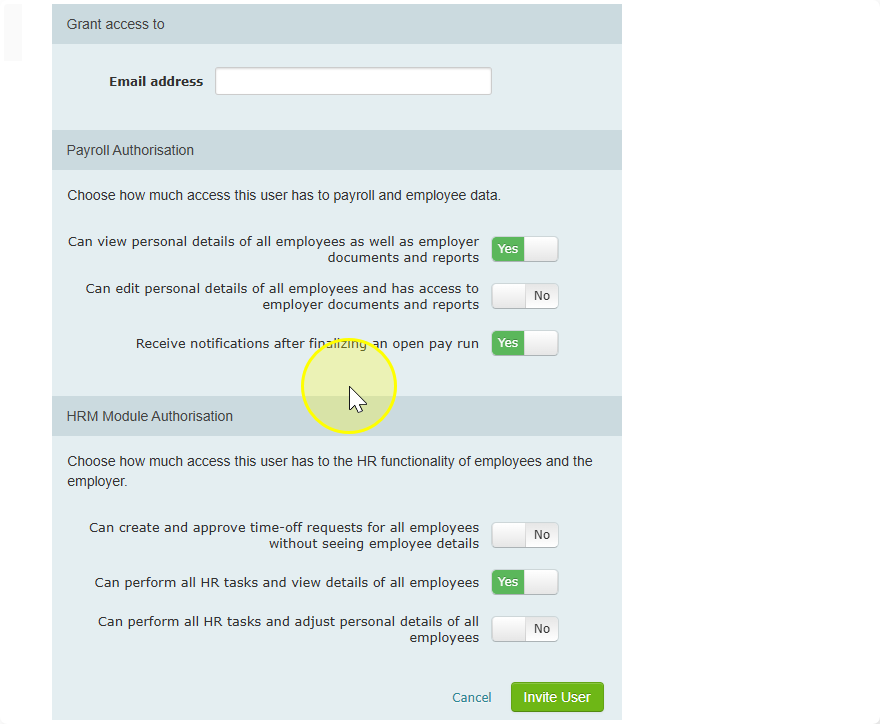
- Add the user and choose what they are allowed to do.
How to remove a company user
When someone leaves, remove their access right away.
- Go to the company users list.
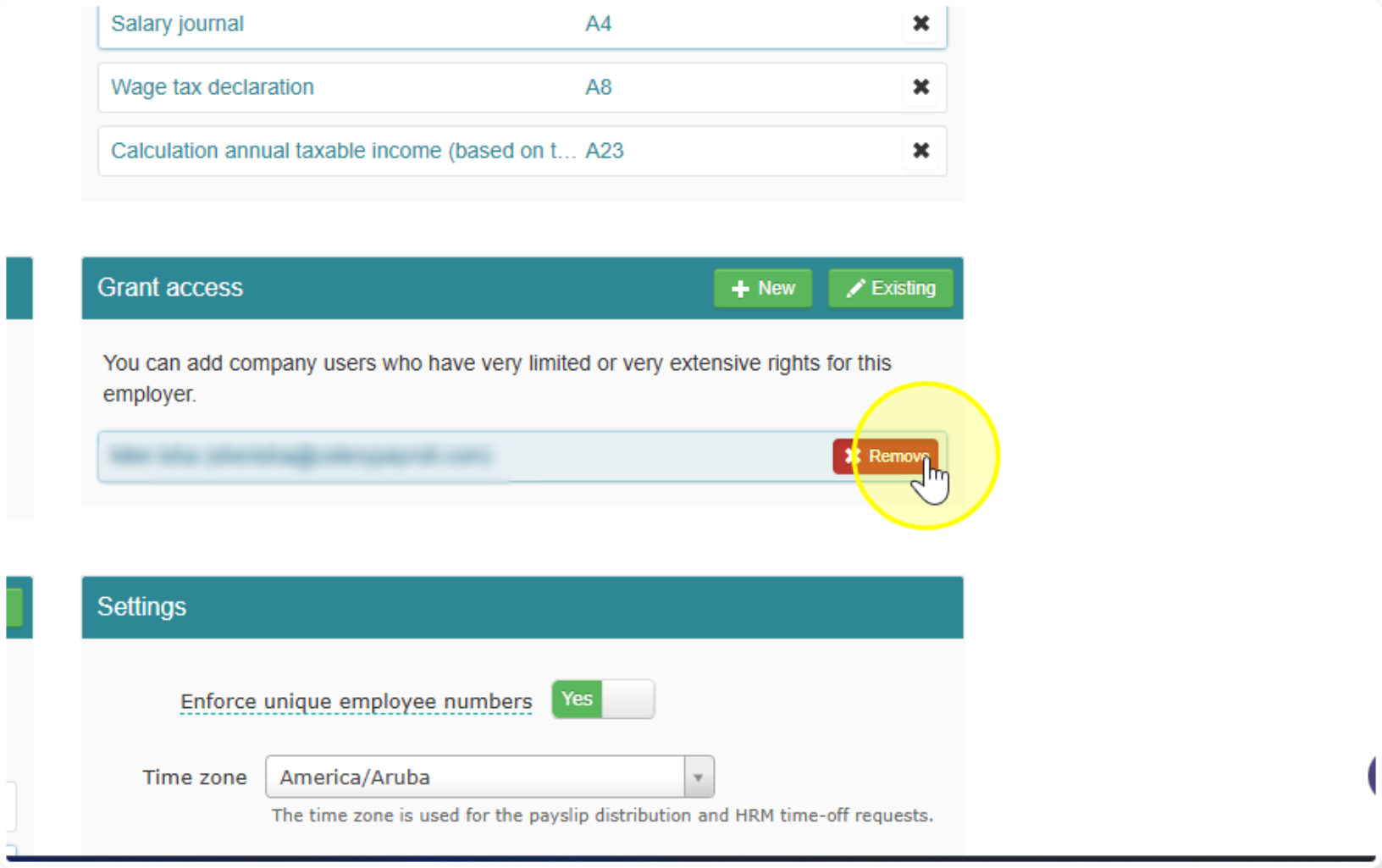
- Hover your mouse over the username you want to remove.
- Click the x that appears on the right.
- Click Delete to confirm.
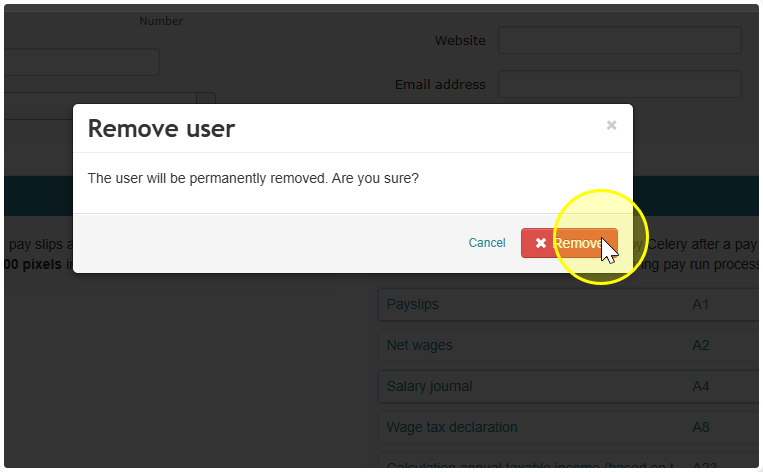
The user is now permanently removed.